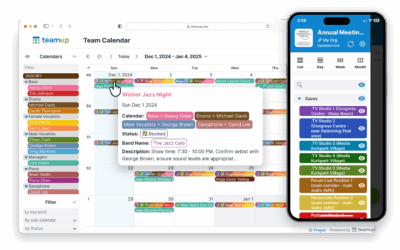
Better calendar setup makes all the difference in how well your calendar works for you. So choosing how to organize your calendar is a key decision. It’s directly related to how your calendar functions, which means calendar organization can make you more or less efficient when using the calendar.
How you name and organize your sub-calendars is foundational to your calendar setup.
Here are the features you can use with sub-calendars:
- Color-coding
- Control access to individual sub-calendars
- Disallow overlapping events
- Sub-calendar specific notifications
- Sync via iCalendar feeds
- Grouping in folders, nested folders
- Filter by sub-calendar
Access permissions for better calendar setup
How you organize your calendar is tied to how you let others access your calendar.
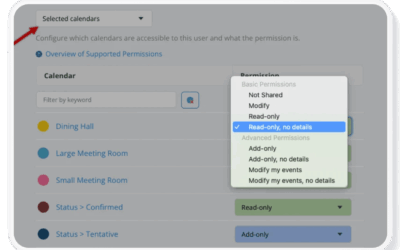
That’s because sub-calendars—which define your calendar organization—can be shared or not shared when adding a calendar user or creating a shareable link. You can share a sub-calendar, all sub-calendars, or selected sub-calendars, and set an access permission level for each sub-calendar shared with a user. Or you choose not to grant access to a sub-calendar, depending on how each user needs to work with the calendar.
Custom event fields, on the other hand, are present for all users and links, unless a no-details permission (such as Read-only no details) is used.
Other sub-calendar features
With Teamup, you can create multiple sub-calendars and organize them in folders. Assign a color so you can color-code all your calendars. It’s also easy to nest folders for detailed organization or to indicate hierarchies.
You can set up sub-calendar specific notifications, and calendar users can create and manage their own notifications. These notifications include changes to events on a specific sub-calendar, a daily agenda, Slack notifications, and more.
Choosing categories for better calendar setup
So, with that in mind, consider the categories you assign to sub-calendars carefully. Who needs access to each category? What actions do they need to be able to do with each category: view only? Add and modify only their events? Or have broader ability to edit all events on that “category” sub-calendar?
It can be tricky to figure out exactly what your calendar needs to look like to work best for your needs and your team. We’ve collected these ideas and sub-calendar inspirations to help you visualize and plan your perfect calendar setup.
Set up team folders and team member sub-calendars
This is a great set up if you are managing multiple teams. Create a folder for each team. Then create a sub-calendar to each team member and put it inside the appropriate folder. Now you can add calendar users and assign permissions:
- You (or any supervisor) can have permission to access all sub-calendars and folders, so you can work with all teams and team members.
- Members of Team 1 get access only to the Team 1 folder and sub-calendars. They won’t even see the Team 2 folder.
- Members of Team 2 get access only to the Team 2 folder and sub-calendars.
Organize by departments with nested folders
For an organization with many locations, or departments and sub-departments, you can organize by nested folders. Use the organizational flowchart and mirror it in your calendar. Start with a folder for each main department. Then add nested folders for teams, projects, or regions within each department.
Organize by regions for international companies
For international companies, or even for companies which cover a large amount of territory in one place, organizing by region can be a great solution. This setup works well for sales companies which operate by territory.
Set up sub-calendars for different company meetings and event types
At the beginning of the year (or anytime), you can set up a calendar for company meetings and events. Use sub-calendars to categorize the different types of events. If there are many event or meeting types, organize in folders. Or, alternately, create folders for various regions or departments to organize the sub-calendars.
Give access to the calendar according to which types of events are relevant for different users and groups. For example, you can create a user group for Sales; then give this group access to all sub-calendars related to sales meetings and events, as well as any company-wide event calendars.
Organize a calendar for community events
Using the same concept as above, you can organize event types for a community or hobby group or other organization. It’s a better calendar setup than throwing all community or group events into one big calendar, with no ability to search or sort.
Set up calendars for individuals and different schedules
When organizing a family, there are many factors to think of. If you have to see all the scheduling details for all members of the family, it can get overwhelming. Further, not all scheduled events are relevant to all family members. To solve this problem, create a sub-calendar for each family member. Then create a sub-calendar for each schedule, such as School, Work, Chores, etc.
Use the one-to-many feature to input relevant dates and events on each schedule and add them to the sub-calendar of the relevant family member. For example, a school holiday for George Jr. would go on his calendar and on the School calendar . A half-day at school for Joey goes on School calendar and on Joey’s calendar. George Jr. can see his own schedule, Joey can see hers, and you or any other caretaker can see the entire school schedule for both children.
Organize and manage deliverables or types of content
Schedule and track types of content or other deliverables with Teamup. First, categorize your main deliverables. For content, you might use blog post, case study, guest post, and infographic. These main categories become individual sub-calendars. Create a Team folder with a sub-calendar for each team member. Each “content piece” can be assigned to the right content sub-calendar and to the responsible team member’s calendar. Or create sub-calendars to track which content pieces are new, in progress, and completed.
Organize by individual clients
Create a sub-calendar for each client to hold their scheduled appointments, programs, or other deliverables from your work. Give each client read-only access to their designated calendar.
Organize bookable rooms or shared spaces
If you manage shared rooms or other shared spaces, this approach can work well for a better calendar setup. Add a calendar for each room or space and disallow overlapping events. This prevents accidental double-booking. Set up access for self-booking, if needed: This lets each person make their own reservations or booking requests, but they cannot modify or remove usage scheduled by other team members.
Schedule and track shared equipment or resources
Using the same organization as the shared space calendar, you can create a calendar to organize, schedule, and track shared equipment and resources. In this case, create a sub-calendar for each resource or piece of equipment. Use folders to sort these in a way that makes sense: for example, a school might use folder categories like Audio/Visual Equipment, Research Tools, Mobile Labs, etc. Give teachers or other users Modify my events permission to schedule use of the resources.
Organize sub-calendars by the program type
In this example, a better calendar setup is organized for scheduled programs and events. The sub-calendars are put into folders by the type of program. Nesting folders allow this organization to be very detailed, so users can find exactly the type of program or event they’re most interested in.
Organize sub-calendars by type of group
Do you work with different groups of people within an organization? Create a folder for each group, then create a sub-calendar for each individual within the appropriate folder. Each user can have access to the to only to their own calendar or to the whole group’s set of sub-calendars, as appropriate.
Get started with Teamup
Ready to create a better calendar setup for yourself? Learn more about color-coded sub-calendars here, or try them out on a live demo calendar.