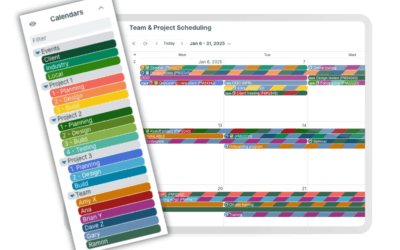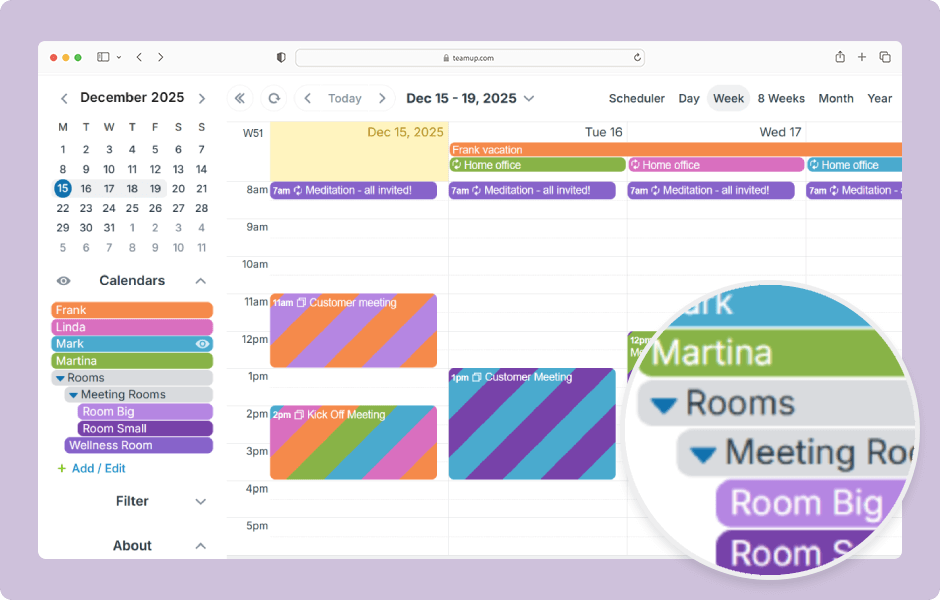
Folders are a way to group sub-calendars and to create an organizational hierarchy for them. Folder organization makes it easier to find the sub-calendars you are looking for, or to work with only a group of sub-calendars.
Access level required: Administrator
- Open your Teamup calendar in a browser.
- Click the blue menu (top right).
- Select Settings.
- Open the Calendars tab.
- Click the Pencil icon next to a sub-calendar name to edit it.
- Use the ‘>’ character to build a hierarchy of sub-calendars.
- Use a right arrow symbol to organize calendars in a folder: Name of Folder > Name of Sub-Calendar.
- Repeat the same “Name of Folder > ” for every sub-calendar you want in the folder.
- To create nested folders, add more folder names: Folder 1 > Folder 2 > Sub-Calendar.
- Repeat this process for any other sub-calendars you want to place in folders.
- Click Back to calendar (top left) to return to the calendar view and see your folder structure.
- You can expand or collapse folders to show or hide their calendars.
ℹ️ Learn more