When you’re scheduling people or resources, double-booked events can cause problems. Teamup has one simple setting that will automatically prevent overlapping events on a sub-calendar.
Note: The Overlapping Events setting applies to events within one sub-calendar only.
Access level required: Administrator
- Open Teamup in a browser.
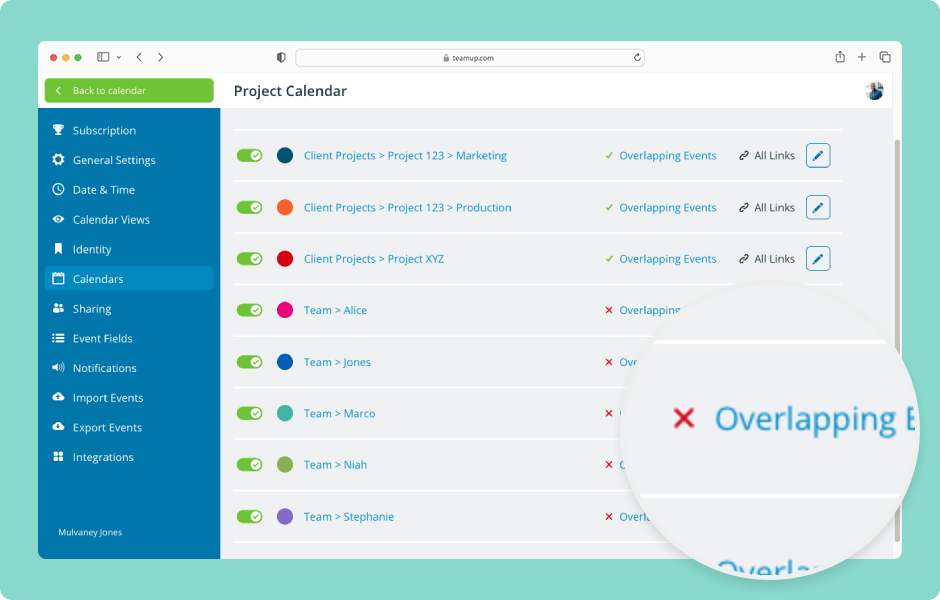
- Under the Calendars list (left side), click the Add/Edit link.
- Click Overlapping Events next to any calendar. Set it to red/x to automatically prevent overlapping events on that sub-calendar.
If a user tries to create a overlapping event on one of these calendars, they will get an error.
ℹ️ Learn more