Teamup’s permission levels let you control what each person can see and do on your calendar. You can give someone the same permission on all sub-calendars at once, or choose which sub-calendars to share and set a permission for each one.
Selecting sub-calendars
When you add a user to a Teamup calendar, you choose which sub-calendars they can access. Share all sub-calendars with users who need the full picture. For others, share only selected sub-calendars depending on each person’s role.
Here are some examples:
- Office manager: All sub-calendars are shared.
- Company leadership: All sub-calendars are shared.
- Project team: “Project Tasks” and “Company Events” are shared. “Management” isn’t.
- Contractor: “Job Schedule” and “Crew Availability” are shared. Everything else isn’t.
- Front desk staff: “Appointments” and “Staff Schedule” are shared. “Payroll Deadlines” isn’t.
- Volunteer: “Events” and “Volunteer Shifts” are shared. “Board Meetings” isn’t.
- Client: “Team Availability” and “Client Deliverables” are shared. Everything else isn’t.
That way everyone gets the access they need, and nothing more.
Setting permission levels
Choosing sub-calendars controls what a user can see. Permission levels control what they can do with each sub-calendar, like view, add, or edit events.
You can set the permission levels in two ways:
- The same permission level for all sub-calendars: Select one permission level which applies to all sub-calendars. The user will have access to all sub-calendars at the selected permission level.
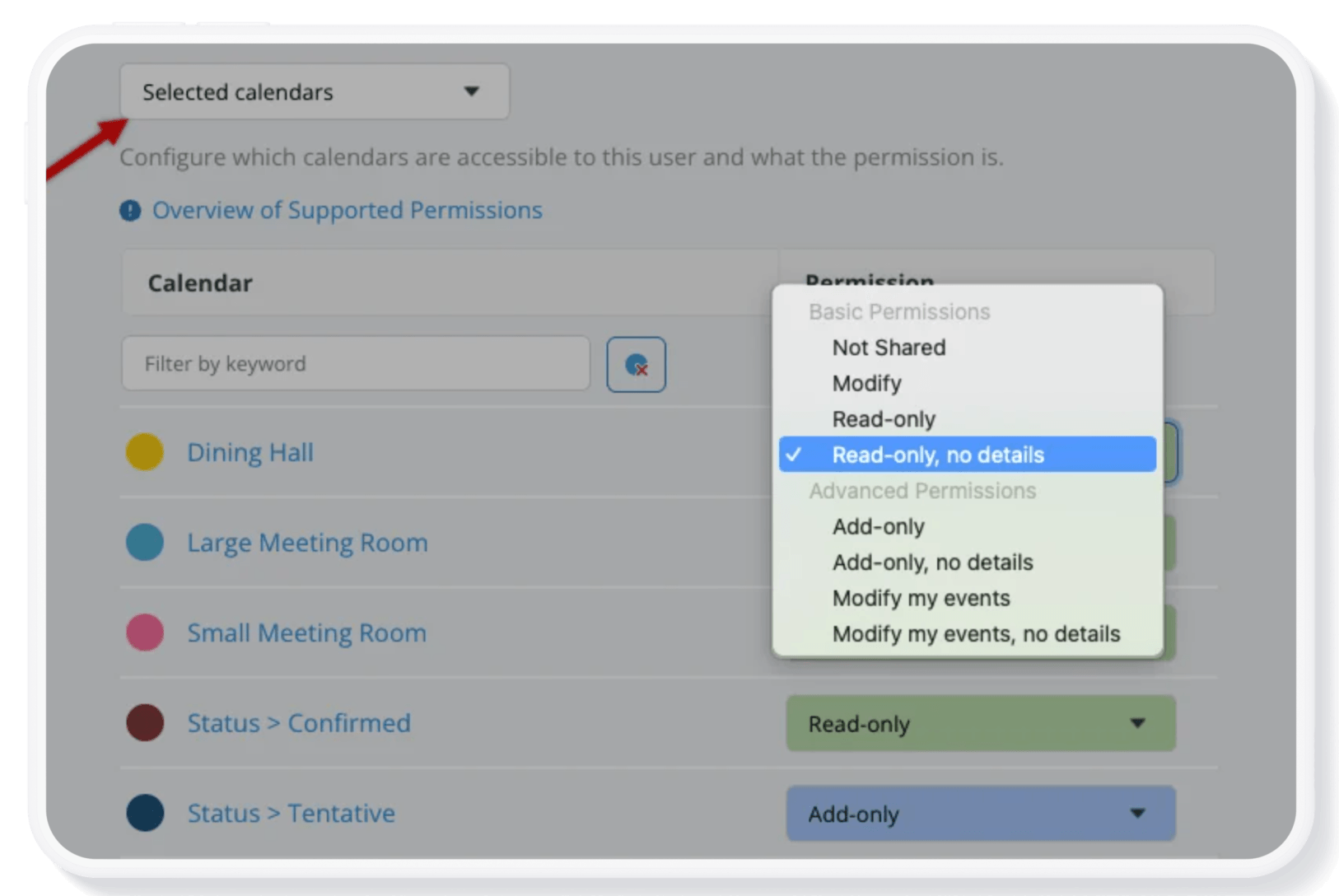
- Different permission levels assigned to selected calendars: Pick which sub-calendars to share and set the permission level individually, for each one. Any sub-calendars you don’t want the user to access are set to the Not shared permission.
Permissions can be adjusted for any user at any time by a calendar administrator.
Customized, secure access
Selecting sub-calendars and setting permission levels work together, so you can tailor access to each person. Everyone sees what they need and can do what their role requires, and nothing more.
Here are the same examples from above, with permissions assigned:
- Office manager: All sub-calendars are shared with Modify.
- Company leadership: All sub-calendars are shared with Read only.
- Project team: “Project Tasks” is shared with Modify, and “Company Events” with Read only. “Management” is Not shared.
- Contractor: “Job Schedule” is shared with Modify my events, and “Crew Availability” with Read only, no details. Everything else is Not shared.
- Front desk staff: “Appointments” is shared with Add only, and “Staff Schedule” with Read only. “Payroll Deadlines” is Not shared.
- Volunteer: “Events” is shared with Read only, and “Volunteer Shifts” with Add only. “Board Meetings” is Not shared.
- Client: “Team Availability” is shared with Read only, no details, and “Client Deliverables” with Read only. Everything else is Not shared.
That keeps private information hidden and protects your schedule from accidental or unwanted changes. Combine this with the ability to configure visibility for event fields, and you control over every layer of your calendar, from sub-calendars to specific event fields.
See how it works