Sub-calendars are the heart of a Teamup calendar. They work as individual calendars, but are contained within your master calendar. They allow you to sort and organize all the information you need to keep on the calendar in a color-coded, visual structure.
What are sub-calendars?

Click to enlarge: The Teamup calendar shown above has 5 sub-calendars (listed in area 1). The events of all visible sub-calendars are displayed on the calendar grid (area 2).
Sub-calendars are individual calendars that are contained within a Teamup master calendar. You can create and organize multiple sub-calendars. Sub-calendars have access control, automatic conflict prevention, and color-coding built in.
🔗 Quick links
- ▶️ Teamup 101: Working with sub-calendars (video)
- ▶️ Create and Organize Sub-Calendars (interactive demo)
- ▶️ Organize Sub-Calendars in Nested Folders (interactive demo)
- Each subscription level of Teamup allows a different number of sub-calendars.
What can I do with sub-calendars?
Represent people, resources, categories
The basic structure of a Teamup calendar is based on what sub-calendars represent. You can use sub-calendars to represent whatever you need to organize or schedule. Usually, sub-calendars are best for the primary scheduling categories, like staff members, projects, or locations. You can add more “structural layers” by using custom fields after you get the sub-calendars in place.
🧐 What to consider:
Organize in nested folders
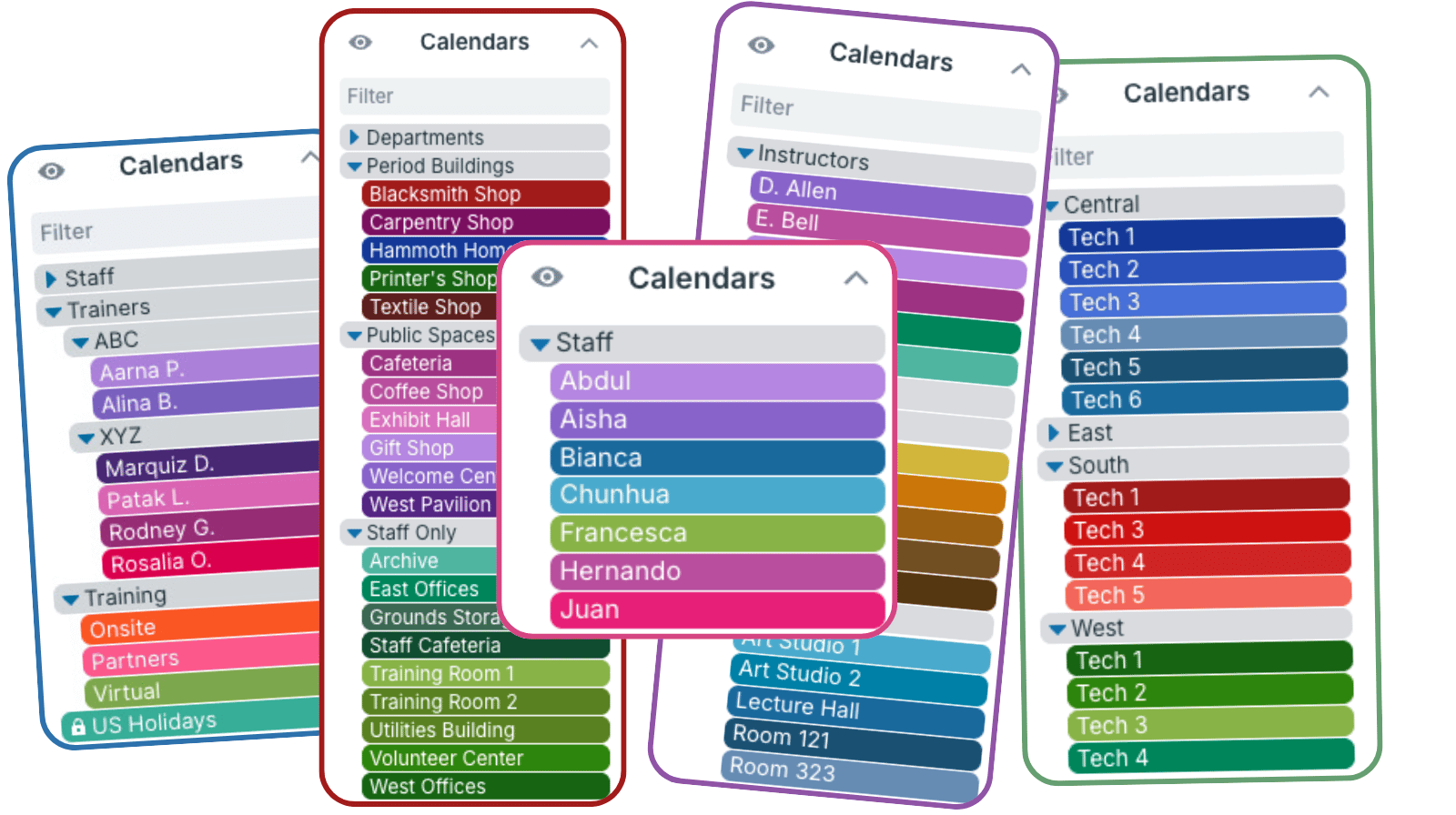
A master calendar can have multiple “sets” of sub-calendars, with each set representing a different group. You can create these sets by using folders.
Folders can be nested to create multiple layers of organizational hierarchy. To do so, name each calendar with the name of the folders it should belong to:
- To organize staff members, start with a top-level folder named Teams. Within that folder, you can add more folders for individual teams: Marketing, Product, and Sales, for example. Within these second-level folders, add the sub-calendars assigned to the individual team members: Teams > Marketing > Jenn H.
- To organize sub-calendars by multiple levels of geographic region, start with the largest regional category (e.g. Mid-West Region), then subdivide (Illinois, Indiana, Iowa, Kansas, Michigan…). If appropriate, subdivide further: Chicago, Rockford, Springfield. Add sub-calendars assigned to each location within the appropriate subdivision: Mid-West Region > Illinois > Chicago > Acme Dealership.
Assign color-coding
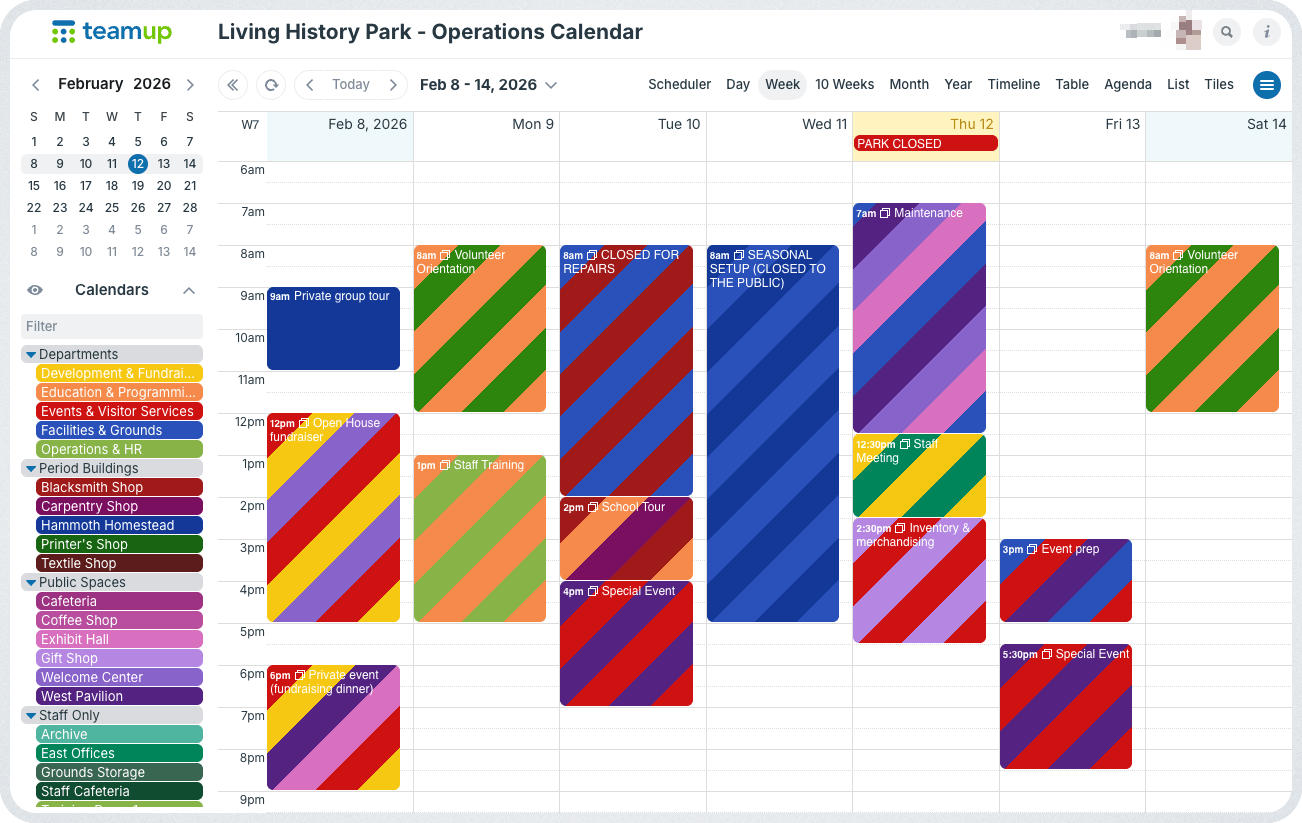
Click to enlarge: Events assigned to more than one sub-calendar reflect the colors of all with striping.
When you create a sub-calendar, you can choose its assigned color. The events on the calendar will be automatically color-coded according to the sub-calendar(s) they belong to. If an event is assigned to more than one sub-calendar, the event will have striped colors to reflect all the relevant
Prevent double-booking
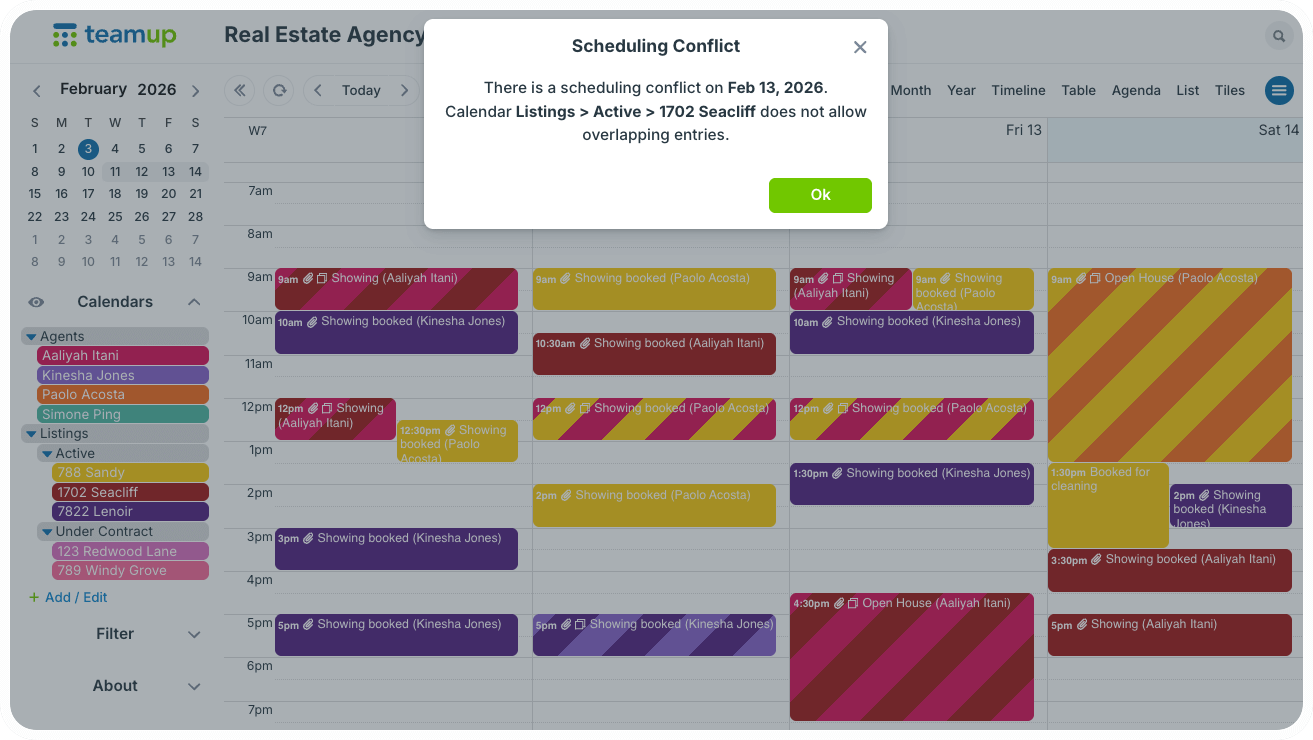
Click to enlarge: Overlapping events can be automatically prevented on any sub-calendar; users will not be able to add conflicting events.
When you’re scheduling people or resources, double-booked events can cause problems. Each Teamup sub-calendar has one simple setting that will automatically prevent overlapping events.
Share selectively with others
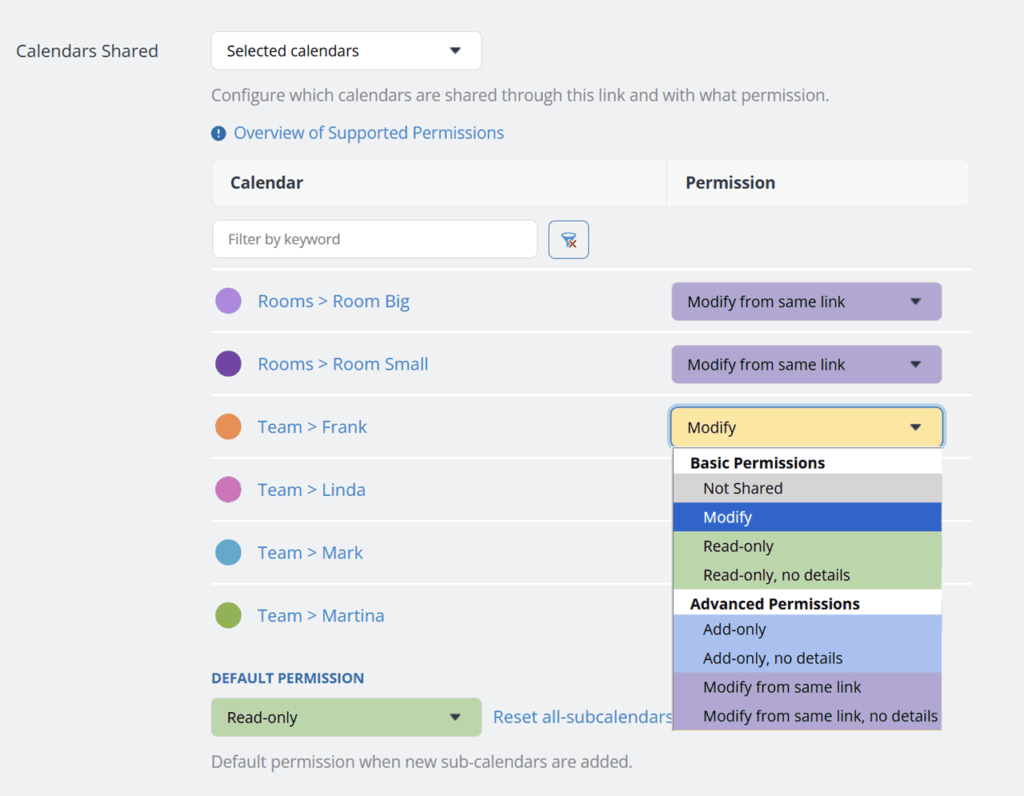
Click to enlarge: Share sub-calendars selectively and choose which permission is applied for each user.
You can share a single sub-calendar, a set of sub-calendars, or all your sub-calendars. When you share one or more sub-calendars, you control the permissions that you set for each sub-calendar. This gives you the ability to maintain complete control over your calendar, while also allowing others to access it as needed. Learn more about sharing selected sub-calendars with customized access.
How do I work with sub-calendars?
Set up sub-calendars
▶️ Interactive demo: Only the calendar administrator can create, organize, and manage sub-calendars.
Use nested folders
▶️ Interactive demo: Use > in sub-calendar titles to set up folder organization.
Disallow overlapping events
▶️ Interactive demo: In the main calendar settings, you can set each sub-calendar to allow or disallow overlapping events.
Toggle on and off from view
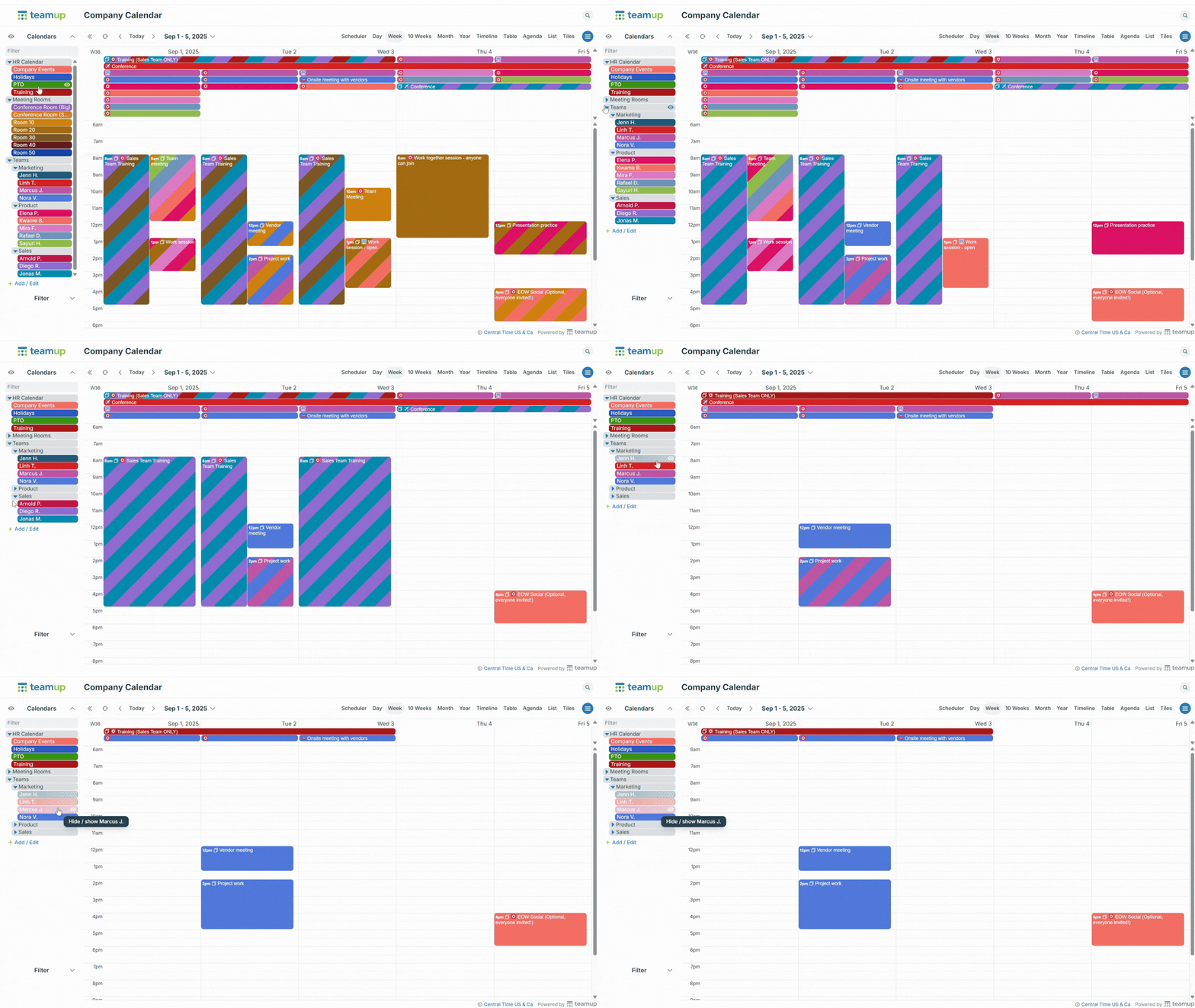
▶️ Interactive demo: When using the calendar, any individual sub-calendar can be toggled to show or hide its events. Collapse (hide) or expand (show) a folder to toggle all the sub-calendars organized inside it.
Control access
▶️ Interactive demo: Review who has access to any sub-calendar and adjust access permissions as needed.
Deactivate or delete sub-calendars
▶️ Interactive demo: Deactivating a sub-calendar archives it; deleting a calendar removes it (and all its data) permanently.
Get started with sub-calendars
Explore more with a live demo calendar. Live demo calendars have all features enabled so you can try different setups and explore the possibilities without commitment. When you’re ready, create your own Teamup calendar.