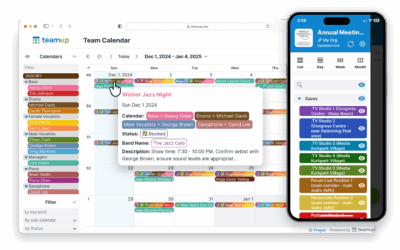
When setting up your calendar, you can use both sub-calendars and event fields to create the customized, flexible structure you need. Sub-calendars can represent whatever you need to organize or schedule and are the primary layer of structure. All Teamup calendars include certain built-in event fields. It’s also possible to create custom event fields, which can be text, number, or choice fields. These fields are often used for secondary scheduling factors, such as:
- Shifting states such as task status or project phase.
- Process items such as workflow steps.
- Specific assignments such as volunteer positions or shift responsibilities.
- Identifiers such as project ID or course number.
There are different types of custom event fields: text, choice, and numerical. Their features make them very useful for assigning different attributes, gathering information, and filtering the events on a calendar. Take a look at some ideas for custom event fields.
Categorize employee leave or PTO needed
Perhaps you use a Teamup calendar to plan employee schedules, and allow your staff members to input their own PTO, vacation plans, at-home or in-office days, part-time hours, availability for meetings or travel, and other types of leave or work hours.
You can set up a custom event field to make the calendar more efficient and consistent. Use a single-choice option custom event field. Then, for the options, enter the type of employee leave, PTO request, or other category. You can make it a required field to ensure that the type of leave or availability is always selected.
You can use the filters built into the calendar to sort requests and scheduled times by this custom event field.
Set a priority for any task or event
When there’s a lot to do, it can be difficult to identify what needs to be done first. Sometimes you may have task dependencies, as well. In this case, you could use a custom event field to set priorities. The priority level could indicate the relative importance of each task, so team members know what to focus on first. Or the priority level can indicate the necessary order: priority 1 items must be done first, because priority 2 items have a dependency on the priority 1 items.
To make sure the prioritization is used, make the custom event field required. Set emojis for each priority level, and choose to show the emoji in the event title. That way it’s easy to see at a glance which events or tasks are the highest priority.
Track task status
Task status tracking is a common need and most task management tools allow to mark a task as completed. With Teamup’s custom field, you can easily assign a status to a task, simply as completed or as granular as needed. The emojis shown in the event titles provide fun and convenient visual clues that are particularly helpful to quickly grasp the task statuses across the board. Please note that using color-coded sub-calendars to manage workflow or track task status is another common practice among Teamup users.
Capture the customer or job number
If you’re tracking inventory, client orders, service work, or any other key information related to customers, use a custom event field to keep track of it.
Create a custom event field named “ID#” or whatever title is relevant. Make it a single-line text entry, and then team members can enter the customer number or product ID, for example.
You can have the contents of the custom event field show in the event title, so the identification number is easily visible.
Ensure that a work process is followed
A consistent process ensures consistent quality, no matter who is doing the work with the steps in a required custom event field. If you have your process broken into steps, you can use a custom event field to track each step of the process.
You could implement the work process by having team members select the step of the process they’re on and add the event to their sub-calendar. Then, when they finish their step and need to send the step to the next individual, they select the next step to be done and move the event to the correct team member’s calendar. More details here.
Assign a task or event to a specific person
If you’re not using sub-calendars to designate individuals, you can use custom event fields to do so. However, instead of moving an event to an individual’s sub-calendar, you would simply select the correct person from the custom event field. It’s similar to the example above of using a work process.
You could also use this type of custom event field to assign a project owner, client lead, or other responsible party.
Sort event types for community events
If you have a community calendar, you might be sharing curated online events or local and regional events. You can use custom event fields to sort these events into various categories. This makes it easy for community members to filter the events and see only the ones they are interested in.
Show speakers for conference sessions
Teamup is a powerful and efficient way to create a conference agenda and keep conference attendees up-to-date easily. It works for in-person and for virtual conferences and events.
You can use custom event fields to set categories for each individual event that is part of a conference. Use multiple custom event fields to allow attendees to sort and find exactly what they want.
For example, you might have one custom event field to designate speaker for the event. Or a custom field could show the main topic or the sponsor for each individual session.
Track the sales process and follow-ups
The initial contact is only the first step. Use a custom event field to track every step in the sales cycle.
Your sales team can brainstorm their own unique stages, or follow a proven method. Then input each step as a choice in a custom event field. When one step is completed, the team member can move the field to the next option and reschedule (or duplicate) the event to the due date for completing that step.
Capture estimated time and actual time
For freelancers, creatives, or anyone else who needs to pay attention to estimated inputs and outputs, custom event fields can be a great tool. Create a single-line text entry field to capture the estimated time to complete a task. Put the estimated time in when you create the task on the calendar.
Then, when you work on the task, note the actual time taken and put it in the Actual Time event field. If you track these two times over a period of weeks, you will notice how accurate your estimates are and become better at evaluating the time needed for each task. Not only will this help you manage your schedule better, but it will also help you to be more accurate in what you charge.
Get the topic for a meeting
If you use your calendar to allow clients to book sessions, appointments, or other types of meetings, here’s a good use. Capture the topic or main question to discuss in a custom event field.
Just add a single-line text entry custom event field. When a client books a session, they can input their focus or question. This also works for team meetings or 1:1 appointments. You can both be prepared for the meeting and they can get more value out of the time.
Provide reference links
Teamup’s event fields support links. Do you frequently use your calendar to capture information, reference, sources, or material to quote or read? Use a custom event field to put a link to the original source. When the event is seen in the event viewer, or shared as an event page, the link will be clickable.
Indicate publication channels
Managing content is a big job with a lot of variables. It’s easy to lose track of where a piece of content has been published, promoted, or syndicated. Use custom event fields to track this information, with multiple choices. Input each channel or syndication platform as an option.
When the content is shared on another channel, you can simply select that option in the custom event field, too.
Capture customer details
How great would it be to quickly find all the customer information you need, in one place? You can use custom event fields to create a customized method for capturing the type of customer information that is relevant to your business.
Tag the project or client for each task
If you use your calendar to manage projects, complete tasks, and track deliverables, use custom event fields to make it easier.
Create a custom event field to indicate the Owner of any deliverable. Or you could track the Project for any task that is added to the calendar.
Then it’s easy to sort the events and tasks by the Client, Owner, or Project. Use the filters to select the custom event field options, and sort calendar events to see only what is relevant.
How can you use custom event fields in your calendar? Learn more about custom event fields here, or try them out on a live demo calendar.