Teamup calendar settings are the control center of the calendar. Settings are accessible only to calendar administrators and only in a browser (not in the Teamup app).
Access Teamup calendar settings
See an interactive demo: ▶️ Access and Adjust Calendar Settings
The Settings on a Teamup calendar are the “control center” for the calendar. To protect calendar security, the Settings are only accessible to authorized calendar administrators.
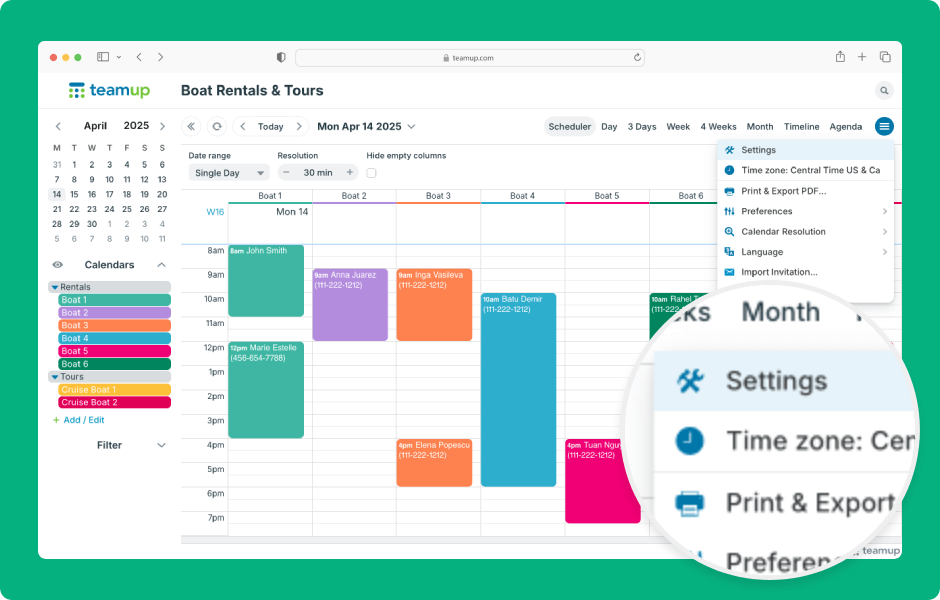
To access the Settings:
- On a browser, log in to your Teamup user account and open the calendar.
- Click the blue menu (top right) then select Settings.
From an open calendar, you can also
- Click the Add / Edit link beneath the list of sub-calendars, or
- Append /settings to the end of your calendar link in the browser URL bar.
If you are using a smaller screen, the full settings menu may be collapsed to save screen space. Click the green menu button in the top right corner of the calendar to view all settings.
When to access Teamup calendar settings
Use the settings in your Teamup calendar to make changes to calendar organization, add or remove users, manage access, set up notifications, or change calendar defaults. Here are more detailed guides and demos:
- Access and Adjust Calendar Settings
- Share Your Calendar Securely with Customized Access Permissions
- Getting Started Guide for Administrators
- Configure Visibility for Event Fields
- Configure the Event Opening Preference
- Configure Default Settings for Event Signups
- Set the Default Calendar View
- Keep All Users on the Same Time Zone
- Change the Time Zone
- How Admins Can Set Up Email Notifications for Users
- Review and Modify User Access