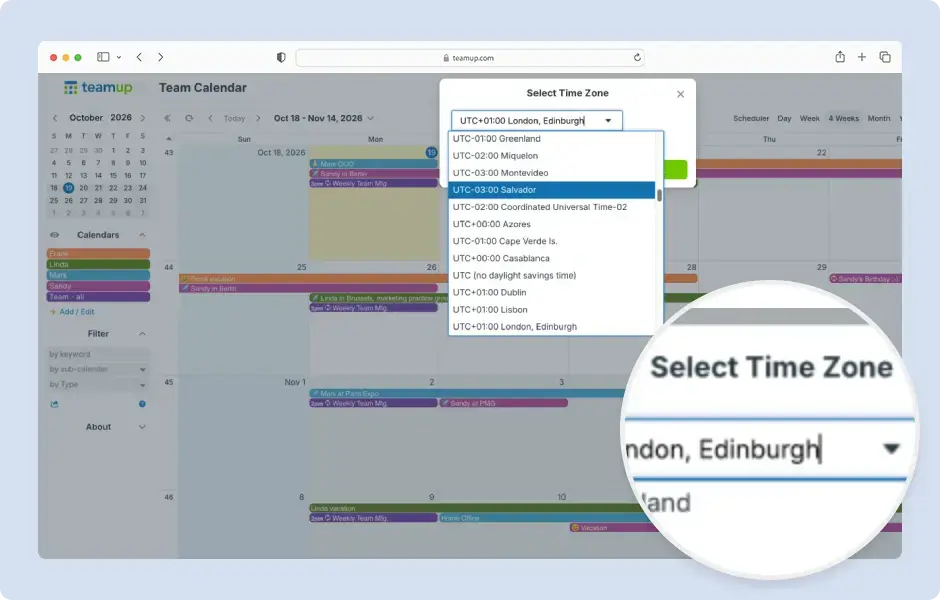
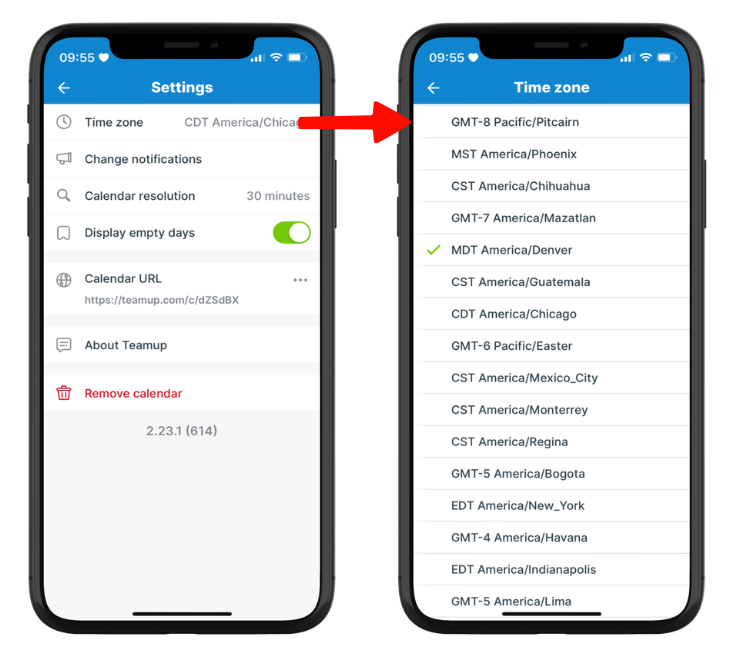
All users can change the displayed time zone for their current browser session. Administrators can change the default time zone for the calendar, for all users. Individual users set the time zone shown in the Teamup app.
How to Change the Time Zone in Teamup Calendar for a Browser Session and as the Calendar Default. This demo shows how to change the time zone displayed for the current browser session, and how admins can change the default time zone for the calendar. Open Teamup in a browser and click the blue menu in the top right. The time zone indicator shows which time zone is currently displayed. Click it to open the time zone menu. Check the box to show all available time zones in the list. Click the field to see the available time zones. Scroll through the list to find the needed time zone, or type into the field to find a specific time zone quickly. Click the time zone, or highlight it and press Enter, to select it. Select OK to confirm. The calendar then displays the new time zone for that session only. Admins can click the blue menu to go to the calendar settings and update the default time zone for everyone. Select Settings and go to the Date & Time section. Click to browse available time zones, or use the search bar to find a specific time zone. Click the time zone, or highlight it and press Enter, to select it. The selected time zone is set as the default for the calendar, and changes are saved automatically. Users can change their session time zone, and admins can set the default time zone. Additional information about time zone support is available in a linked article, and a live demo calendar is available to try the feature.
How to Change the Time Zone in Teamup Calendar for a Browser Session and as the Calendar Default. This demo shows how to change the time zone displayed for the current browser session, and how admins can change the default time zone for the calendar. Open Teamup in a browser and click the blue menu in the top right. The time zone indicator shows which time zone is currently displayed. Click it to open the time zone menu. Check the box to show all available time zones in the list. Click the field to see the available time zones. Scroll through the list to find the needed time zone, or type into the field to find a specific time zone quickly. Click the time zone, or highlight it and press Enter, to select it. Select OK to confirm. The calendar then displays the new time zone for that session only. Admins can click the blue menu to go to the calendar settings and update the default time zone for everyone. Select Settings and go to the Date & Time section. Click to browse available time zones, or use the search bar to find a specific time zone. Click the time zone, or highlight it and press Enter, to select it. The selected time zone is set as the default for the calendar, and changes are saved automatically. Users can change their session time zone, and admins can set the default time zone. Additional information about time zone support is available in a linked article, and a live demo calendar is available to try the feature.
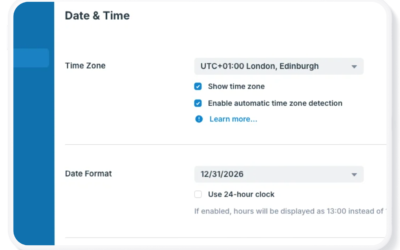
Administrators: Default time zone
Note that only the calendar administrator can update the default time zone through the calendar settings. If you do not have access to settings, contact the calendar administrator and ask them to update the default time zone. In the meantime, use the instructions below to change the displayed time zone manually for your current browser session.
Open Teamup in a browser.
Go to Settings > Date & Time.
In the Time Zone section, click the menu to view time zones.
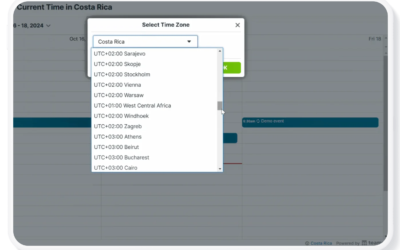
Scroll or type in the search box to find the needed time zone in the list.
Click on the time zone, or highlight and press enter, to set it as the default time zone for the calendar.
All users: Displayed time zone
Any user (at any permission level) can manually change the displayed time zone, and their choice will be remembered for the duration of their browser session.
When teams work across multiple time zones, scheduling meetings can become confusing. Teamup automatically converts event times for every participant, making it easy to schedule meetings in the hosting time zone while ensuring everyone sees the correct local time.