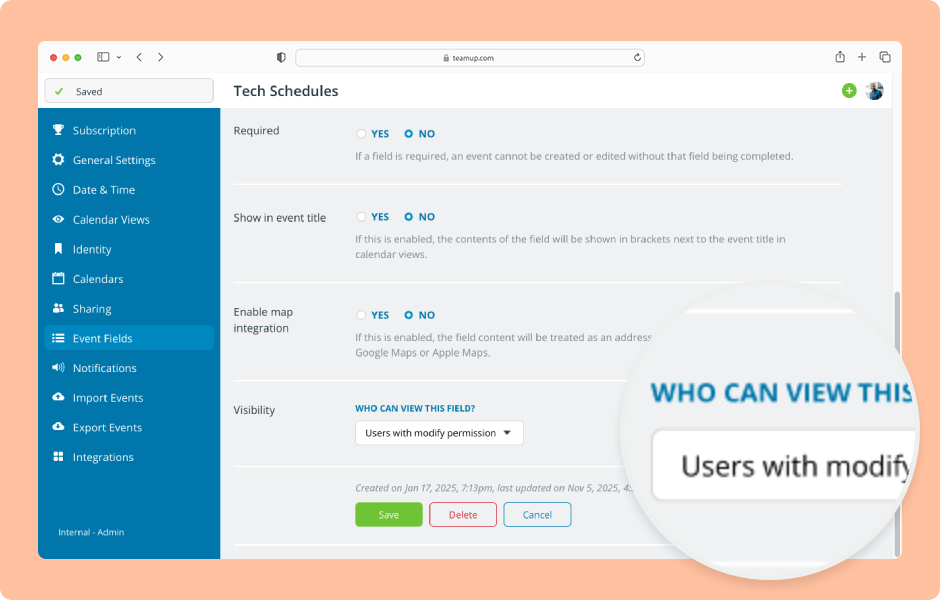
Visibility control allows you to select whether fields are visible to all users or only to users with modify permission.
Access level required: Administrator
- Open Teamup in a browser.
- Click the blue menu (top right).
- Select Settings.
- Go to the Event Fields tab.
- Click the pencil icon next to a field.
- Scroll down to the Visibility section.
- Click the menu to see the visibility options: All users or Users with modify permission.
- Select the appropriate visibility from the menu.
- Click Save to apply the visibility setting.
If a field is visible only to users with modify access, it will be shown on the event viewer/editor for all users with modify-level access. The same event field(s) will be hidden from users with read-only access.
ℹ️ Learn more