Teamup Calendar gives you two ways to find events: filters and search. They look similar, but they work differently. Use a filter to focus on certain events in your calendar view. Use search to find specific events across a broad date range, or if you don’t know when they occur.
Filters vs. search: the key difference
On a browser, there are built-in filters in the left sidebar of the calendar as well as a search tool in the upper right.
How filters work
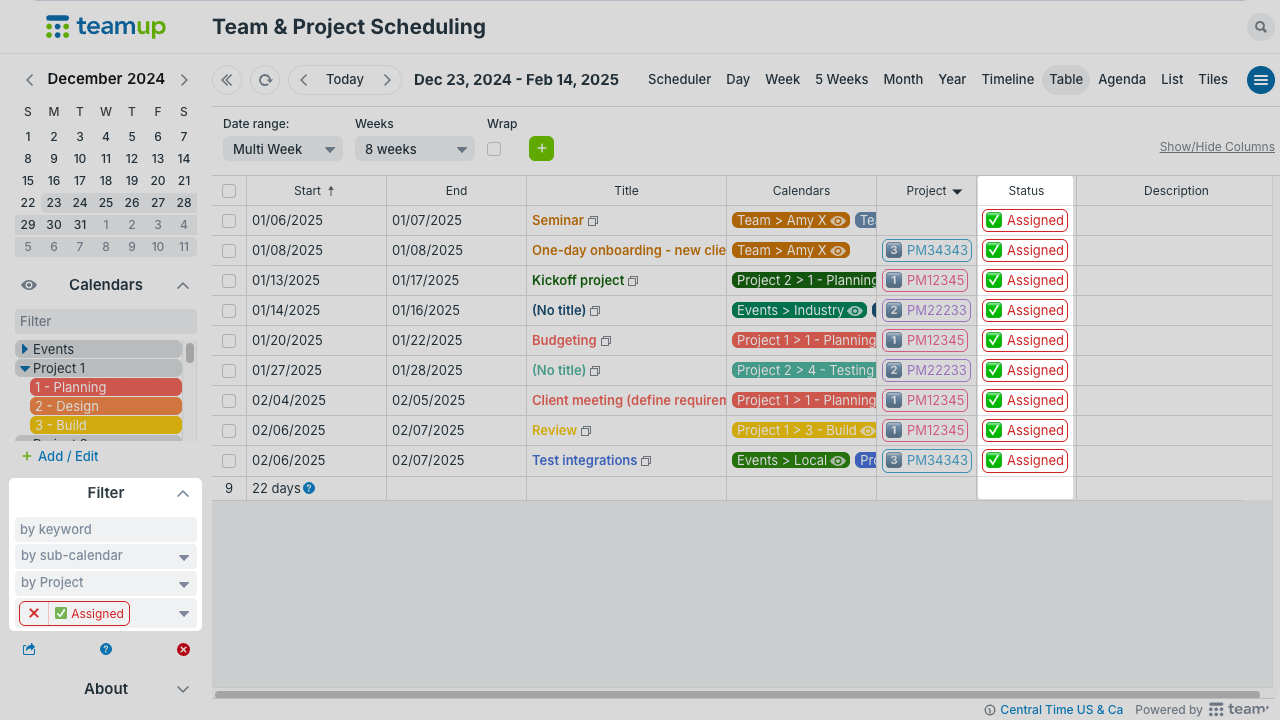
Filters change which events the calendar shows. If you’re using Table view, with three sub-calendars toggled on (visible), and you select an option in a custom choice field filter, the calendar will show only the events that contain that option on the visible sub-calendars for the date range shown.
-
- Filters sit in the left control panel, below the Calendars list.
- Filters work on the current calendar view and visible sub-calendars.
- You can apply filters, then adjust the date, calendar view, or visible sub-calendars with the filters in place.
- You can filter by keyword, sub-calendar, or custom event field.
- You can use multiple filters in combination.
- The keyword filter is instant: results update as you type.
How Search works

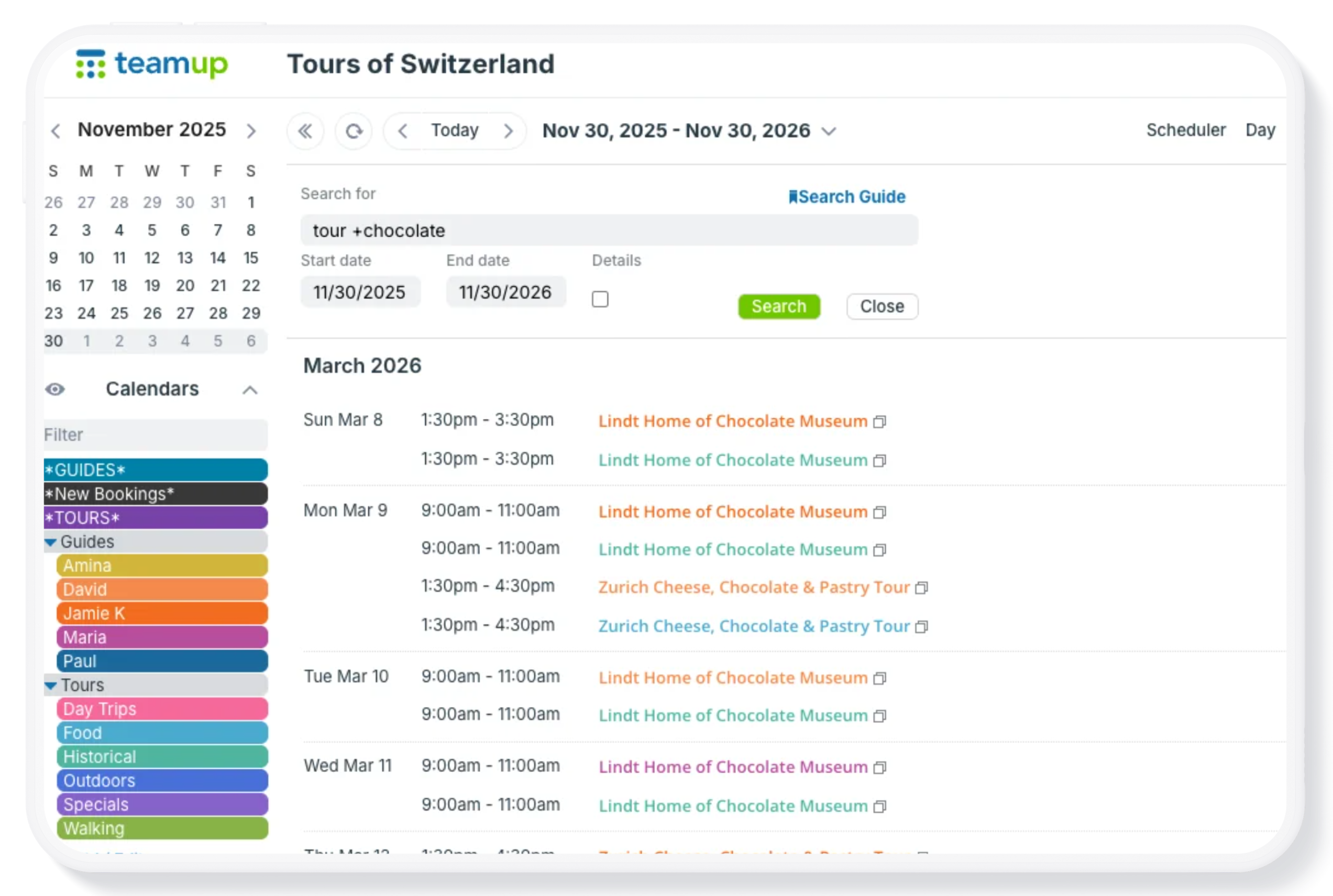
Search finds events across a date range. The search icon (magnifying glass) sits in the top right corner of the calendar. Search scans the date range you set, even dates that aren’t on screen, and returns a list of matching events. You can search up to one year of calendar data at a time.
- By default, Search opens with the start date six months in the past and the end date six months in the future.
- Search will only show matching events on sub-calendars that are toggled on (visible).
- You can use search operators to get more specific search results.
- You can view a simple list of events or view event details in search results without opening the individual events.
- Search is not case sensitive. “london” and “London” return the same results.
- Accented characters match flexibly. “Renee” finds “Renée,” and the reverse.
When search is the better choice
Search works best when the event isn’t on screen, or when you don’t know the date.
- Find a past event. When was last spring’s team kickoff? Search “kickoff” and set the range to the past year.
- Check a client’s history. Search a client name to see every appointment or booking in the last six months.
- Review a topic across months. Search “inspection” or “training” to list every related event over a date range.
- Locate an event someone mentioned. A coworker remembers “the budget review in Denver.” Search +budget +Denver to find it.
- Plan ahead. Search a venue or project name across the next year to spot conflicts before adding new events.
If you only need to clean up the current view, such as showing one person’s shifts for the week, a filter is faster.
How to search a Teamup calendar
- Click the magnifying glass in the top right corner of the calendar.
- Enter one or more keywords (up to 8 keywords at a time).
- Check the date range and adjust it if needed (see below).
- Click Search.
- Optional: check Details to see event details in the results without opening each event.
- Click any result to open the event.
Search only works on sub-calendars that are visible. If you’ve toggled some sub-calendars off to hide their events, search results will not include any events from those hidden calendars.
Adjust the date range
By default, search covers six months in the past and six months in the future. Change the date range to view different search results.
- Pick dates: Use the date picker to set a new start and end date, or type the dates in.
- Start from today: Click Today to search from the current date through one year ahead.
- Jump by year: Use the arrows beside Today to set the range to the past year or the next year.
Use search operators to refine results
You can use search operators for more precise searching.
- Plus sign (+): require a word
- Put + before each word that must appear. Example: +team +kickoff +London returns only events that contain all three words.
- Minus sign (-): exclude a word
- Put – before a word to remove events that contain it. This helps when a word has more than one meaning. Example: jaguar -car returns events with “jaguar” but not “car.”
- Quotation marks (” “): match an exact phrase
- Put words in quotes to match them together, in that order. Example: “team meeting” returns events with that exact phrase, not events that only mention “team” or “meeting.”
You can also combine search operators. Using multiple operators in one query will give you even tighter search results.
Why an event may not show up in Search
If a search comes up empty, it’s usually smart to widen the date range before changing the keywords. Check the Calendars list, too, and make sure all the relevant sub-calendars are visible. Try variations of the keyword to account for typing errors or misspellings.
Search in the Teamup app
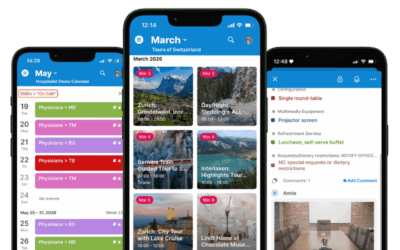
In the Teamup app, the magnifying glass opens the filter dialog. Enter a keyword, choose a custom field option, or select sub-calendars, then tap the check mark. Results cover the dates on screen, so swipe to other dates to see more. List view makes results easiest to scan. More details.
Related resources: