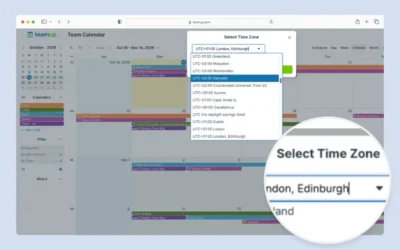
A Teamup calendar has a default time zone, and users can normally change the displayed time zone for their own view. That works well for teams spread across regions. For a team in one region, it can cause trouble. If someone picked a time zone earlier and the calendar’s time zone later changes, team member might end up seeing the wrong times for events on the calendar.
Administrators can configure the calendar to prevent users from manually changing the time zone, which keeps all users on the calendar’s default time zone setting.
When to keep all users in the same time zone
- All users work in the same time zone.
- The calendar’s time zone has changed, or might change (for example, after a regional time zone rule change).
- Everyone should see event times in the same time zone.
This setting is not useful if calendars are used by teams across multiple time zones. In those cases, it’s important to enable automatic time zone detection, and allow users to change the time zone as needed.
How to keep all users in the same time zone
Only calendar administrators can access the calendar settings.
- Open the calendar in a browser.
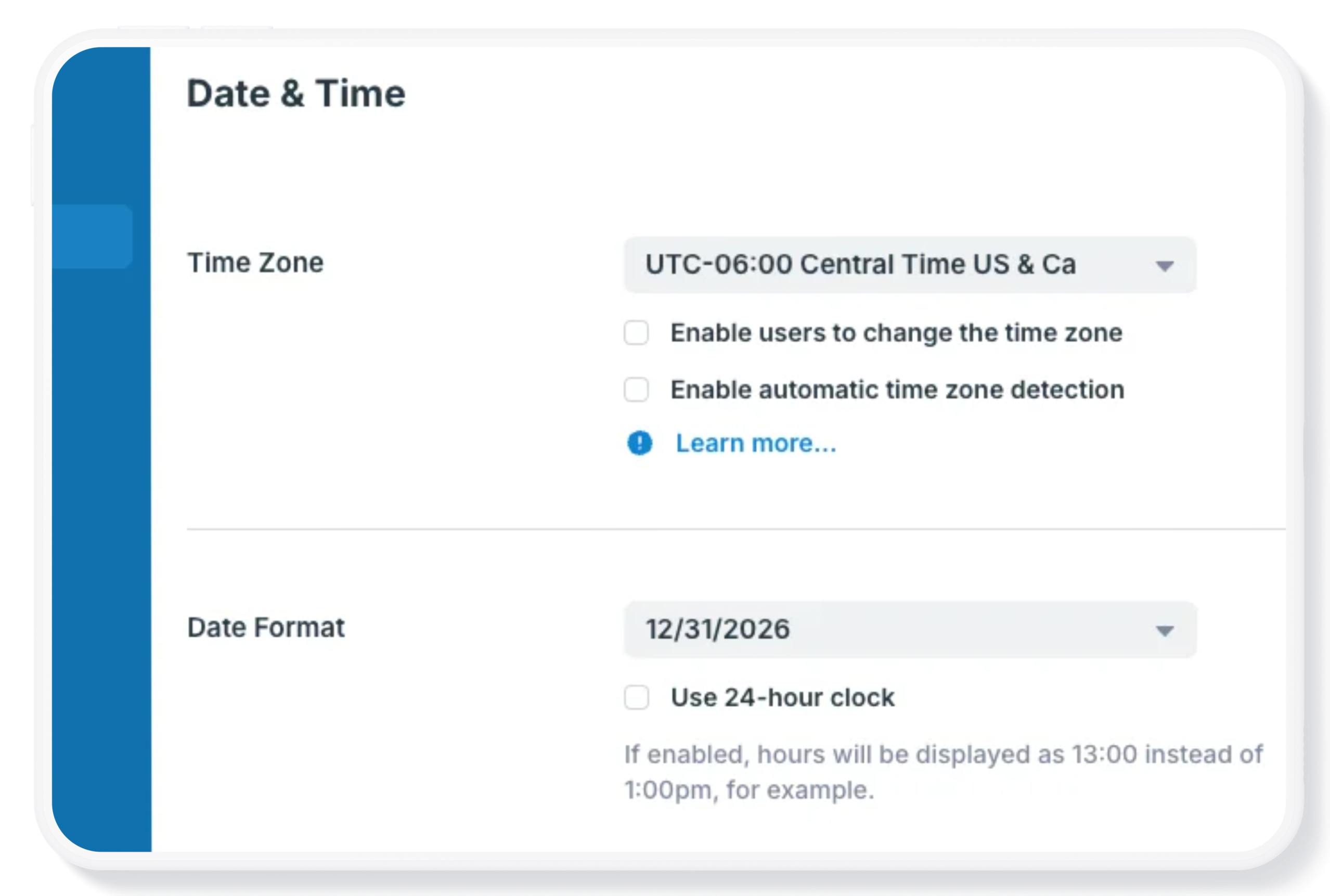
- Go to Settings > Date & Time.
- In the Time Zone section, check that the default time zone is correct.
- Uncheck Enable automatic time zone detection. While it’s on, users can always change the time zone.
- Uncheck Enable users to change the time zone.
- Save.
What users see
-
- The time zone indicator still shows in the calendar footer (browsers) and in the app settings (Teamup mobile app), but it can’t be clicked or changed.
- When an administrator changes the default time zone, every user’s view adjusts automatically.
Allow users to choose again
Open the calendar in a browser, go back to Settings > Date & Time, and check Enable users to change the time zone.
Note: Changing the displayed time zone never changes the scheduled time for events on the calendar. It only changes which time zone those events are shown in. Event times will automatically adjust to correspond with the time zone set for the calendar.
Related resources: