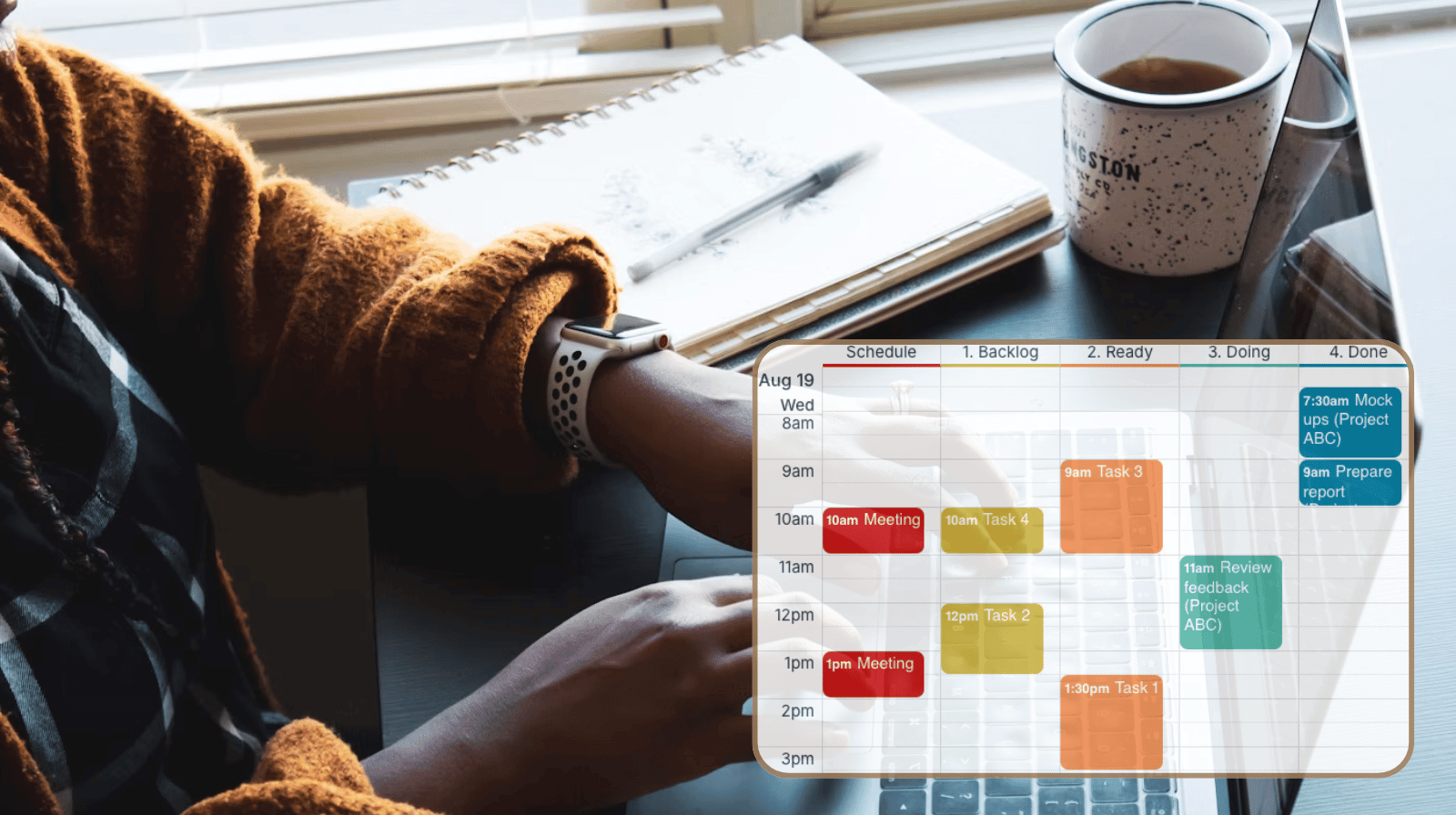
Bring task management and scheduling together in one place. With Teamup, you can create a customizable Kanban board right in your calendar, making it easier to organize work, track progress, and keep your team moving forward. It’s a kanban schedule and a Kanban board calendar in one.
The need: A clear way to manage tasks and projects alongside the meetings, deadlines, and other events that shape your day’s timeline, focus, and key efforts.
The Teamup solution: Teamup’s Scheduler view allows your calendar to work as a customizable Kanban board, visible alongside your schedule. Organize tasks by status, see them in context with scheduled events, and know where to put your attention.
A powerful Kanban board in a calendar
A Kanban board is a powerful organizational tool for managing projects and collaborating with a team on tasks and goals. It has columns for the various stages that a task might go through: for example, from Backlog or To Do to Ready, In Progress, On Hold, or Done. Kanban boards work well because they provide immediate visual understanding of task status, so it’s easier to see where attention should be focused.
A Kanban board calendar combines this kind of task tracking with your everyday schedule, so you always see both together. View meetings, deadlines, and time-bound events right next to tasks organized clearly on a Kanban board. It’s all possible because of Teamup’s unique Scheduler view.
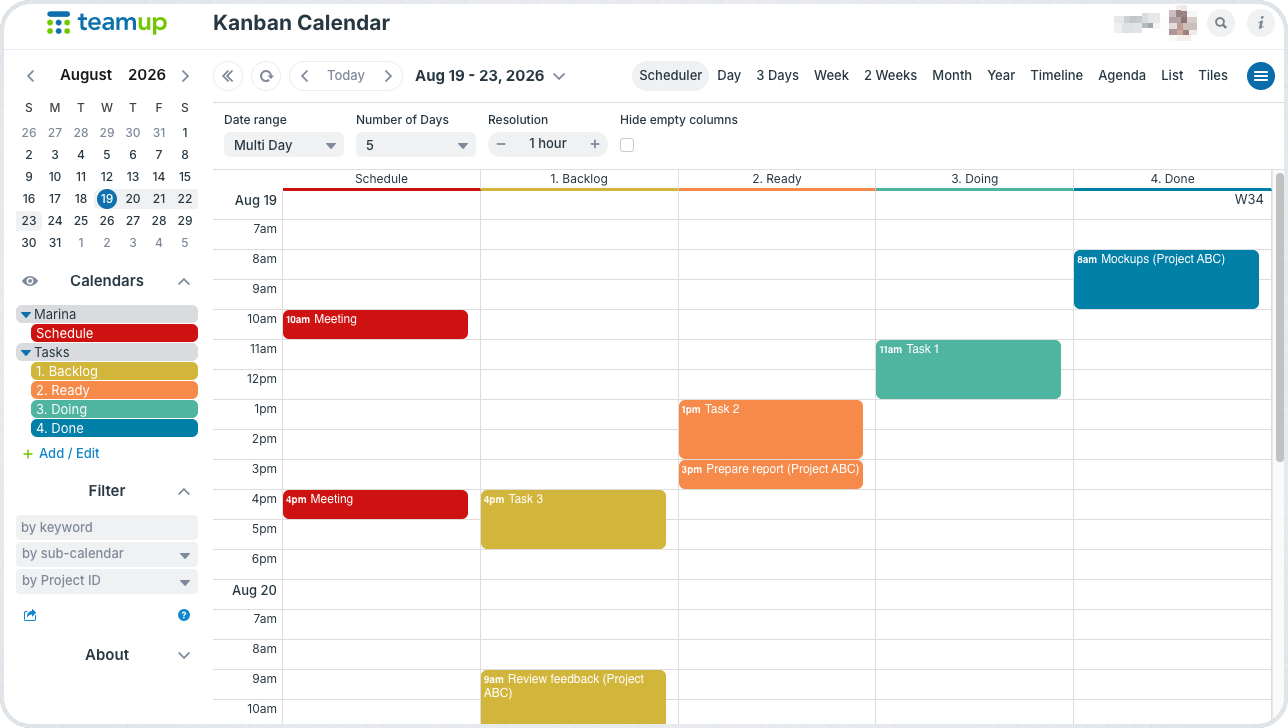
Click to enlarge: Do Kanban scheduling right in your calendar. See what’s scheduled alongside tasks with a clear visual status.
How Scheduler view works
Scheduler view displays calendar data in a unique way: Each sub-calendar gets its own column. The columns appear side-by-side and show all the events in those sub-calendars for the time period you’re viewing. You can adjust the date range and the resolution: View a single day in 5-minute blocks or look over weeks and months with a zoomed-out resolution.
You can also drag events from one column to another, which is what makes this view so great for Kanban-style task management. When you drag an event from one column to another, the sub-calendar assigned to the event automatically updates. Ready to work on a task? Drag it from Ready to Doing. When you’ve completed the work, drag the task to the Done column.
It’s satisfying and fun, but even more importantly, it enables your Kanban board to stay in sync with your actual schedule. Plus you can easily adjust the time spent on each task for better understanding of how long things actually take.
Setting up a Kanban board calendar
Here’s how it works
- Create sub-calendars that correspond to the columns you want on your Kanban board.
- Organize the Kanban sub-calendars in a folder alongside your main scheduling sub-calendar(s).
- Add custom fields to capture and track key data or categories for tasks, such as Hourly Rate, Project ID, Client, Personal, etc.
- You can have custom event field contents show in the event title; for single or multiple-choice, you can show an emoji rather than the text.
- Create tasks as events on the appropriate Kanban status calendar.
- Keep complete task information right on the task event: Add images and files, keep notes, and use time-stamped comments.
- Easily reschedule tasks by dragging to a different date/time (in Scheduler view or other calendar views).
- As the status of each task changes, drag it to the appropriate column. You can adjust exactly when the task was done and how long it took when you drag it to the Done column: Drag and drop it to the actual time you started the task, then drag the bottom edge of the event to adjust the duration.
Make the most of your Kanban calendar
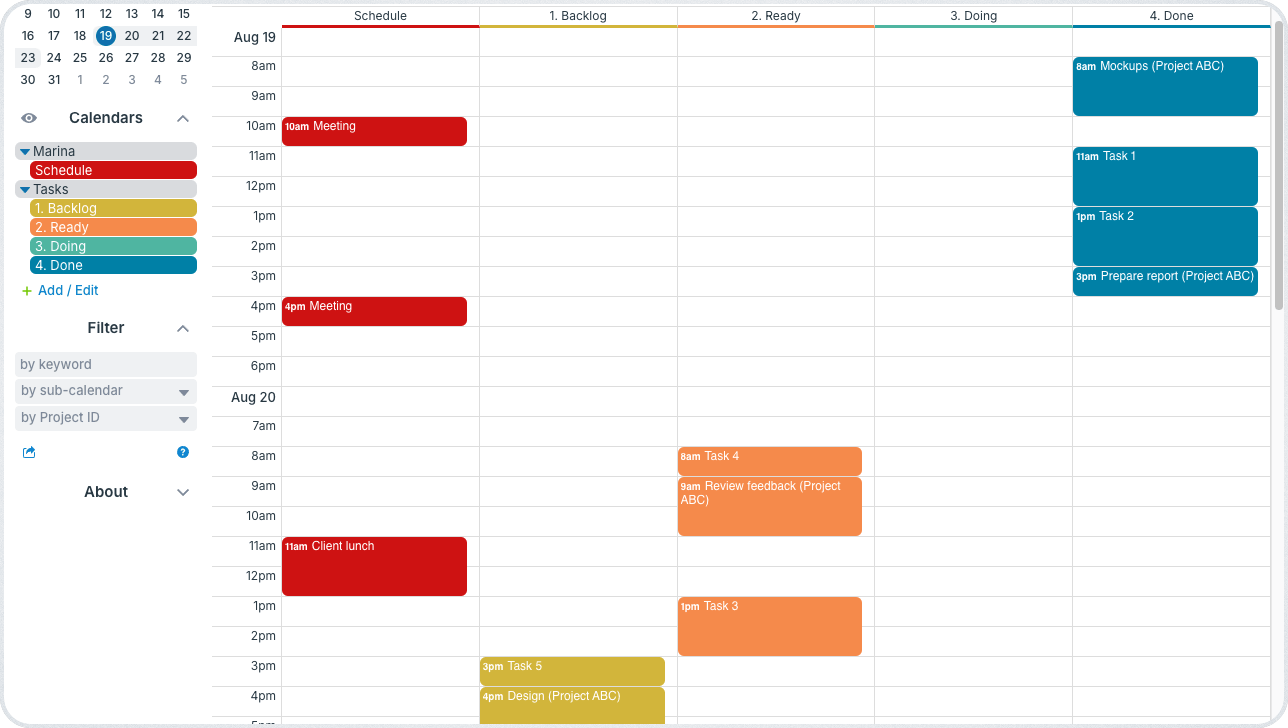
Click to enlarge: Move tasks as they’re done and adjust the timing to show how long they took; drag tasks to reschedule for a different day.
Customize and use Teamup’s powerful features to make your Kanban calendar even more useful:
- Use recurring events: If you work in sprints, then you can set each task for the sprint to repeat daily for the duration of the sprint, until it’s moved into the Done column. When the task is complete, you can end the recurrence rule.
- Show and hide sub-calendars: If you put all your Kanban sub-calendars into one folder, you can easily show only those sub-calendars by tapping the Eye icon on the folder name in your sidebar.
- Order sub-calendars: Sub-calendars are ordered alphanumerically, by default. To control the order of your sub-calendars, use numbers or symbols.
- Custom event fields: Create and use custom event fields to track all the information that’s pertinent for your team: who’s assigned to a task, priority, time estimates, etc. When you hover over the events with a mouse, you’ll see all the event fields, which is handy.
- Event comments: Use event comments to keep time-stamped notes of your progress, questions for a client, items to discuss or share with your team.
Limitations to know
There are two limitations to be aware of when using your Teamup calendar as a Kanban board.
- Scheduler view only works in a browser; you can’t use Scheduler view in the Teamup mobile app. Instead, use visual Tiles view or List view in the Teamup app; toggle sub-calendars to see only tasks with a certain status.
- Kanban tasks should only be assigned to a single sub-calendar. Events that are assigned to multiple sub-calendars cannot be dragged to different columns in Scheduler view.
Frequently asked questions
Find answers to common questions below.
How do you integrate a Kanban board with calendar events?
With Teamup, there’s no separate integration to set up. The Kanban board is the calendar itself: Use Scheduler view so each sub-calendar is a column, and each task is a calendar event, or card, shown in the appropriate status column. Moving a task to an updated status is as simple as dragging it to a different column.
What Kanban systems integrate with calendars and timelines?
Most Kanban tools require a separate calendar sync or plug-in to line up tasks with meetings and deadlines. Teamup takes a calendar-native approach instead: your Kanban board and your schedule live in the same view from the start, so tasks and time-bound events are always shown in context together.
Can I use a Kanban calendar on a mobile device?
Scheduler view works in a browser, including a mobile browser, but it isn’t available in the Teamup mobile app. Instead, use visual Tiles view or List view in the Teamup app and toggle sub-calendars to view tasks by status. To change status, edit the event (rather than dragging). Or, open your Teamup calendar in a mobile browser to use Scheduler view on your phone or tablet.
What is the difference between a Kanban board and a Kanban calendar?
A standard Kanban board only shows task status, using columns like To Do, In Progress, and Done. A Kanban calendar adds the time dimension, showing those same tasks alongside your meetings, deadlines, and other scheduled events, so you can see status and time commitments together.
Get started with a Kanban calendar
There’s a whole world of Kanban calendar possibilities. Set up sub-calendars to be distinctly different colors, so you can see task status at a glance. Combined with recurring events, custom fields, and event comments, your Kanban board calendar can flex to fit almost any workflow, whether you’re managing sprints, client deliverables, or day-to-day tasks.
Ready to get started? Create your own calendar, or try out a live demo.
Related resources
- Get Clarity and Visual Organization with Scheduler View
- Organize and Color-Code with Sub-Calendars
- Multi-Dimensional Scheduling: When to Use Sub-Calendars vs Custom Fields
- Configure and Manage Event Comments
- Make Scheduling Visual with Images and Attached Files
- Manage Short-Term, Granular Bookings in Scheduler View