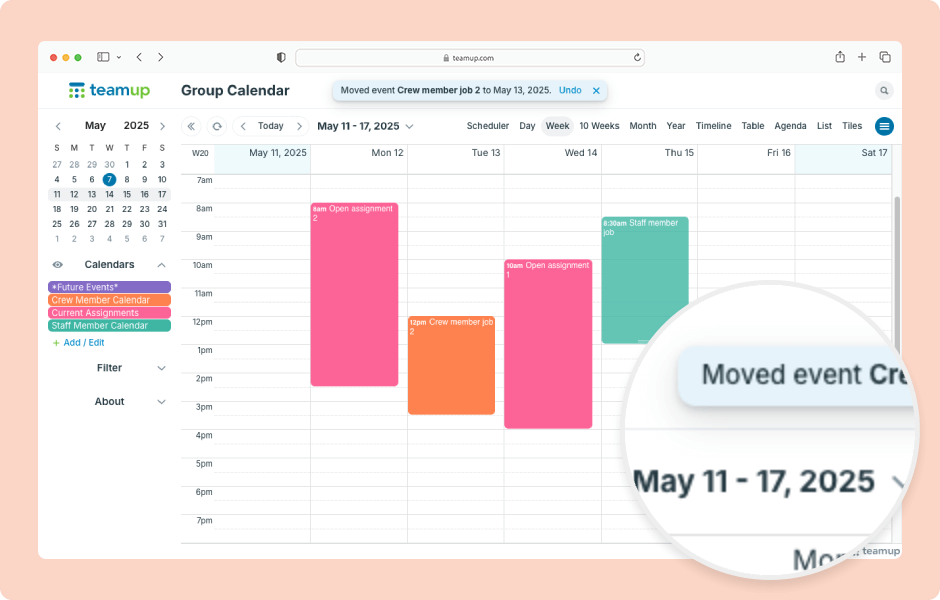
To quickly reschedule events in Teamup, drag and drop the event where you want to reschedule it. To make this efficient, first switch to a calendar view that fits the time frame you need. For example, to reschedule events across months, use Year view. To reschedule events within the same week, use Week view or Multi-day view. To change the event duration, use any view with an hour grid.
- Open Teamup in a browser.
- Switch to the best view for the date range you need to see (e.g. Year view for long-range rescheduling, Week view for short-term).
- Click and hold down the mouse button on the event.
- Drag the event to the date you want, then release the mouse button.
- In view with an hour grid, you can drag and drop to adjust the event duration:
- Hover your mouse over the bottom edge of the event.
- When the arrow appears, drag it up or down, then release to change the event’s timing.
ℹ️ Learn more