Adding inline images and attaching files and documents can make your calendar more interesting and useful. Create visually appealing events with inline images. Stay organized by keeping all the relevant documents and files with each event. Here’s how.
Access level required: Modify
There are three places to upload files: In the Description field (or any custom formatted text field), the Attachments field, and the Comments. You can also upload and view attachments in the Teamup app.
- Description field:
- Create or open an event. Click Edit to access the event editor.
- Click into the Description field. Then click the Upload icon.
- Click to select a file from your computer to upload.
- Or select one of the options on the left, log in, and select the image or file you want to upload.
- Click the blue Upload button.
- Select whether to add the image as a visible image or clickable link.
- Click and drag the edges of an image to resize it. Open the three-dot menu to align the image.
- Click Save.
- Event comments:
- Create or open an event and click Add Comment.
- Click the Upload icon.
- Choose the file(s), then click the blue Upload button.
- Click the blue Send button.
- Event comments can be enabled for read-only users, allowing them to share photos even without editing access to the event. More details here.
- Attachments field:
- Create a new event, or open and Edit an event.
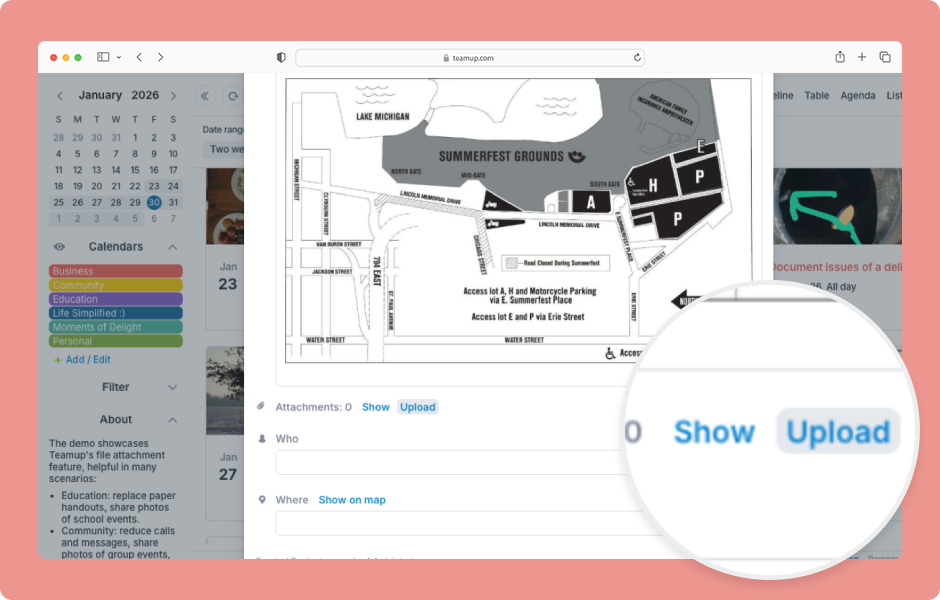
- Scroll to the Attachments field and click Upload.
- Select the file(s) and click the blue Upload button.
- The file will appear in the Attachments list, which can be collapsed or expanded.
- Click the three-dot menu beside an attachment to download, copy URL, or open in a new tab.
- Click an attachment’s thumbnail or title to preview it.
- Use the buttons at the top right to delete, download, copy the URL, or open in a new tab. Click X to close the preview.
- Attachment previews also work in the Teamup app.
ℹ️ Learn more