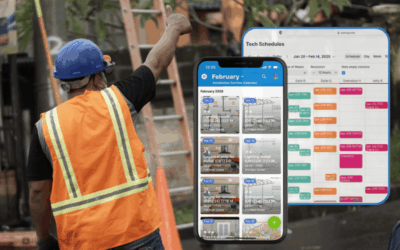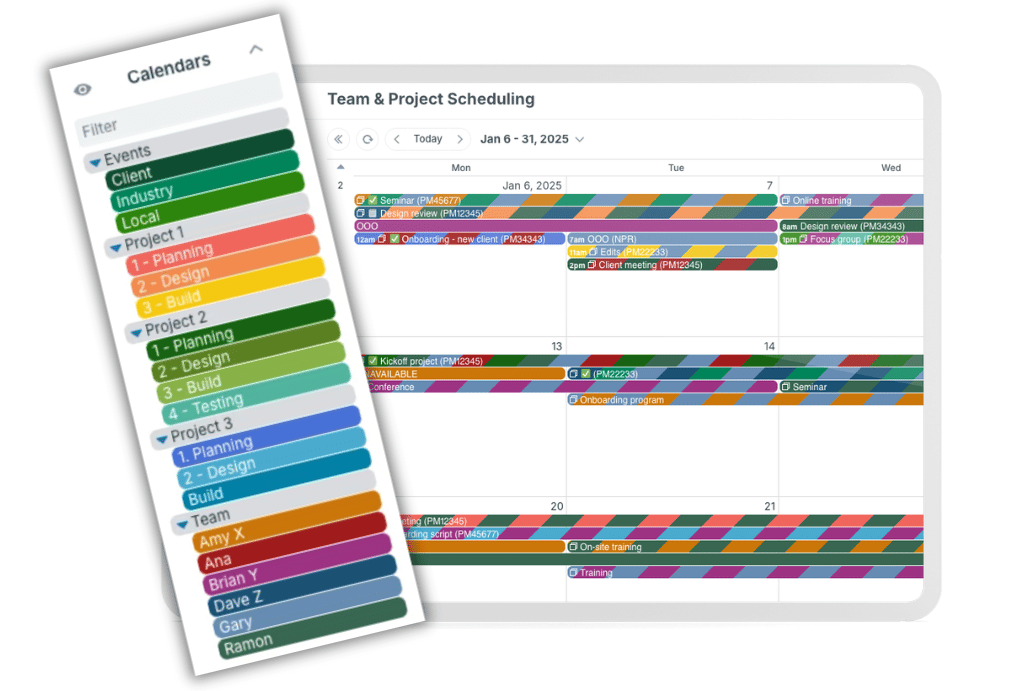
A master calendar is the whole calendar. Sub-calendars are the individual calendars inside it. Sub-calendars can be added, organized, and adjusted as a team or organization grows. They can be deactivated or reassigned when projects end or roles change. That flexible structure makes Teamup easy to customize and scale.
What a master calendar actually is
Think of a master calendar as an office building. The building itself is the master calendar: it’s the container holding the individual offices. Sub-calendars are the individual offices inside the building. The calendar administrator manages access to the building and decides who gets access to which office.
When you create a new Teamup calendar, you’re making a master calendar. Inside that master calendar, you can add more sub-calendars, organize them, and manage who can access each one.
What a sub-calendar actually is
Sub-calendars are the individual calendars within a master calendar. You can create and organize multiple sub-calendars. Sub-calendars have access control, automatic conflict prevention, and color-coding built in.
A master calendar always has at least one sub-calendar and can have many more. How many sub-calendars are allowed depends on the subscription plan of the master calendar. You can color-code each sub-calendar, organize them in folders, and share them individually.
How access works with sub-calendars
Permissions for each user are set at the sub-calendar level by the calendar administrator:
- Choose which sub-calendars each user can access: All or Selected.
- Assign permission levels: Select the appropriate permission level for each sub-calendar shared.
Managing access at the sub-calendar level means you can oversee multiple teams or projects while keeping access simple and secure. You can work from one cohesive overview while providing each user customized access, so they only see what’s needed for their role.
Sharing outside the team, with external collaborators or groups, works the same way. Share a single, add-only project schedule with a subcontractor. Or embed a read-only view of a public events sub-calendar without showing anything else.
Sub-calendars in action
Sub-calendars provide flexibility for different kinds of work. The basic structure of a Teamup calendar is based on what sub-calendars represent. You can use sub-calendars to represent whatever you need to organize or schedule. Take a look at these examples.
Company-wide calendar: sub-calendars by team

A company with frequent cross-team collaboration uses one master calendar. Each team has its own folder, which holds the sub-calendars for team members. Adding more sub-calendars is simple when new team members join. Folders can be expanded, collapsed, or toggled off so a manager sees only the team relevant for each scheduling task. Each team member has customized access so they can contribute to their own team’s sub-calendars, and only view the rest.
→ Get Cross-Team Visibility with the Right Amount of Information Sharing

Construction company: sub-calendars by function
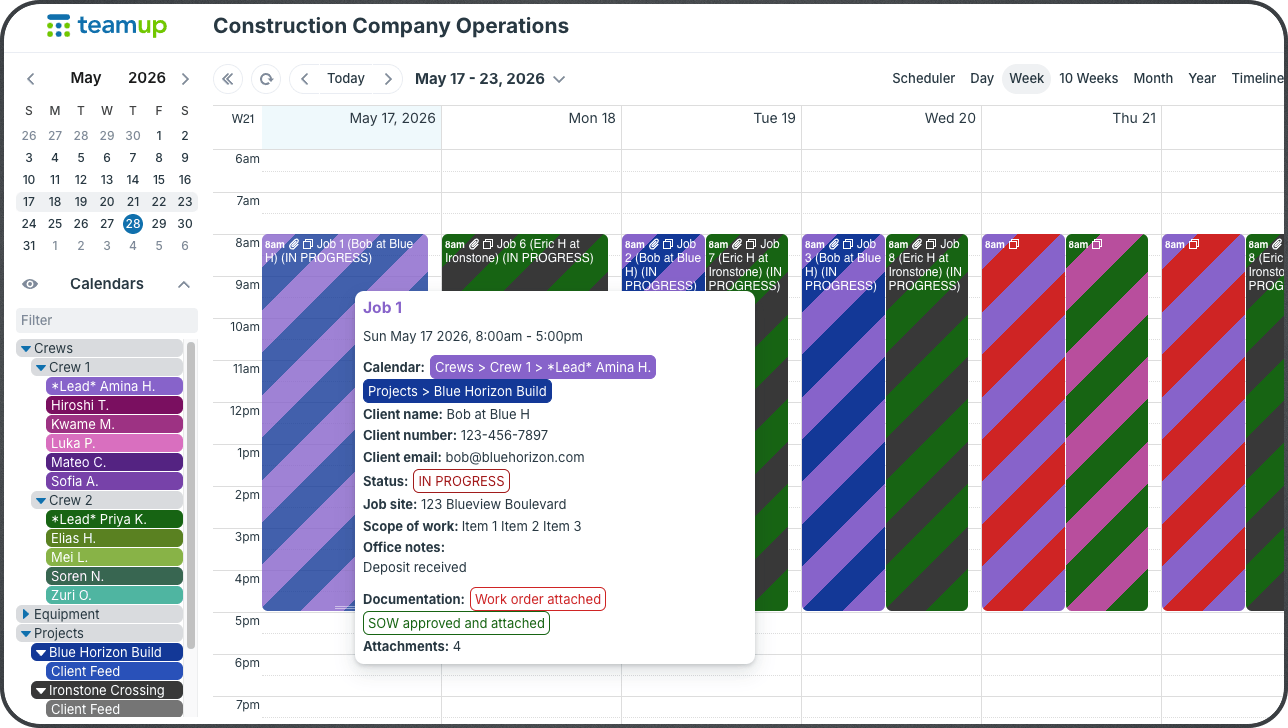
A construction company uses one master calendar with sub-calendars for projects, crews, equipment, inspections, and subcontractors, each color-coded. Nested folders keep the complexity organized and clear. Office staff can see everything at once, while a crew lead’s view is filtered down to just their crew’s schedule, job assignments, and equipment availability. One structure supports both the company-wide view and each person’s specific role.
→ How to Set Up Role-Based Calendar Access for Construction Companies
Fleet management: sub-calendars by vehicle
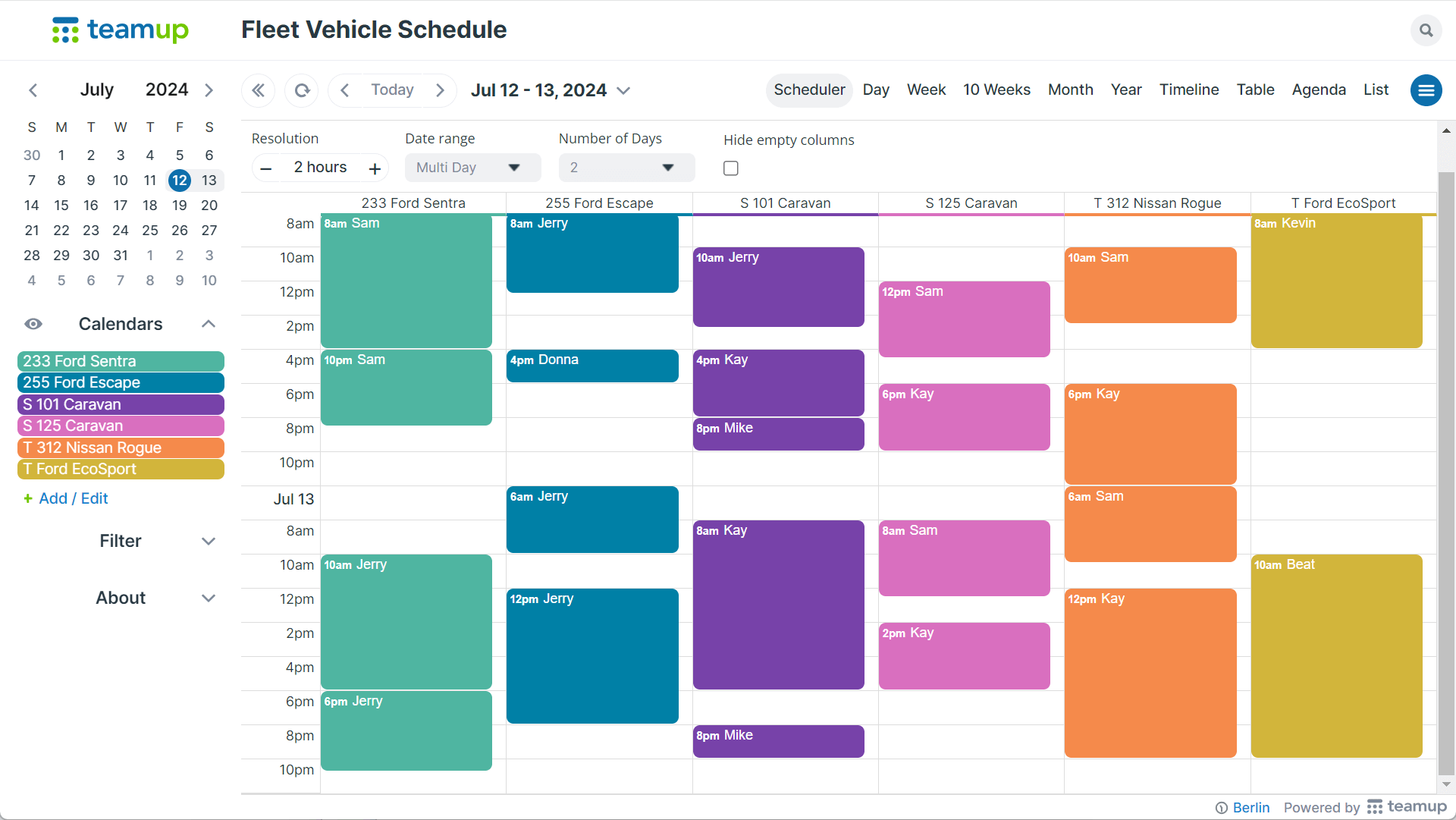
A company managing a small vehicle fleet keeps it simple with a single master calendar holding one sub-calendar per vehicle. Scheduler view shows every vehicle’s bookings in its own column. It’s a clean setup for quickly spotting which vehicle is open on a specific date or time. Larger fleets can be grouped into folders (by region or vehicle type) so managers can toggle a whole group on or off instead of scrolling through every vehicle at once. Adding a vehicle just means adding another sub-calendar; the structure itself doesn’t change.
→ Fleet Scheduling Made Simple: Get Clarity on Vehicle Availability
Youth organization: sub-calendars by age group
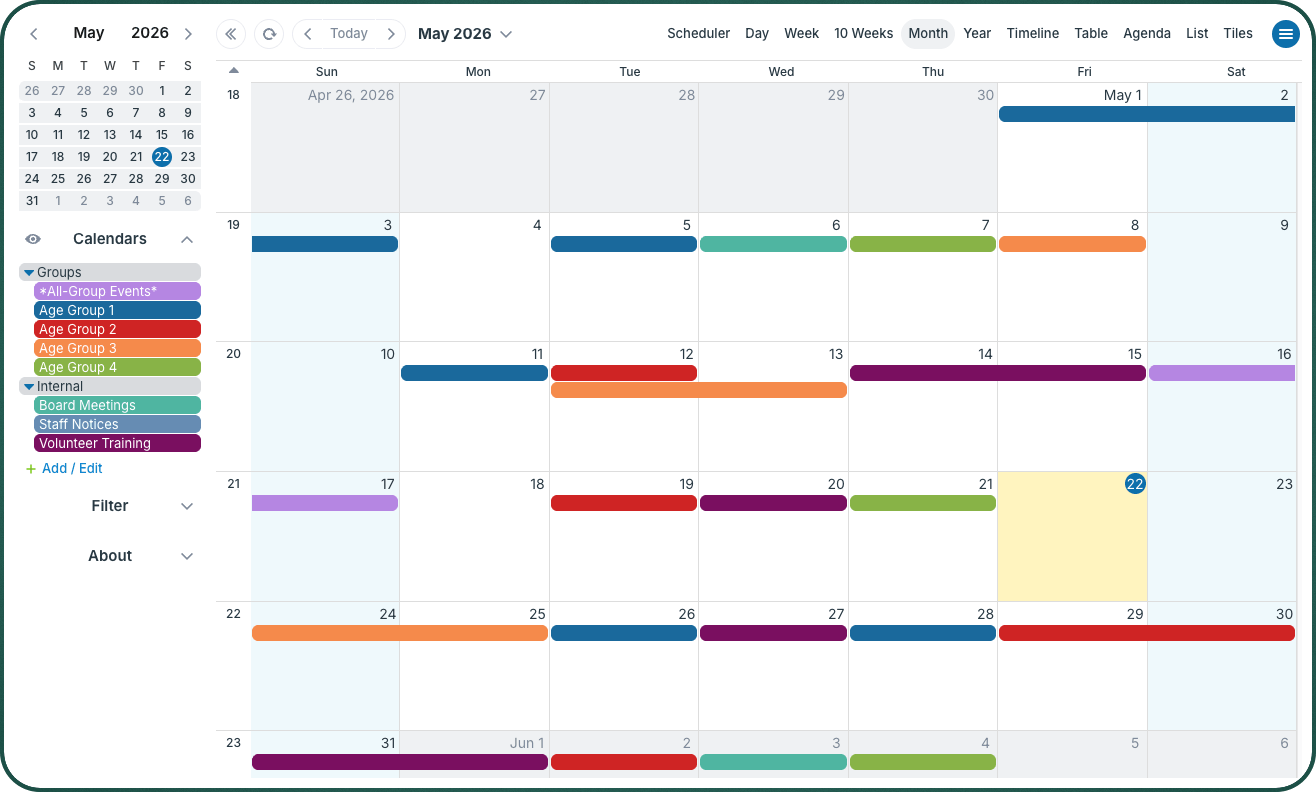
A volunteer organization running several youth programs sets up a sub-calendar for each age group (younger children, middle school, teens). There are separate sub-calendars for staff notices, volunteer training and board meetings. There’s a public, embedded version of the calendar showing only the sub-calendars for each age group, so families can check the schedule for their kids.
→ Coordinating a Volunteer Organization with Multiple Youth Groups
More ways to work with sub-calendars
- Color-code by team, project, or resource so events are recognizable at a glance.
- Group sub-calendars into folders with a simple “>” naming convention, so related calendars expand, collapse, or toggle as a set.
- Combine sub-calendars with custom fields for a structure that captures people, resources, or categories alongside details like status or phase.
- Keep individual projects organized, with their own sub-calendar, permissions, and archive timeline once the work wraps.
Room to grow, without starting over
Sub-calendars allow a Teamup calendar to scale without disruption. Adding a new team, project, or location doesn’t require a new master calendar. It just means adding another sub-calendar to the one that already exists.
For organizations that need separate master calendars for different locations and departments, org accounts provide consolidated management and billing. And the same scalability applies, with room to grow by adding more sub-calendars to each master calendar and more users to the organization as needed.
Quick check: new master calendar, or new sub-calendar?
- Same team, same supervisor, related work: Add a sub-calendar.
- Separate oversight, completely different team or audience: Create a new master calendar.
- Already managing several master calendars for one organization: Set up an organization account.
Create a new master calendar to get started, or learn more about working with sub-calendars to plan the structure first.