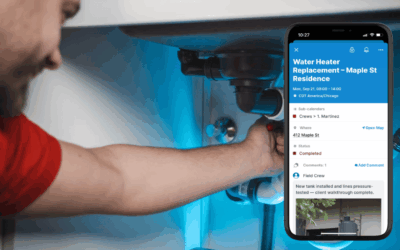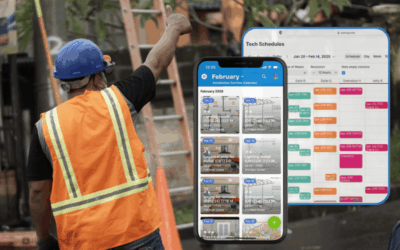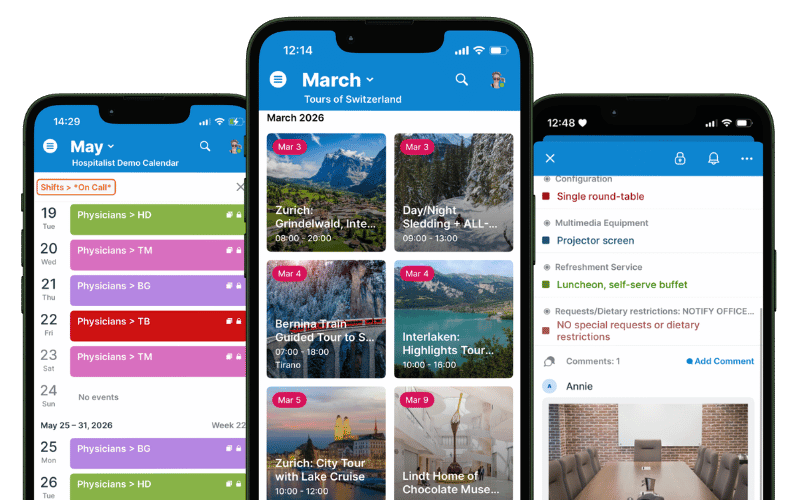
The Teamup mobile app for iOS and Android is a fully functional calendar app that keeps your scheduling right where you need it. No matter where you are, you can view your calendar, work with events, access uploaded images and files, and stay synced. Here’s how to get started with the Teamup app.
Getting started with the Teamup app
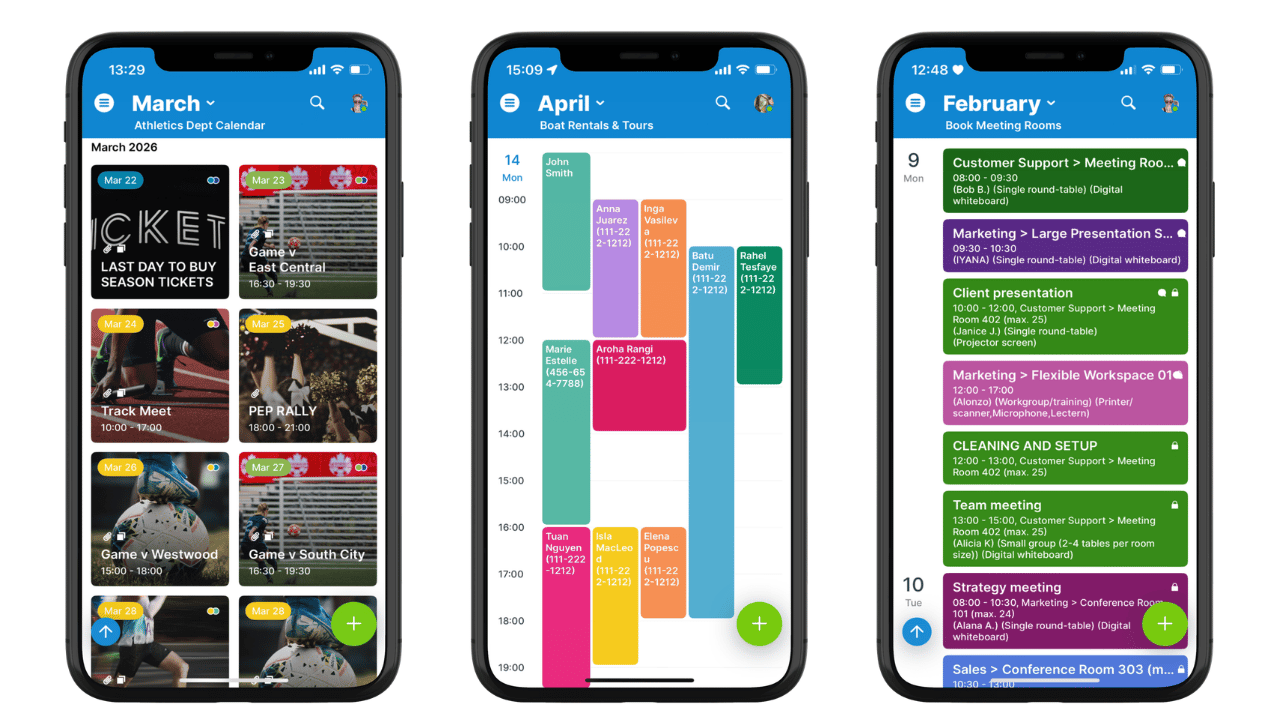
The Teamup app offers the same intuitive and powerful experience as Teamup on the web, streamlined to work well on smaller mobile screens. Access all the calendars on your dashboard, set up push change notifications, and stay synced from mobile to web and back again.
Note: Use a browser to create a new Teamup calendar or access the calendar settings.
Download the Teamup app
The Teamup app is available for iOS and Android:
- Download for iOS on the App Store.
- Download for Android on the Google Play Store.
Once the app is downloaded, tap to open it. The initial screen will have Login and Sign Up buttons.
Log into your Teamup account

If you already have a Teamup account, tap Login. Follow the prompts to log into your account. Your user dashboard will open, showing any calendars you’ve created or been given access to as a user. Tap any calendar to open it in the Teamup app.
If you don’t have a Teamup account, tap Sign Up. Follow the prompts to set up a new Teamup user account (it’s free). You’ll need to check your email and tap a link to activate your new account. Then you can go back to the app and log in. If you’ve been added to any calendars as a user, you’ll see those calendars on your dashboard. Tap a calendar to open it in.
Connecting all your Teamup calendars
The calendar dashboard is your central location for all your Teamup calendars, accessible on a browser and in the Teamup app. The dashboard stays synced between devices so it’s easy to stay connected with all your Teamup calendars no matter where you are.
Get calendars on your dashboard
- Calendars you create: Any Teamup calendars you create will automatically be added to your dashboard.
- Calendars shared with you: When you’re added as a user to a Teamup calendar, the calendar is automatically added to your dashboard.
- Public/group calendar links: You might have access to a Teamup calendar via a shareable calendar link. You can add calendar links to your dashboard manually. Details here.
Switch between master calendars
The first time you log into the Teamup app your dashboard will open automatically, showing all the calendars you can access. Tap a calendar title to open it.
To switch to a different master calendar in the app:
- From the left sidebar, tap the calendar icon to go directly to the dashboard.
- Or open the right sidebar, then tap Dashboard.
- In the Dashboard: Tap the calendar title you want to open.
Using the Teamup app
Sub-calendars and views
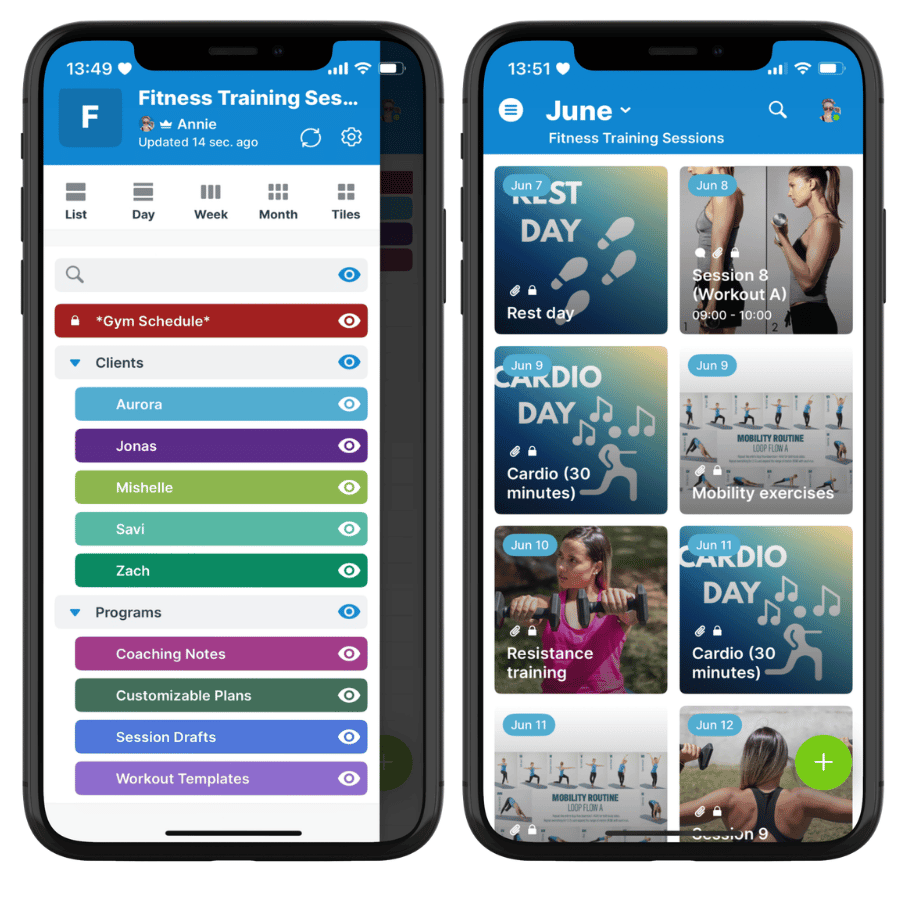
To open the left sidebar, swipe from the left or tap the menu in the top left.
- Switch calendar views: Tap to choose List, Day, Week, Month, or Tiles.
- Toggle which sub-calendars are visible: Tap the eye icon to show or hide a sub-calendar.
- Tap the gear icon at the top to access the app settings and set up notifications, change the time zone, or adjust other preferences.
Dashboard and log out
To open the right sidebar, swipe from the right or tap your user avatar in the top right.
- Your user name, email, and online status appear in the blue section at the top.
- Tap Dashboard to open a different master calendar in the app.
- Tap Feedback to send an email to Teamup support.
- Tap Log out to logout of your Teamup user account.
Working with events
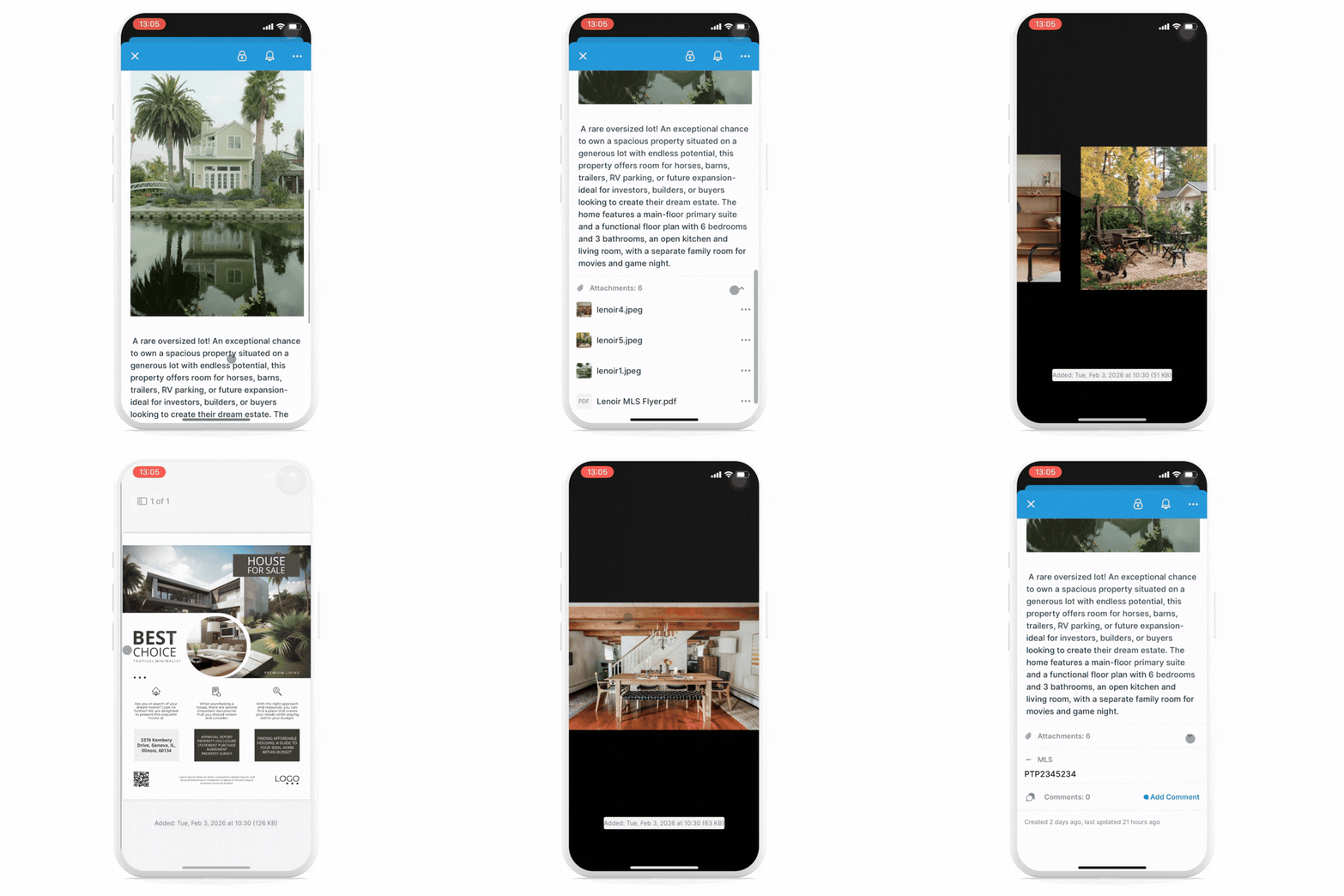
You can view all event details, including images and attachments, in the Teamup app. Just tap any event to open it. To create a new event in the app, tap the green + button or tap in the calendar’s time grid.
- Preview images and files in the Attachments field: No need to open up individual photos or download multiple PDFs to figure out which is the right one. Just tap for the preview, then swipe through the attached images and files. Share or save an attachment directly from the preview.
- Get a mapped location from an event: When mapping is enabled, there will be a Show on map link above the field. Put the address in the field, and users can tap the Show on map link to get directions.
- Share an event with others: Share any calendar event as a secure, stand-alone webpage, send calendar invites, and share calendar events via text, email, and social media.
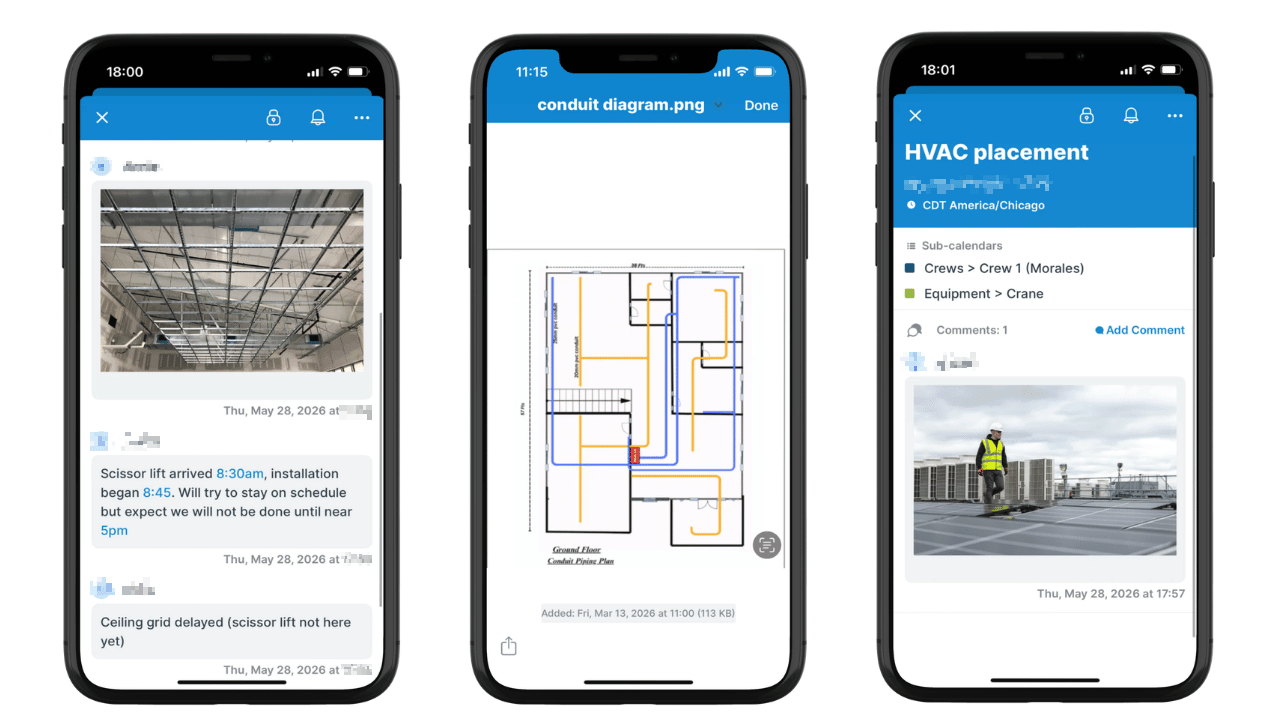
- Use event comments for real-time updates: From the app, any user can post status updates, upload photos, add notes, and document issues in the event comments, even if they have read-only access to the calendar. Here’s how to set it up.
Download the Teamup app today
The Teamup app is completely free: Download it for iOS or Android, access all your calendars, and stay synced anywhere.