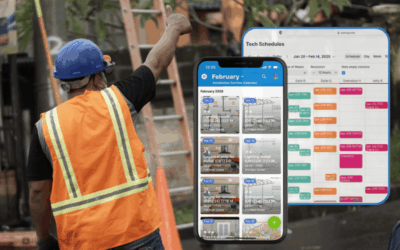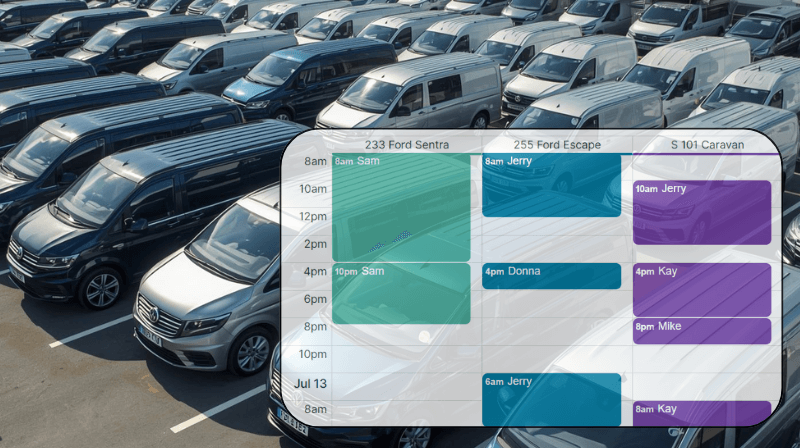
Fleet management is a core part of daily operations for many service businesses, delivery companies, construction and trade teams, and organizations with mobile field crews.
Drivers deliver products to customers or haul materials to job sites. Field technicians rely on fully equipped work vehicles so they have the right tools for every service call. Volunteers depend on shared vans or cars to provide essential community services. Across all these scenarios, the need is the same: clear, reliable visibility into fleet vehicle availability.
How Teamup transforms fleet operations
Using Teamup calendar, it’s easy to dedicate a unique sub-calendar to each vehicle and display all bookings of any specific vehicle in a single column on the Scheduler view, with multiple vehicles displayed side by side. This creates a clear, real-time visibility into the entire fleet in any size. With a single, shared calendar that shows availability instantly — and offers optional self-booking — your team can schedule vehicles without calls, messages, or admin back-and-forth. Instead of digging through messages or spreadsheets. Your entire fleet schedule becomes visual, intuitive, and always up to date.
We simply would not be able to manage day to day without Teamup! We have a single response vehicle that is used to respond to 112 calls, transport equipment to events, and deliver resuscitation training to community groups/schools. Our team books the vehicle out on the calendar along with the details of the event, to prevent over commitments. All team members have the app on their phone, and are able to see when the vehicle is free.
– Jamie Ryan, Emergency First Responder
See vehicle availability instantly
With one sub-calendar per vehicle, you always know what’s available and when. This structure makes it easy to:
- See availability for a specific vehicle
- Scan for the next open vehicle
- Prevent double booking automatically
- Find any vehicle that’s free on a specific date and time
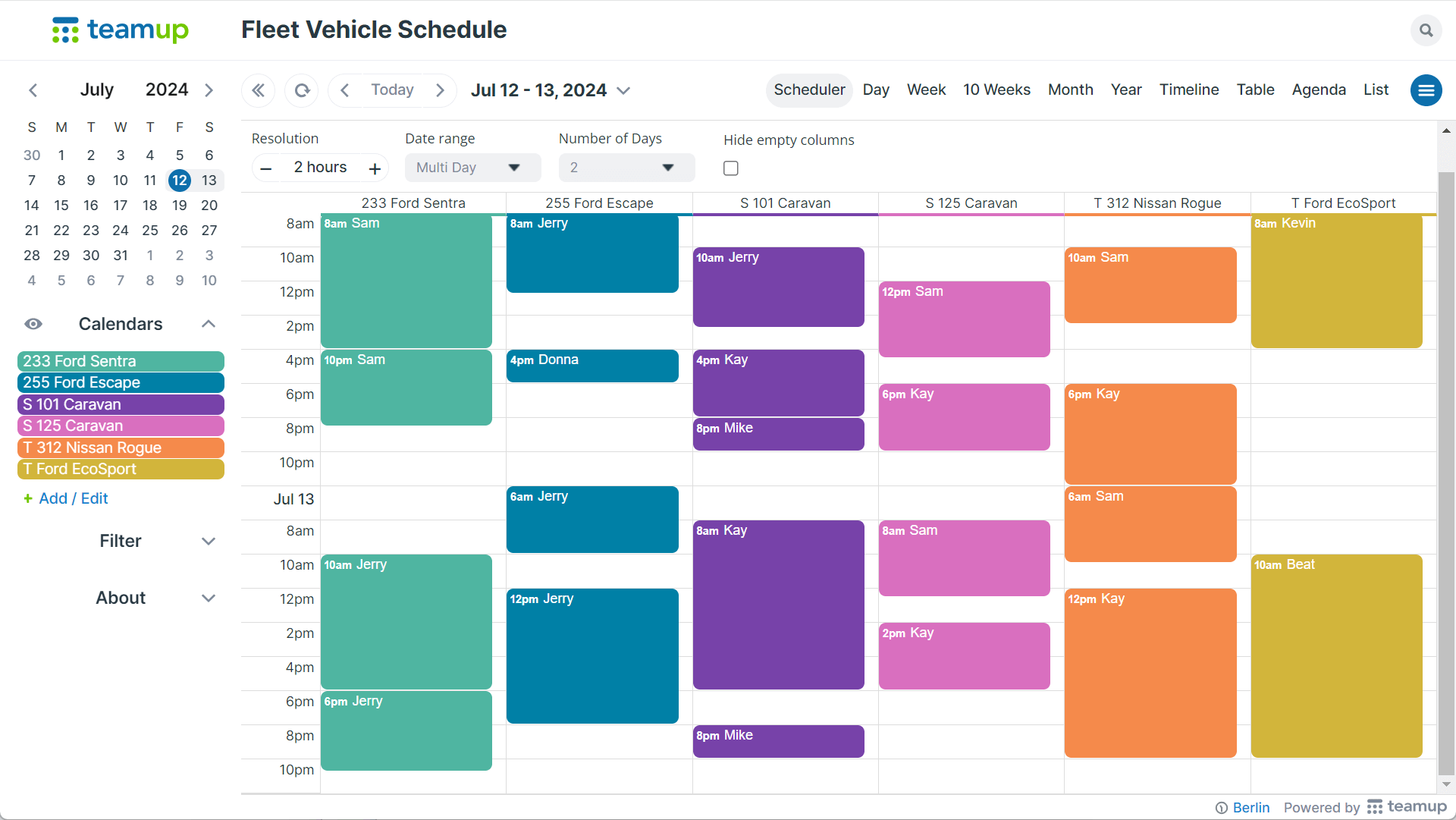
Click to enlarge: Teamup Calendar used for fleet scheduling, showing one sub-calendar per vehicle.
The fastest way to spot openings across your fleet is Scheduler View, which shows each vehicle in its own color-coded column. Scheduler View is particularly useful when you need to:
- Find availability for specific vehicles: Toggle sub-calendars to show only the vehicles you want to check. In Scheduler View, this creates a clean, focused, side-by-side comparison of just those vehicles.
- View the next available vehicle: Display the whole fleet starting from today and scroll forward. Open slots appear immediately in the color-coded columns, making it easy to identify the next vehicle that’s free.
- Find any vehicle available on a specific date and time: Jump to the date you need and view the entire fleet at once. Scheduler View highlights all vehicles that are free during the exact time window you’re planning for.
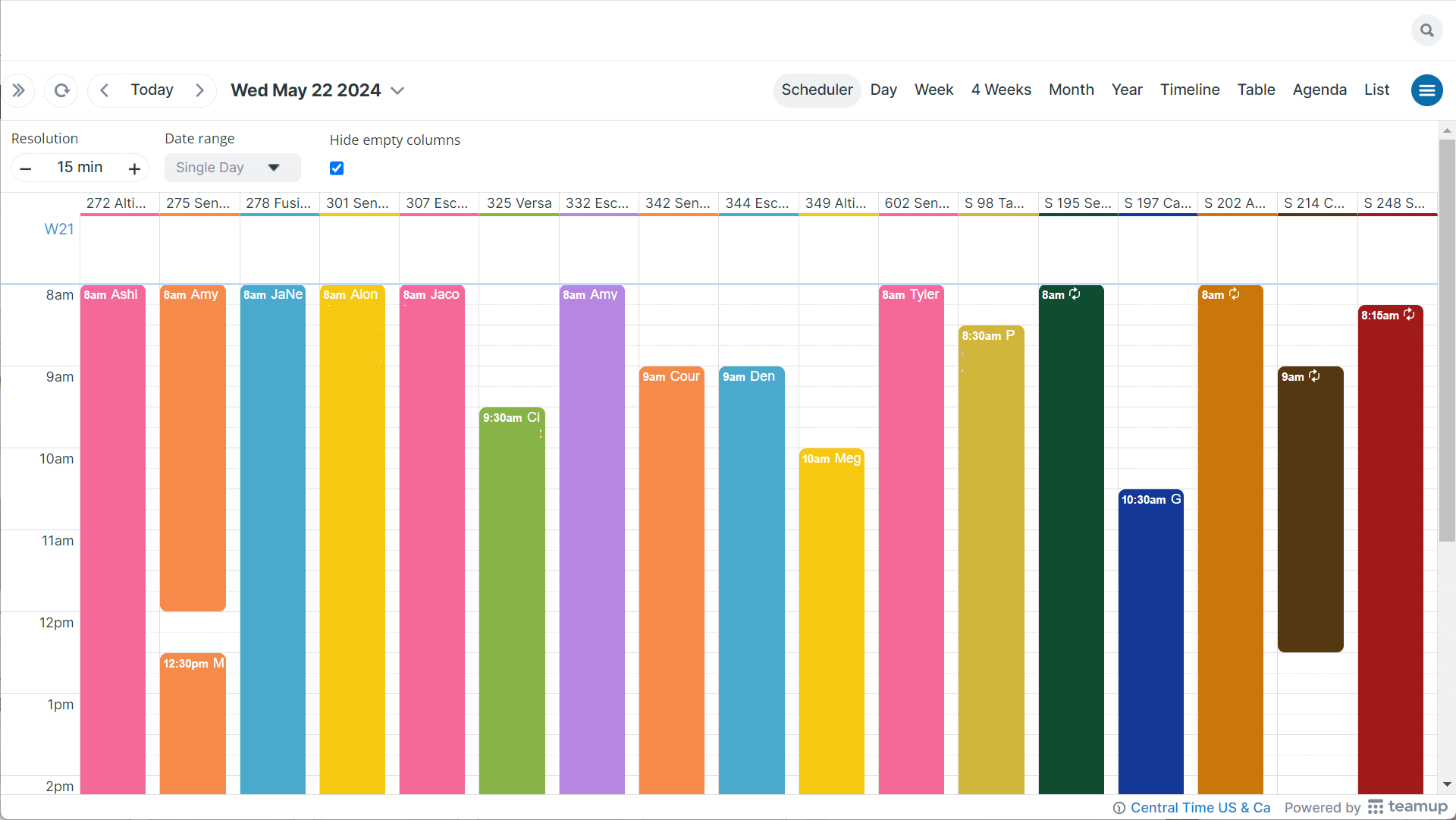
Teamup Scheduler View showing multiple vehicles as color-coded columns for quick comparison of availability
Share availability and enable self-booking
To make fleet management more efficient, you can let users view the fleet schedule so they can check availability on their own. And with the Teamup mobile apps, they can check the fleet schedule anytime, anywhere.
Teamup lets you control exactly what users can do with the schedule by customizing access to match the setup you need. You can allow users to view the schedule only, without being able to change anything. In that case, they can simply submit a request for an open time slot.
Or, you can enable self-booking by adjusting the permission level. Users can add their own bookings directly to the calendar, while still being prevented from making changes to bookings created by others. Teamup also supports automatic double-booking protection, so overlapping reservations are avoided.
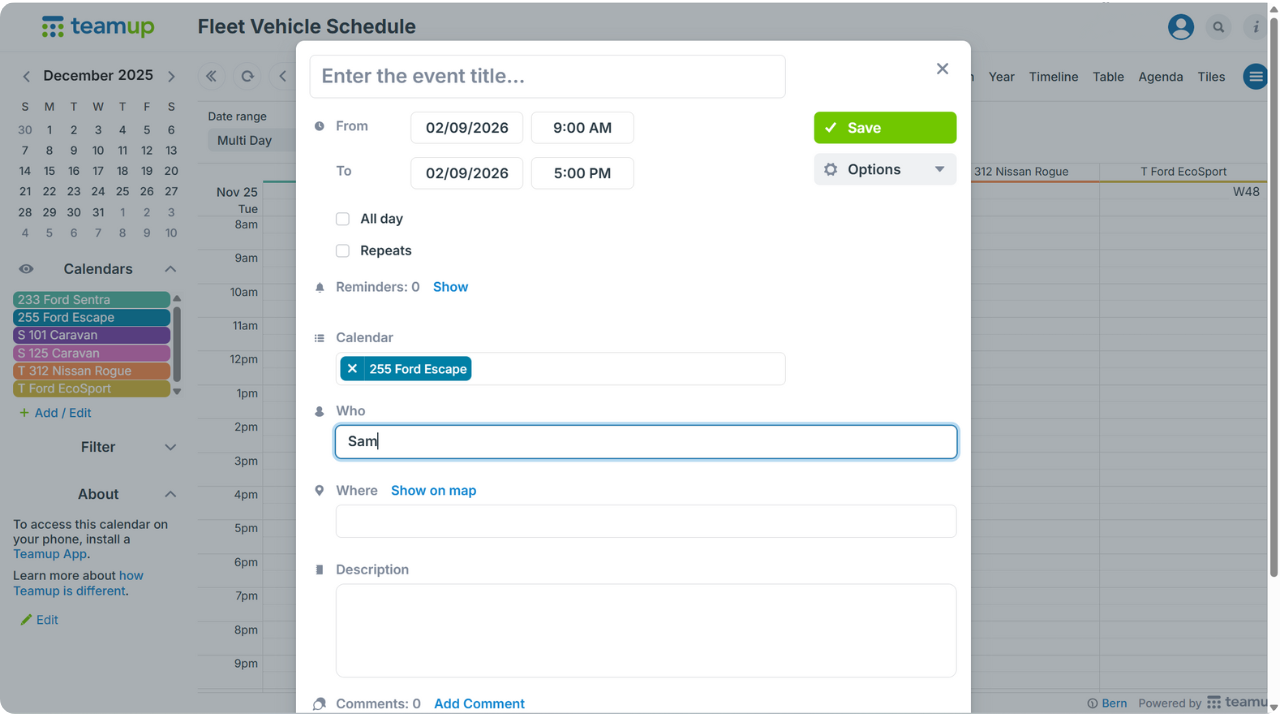
Click to enlarge: If granted add or edit permissions, users can reserve a vehicle directly.
Scale for your organization
Fleet management with Teamup works at any scale — whether you’re coordinating a small team sharing a single vehicle or managing dozens or hundreds of vehicles across multiple locations. As your fleet grows, scaling is simple: just add more sub-calendars for additional vehicles. To keep things organized, you can place vehicles into folders by region, depot, type, team, or use case. Even in complex operations, you can quickly focus on what’s relevant by toggling entire folders on or off and viewing visual availability over any date range.
As fleets grow, many organizations add more layers to the same calendar: a maintenance calendar to prevent downtime, fuel or mileage logs for reporting, and rotating assignment calendars to ensure vehicles are used evenly. Everything scales without adding complexity — just additional sub-calendars neatly grouped in folders and managed with the right access permissions.
For a real-world example of a large fleet operation scaling with Teamup, see Handling the Complexity of Mobile Fleet Deployments.
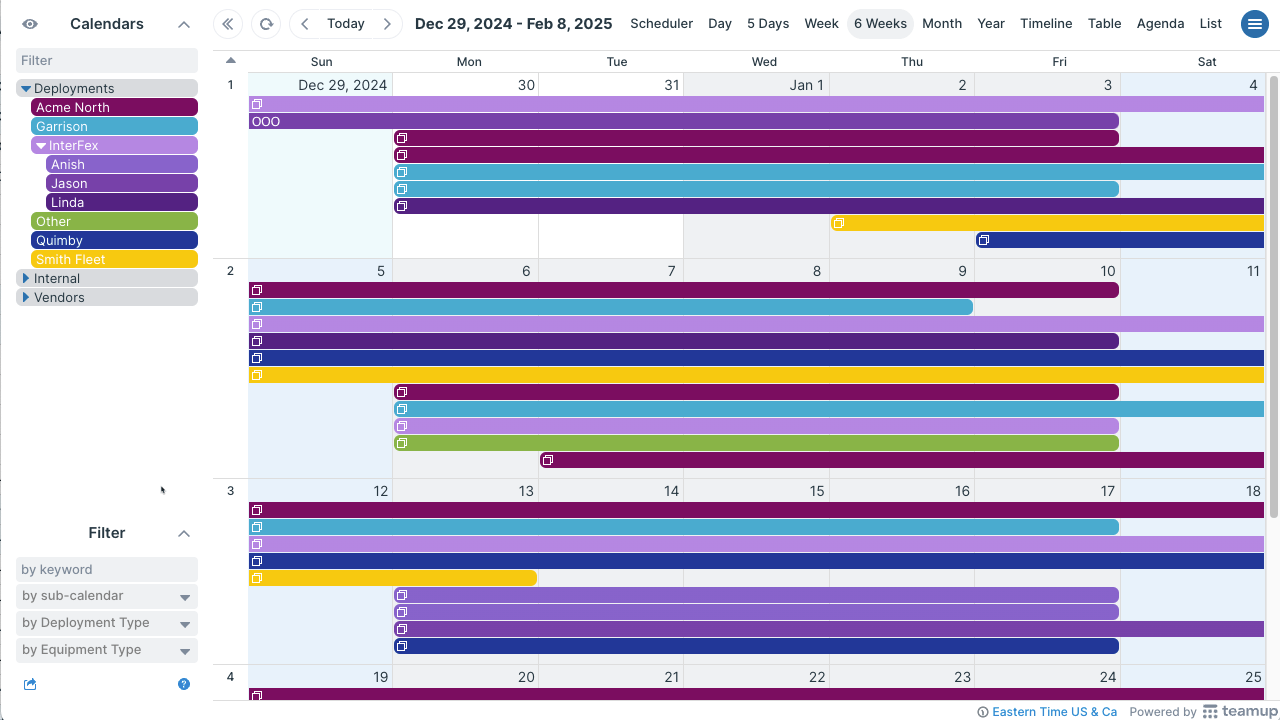
Click to enlarge: Example of a larger fleet using folders and multiple sub-calendars in Timeline view.
Set up your fleet schedule in minutes
Ready to streamline your fleet scheduling? Start with Teamup Fleet Scheduling Template, customize it in minutes, and get instant, real-time visibility across your entire fleet.
Frequently Asked Questions
Click a question to see the answer.