When multiple people update a shared calendar throughout the day, it’s easy to lose track of what’s changed. In Teamup, you can receive a daily summary email with all the changes made to your calendar.
Receive a daily summary of calendar changes
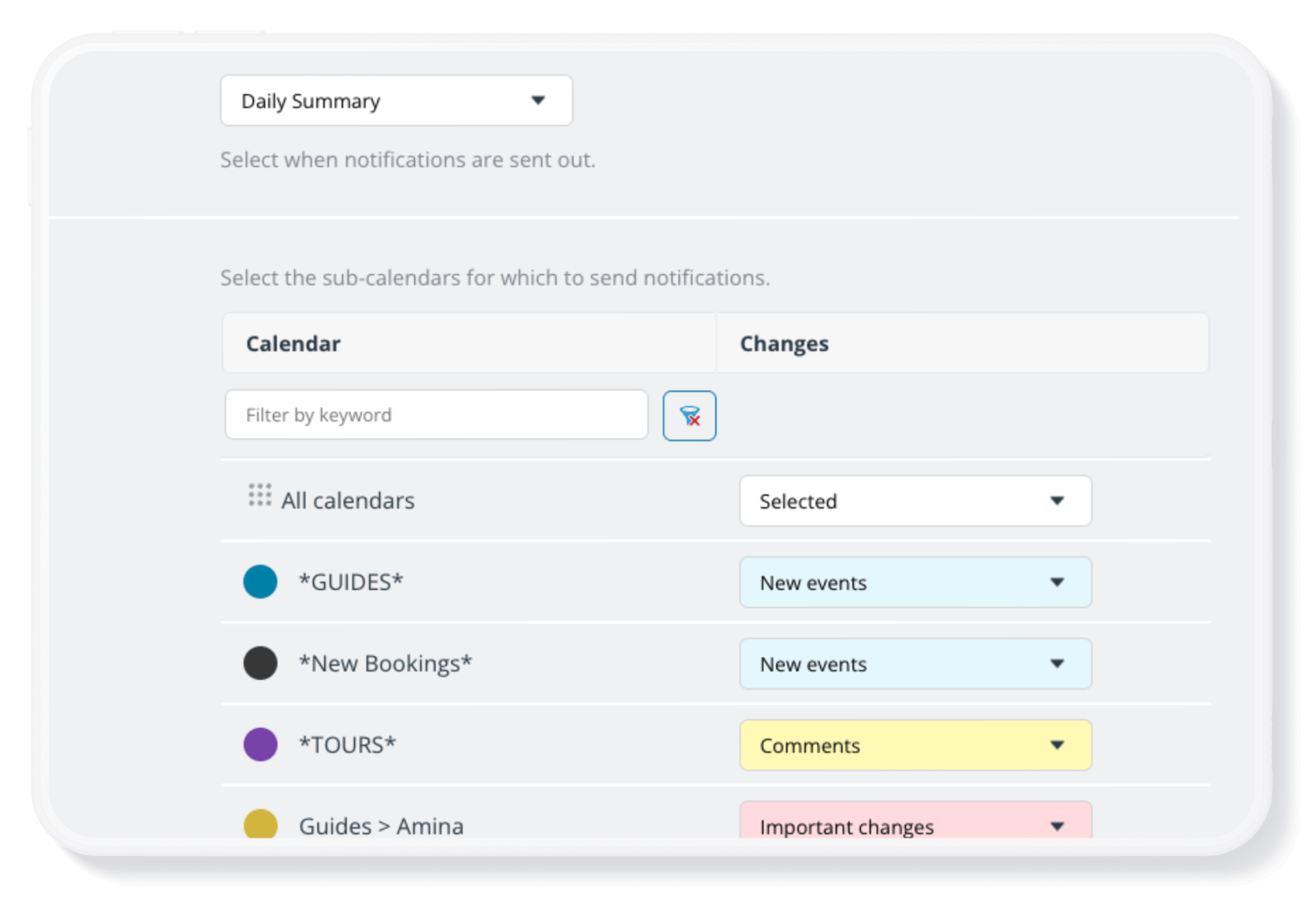
Click to enlarge: Set up an automated daily summary of calendar changes to stay informed about updates without needing to continually check the calendar.
Instead of checking the calendar repeatedly or receiving multiple notifications, you can get one daily summary email. It shows everything added, updated, or removed across your calendar in a single, clear overview.
When a daily summary is especially useful
- Shift-based teams with frequent updates: Schedulers adjust shifts throughout the day. Team members need a simple way to review what changed without scanning the calendar repeatedly.
- Shared calendars across departments: Multiple teams update the same calendar (operations, support, management). A daily summary keeps everyone aligned without constant checking.
- Project timelines with ongoing edits: Deadlines, milestones, or tasks get updated throughout the day. The summary provides a clear record of what changed.
- Managers overseeing multiple calendars: Instead of opening each calendar, managers can quickly review all updates in one email.
- Tip: See also how to Create a Unified Overview of Multiple Calendars
- Teams working across time zones: Changes happen while others are offline. The daily summary helps them catch up at the start of their day.
⚙️How to set it up:
- Log into Teamup on a browser.
- Open your calendar.
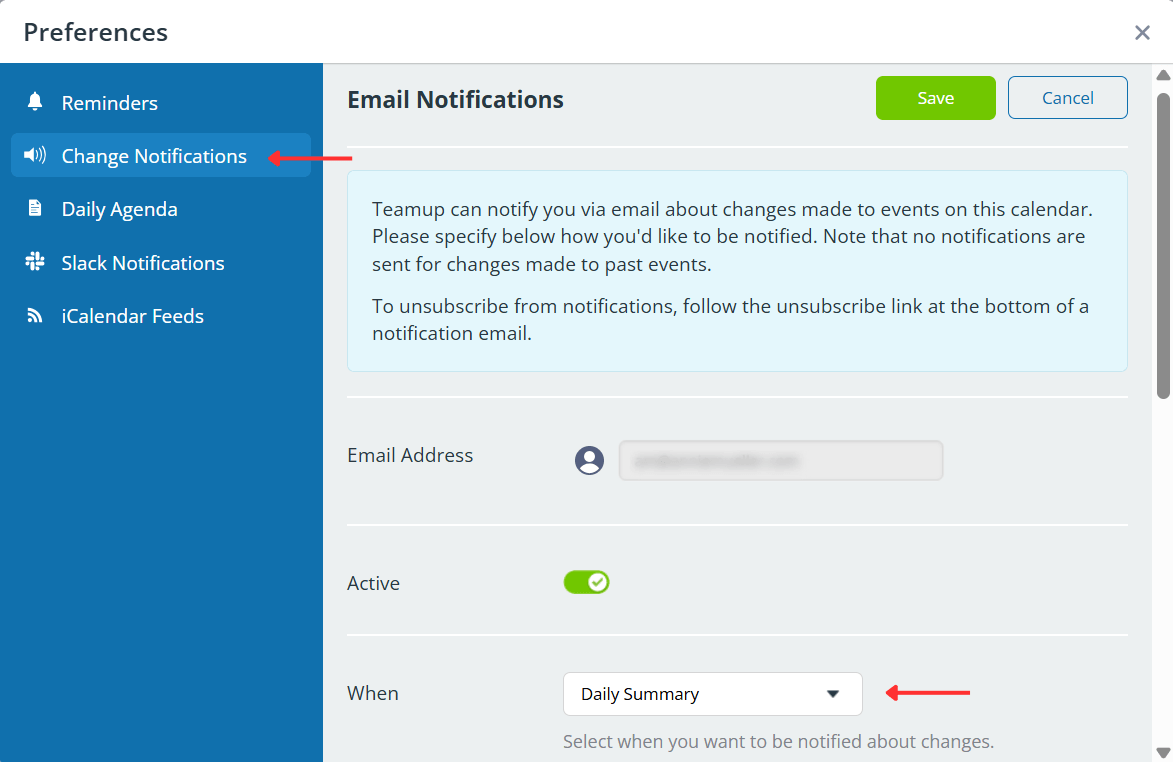
- Click the blue menu button in the top right.
- Select Preferences > Email Notification.
- In the When section, use the drop-down menu to select Daily Summary.
- Choose All sub-calendars or Selected sub-calendars.
- Choose the notification type to include in the daily summary.
💡 To include all updates to the calendar, select All sub-calendars and All changes.
You can unsubscribe from notifications by clicking on the Manage your notifications link at the bottom of the email received. Since these emails may contain direct links to your calendar and events, we advise you not to share or forward them, as this could allow unauthorized access to your calendar.