For team leaders, supervisors, small business owners, and managers, making sure there are enough people staffed for each shift is key to smooth business operations. Sometimes shifts are standardized, and managers simply need to confirm that enough staff are scheduled for each one. In other cases, customer requests or bookings change daily, and supervisors need to quickly see which teams or individuals are available to cover the needed work.
When managers can quickly identify open gaps and place available staff, each day runs more smoothly.
Why shift scheduling becomes difficult
Two key challenges make shift management harder than it needs to be.
Lack of clear, visual comparison
The need: Clear visibility of the schedule across all shifts and staff members.
Most teams rely on messages, spreadsheets, or emails to manage open shifts and availability. Without a visual overview, managers waste time sorting through texts or chat threads to see who can fill a shift. It is difficult to compare staffing needs and coverage at a glance, especially across multiple days or teams. The result is confusion, missed handoffs, and overstaffed or understaffed shifts.
No real-time, centralized updates
The need: A single, accurate, scheduling source-of-truth that everyone can access
Even when managers send updates, there is often no guarantee that everyone is looking at the same information. One person might be working from an old email while another checks a spreadsheet that has not been updated. Team members can try to claim shifts that have already been filled, or assume someone is scheduled who has actually called off.
Consider a retail store with twenty employees and three daily shifts. When someone calls off, the team lead sends a group message to fill the gap. Responses trickle in, and a replacement is found, but the rest of the team doesn’t know the shift is filled. At shift time, another employee shows up to take the same shift, unaware it is already covered. It’s frustrating and inefficient for the whole team.
How to keep every shift visible and up to date
Visual clarity and real-time updates are what solve the problem.
Scheduler view provides a clear, organized picture of shifts, open time slots, and staff availability, all in one place.
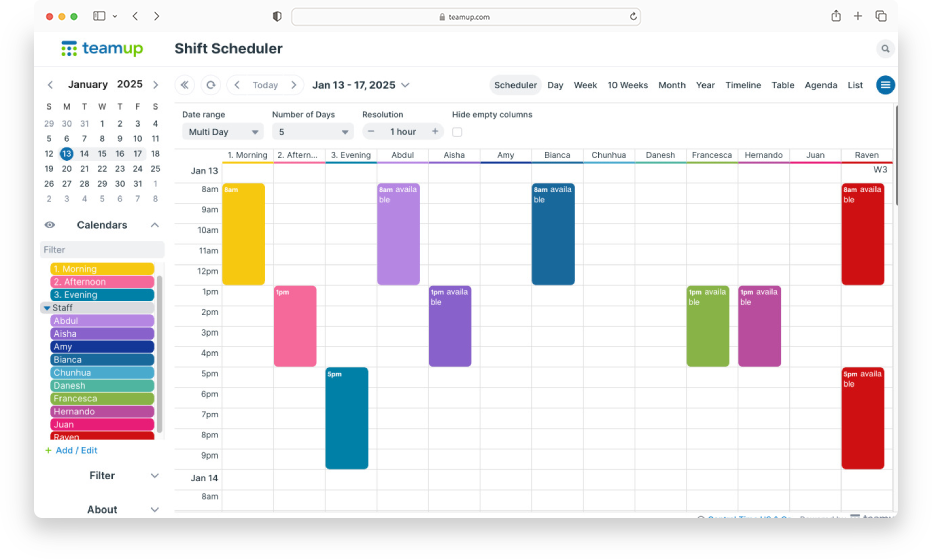
Click to enlarge: Scheduler view shows each sub-calendar in its own column. Scan across to compare availability of staff members.
The clear organization of Scheduler view makes daily scheduling easier. Managers can navigate to the needed dates, then scan across a time or day slot to find an available team or staff member.
Changes sync instantly for everyone using the same calendar. So, once a shift is updated or filled, the update is visible to all staff who have calendar access. There’s no need for extra messages or updates sent manually.
And no need to worry about giving calendar access to staff members: Read-only permission lets everyone see the schedule but prevents unauthorized changes. Only users with modify-level access can create or change what’s on the calendar.
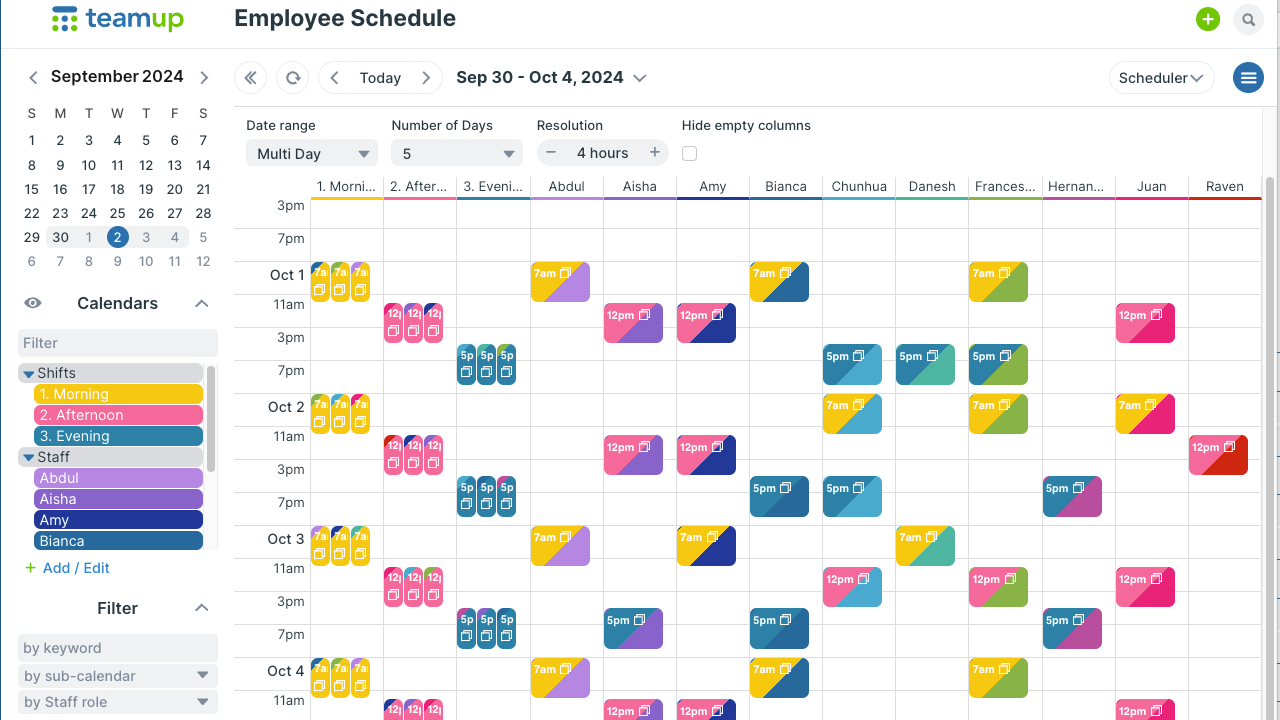
Click to enlarge: Adjust the date range to view one day, multiple days, or weeks at a time. Toggle sub-calendars to focus on one shift or check availability of certain staff members.
Scheduler view for shift management
- Sub-calendars displayed as columns: Each team or staff member appears in their own column, keeping roles visually distinct even on busy schedules.
- Events shown side by side: Instead of stacking events by start time, Scheduler view organizes them by calendar in a clean vertical time grid.
- Adjustable date range: Focus on a single day or scroll through up to five years of shifts.
- Adjustable resolution: Zoom in for 5-minute increments or zoom out for weekly or monthly planning.
- Useful for short-term and long-term: Plan day-to-day coverage or long-range staffing needs in one view.
- Toggle sub-calendars: Show or hide specific shifts or employees to reduce visual clutter.
- Automatically hide empty columns: Hide columns with no events to highlight active schedules only.
The results: faster updates, fewer missed shifts, smoother operations
Shift coordination doesn’t have to be painful.
With Teamup’s Scheduler view, there’s an organized view of all shifts and staff availability in one place. The layout makes coverage gaps easier to stop and fill. Automatic conflict prevention keeps staff members from being accidentally booked for multiple shifts at the same time.
When updates happen in real time and everyone sees the same calendar, managing shifts becomes efficient, transparent, and stress free. Learn more about Scheduler view or create your own Teamup calendar now.