Many managers spend time assigning work, following up on progress, and checking whether tasks have been completed. A shared calendar with clear task delegation provides a simple way to assign responsibilities, monitor status, and keep everyone working from the same schedule.
The need: Assign tasks clearly, keep ownership visible, and monitor progress without relying on emails, spreadsheets, or constant follow-up.
The Teamup solution: A shared Teamup calendar lets managers delegate work by assigning events to individual team calendars, while custom fields and filters make it easy to track progress in one place.
Set up the calendar

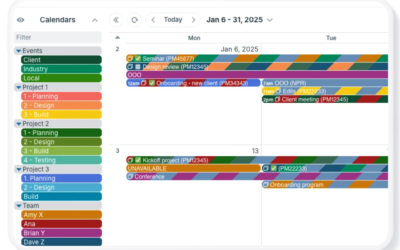
Click to enlarge: Organize individual, color-coded calendars in folders. Events or tasks added to more than one calendar show colorful striping to visually indicate who’s assigned to the task.
To make delegating easy, set up sub-calendars designated for individuals and organized by department or group.
- Create a calendar for each team member. Color-coding makes it easy to spot who’s been assigned a task or responsibility.
- Organize in folders by team, group, department, or area.This keeps calendars organized and easy to work with, even with multiple teams.
- Prevent schedule conflicts by configuring sub-calendars to automatically disallow overlapping events. This setting is helpful if you want to avoid double-booking individuals for events, meetings, or time-bound tasks.
Delegate a task or event
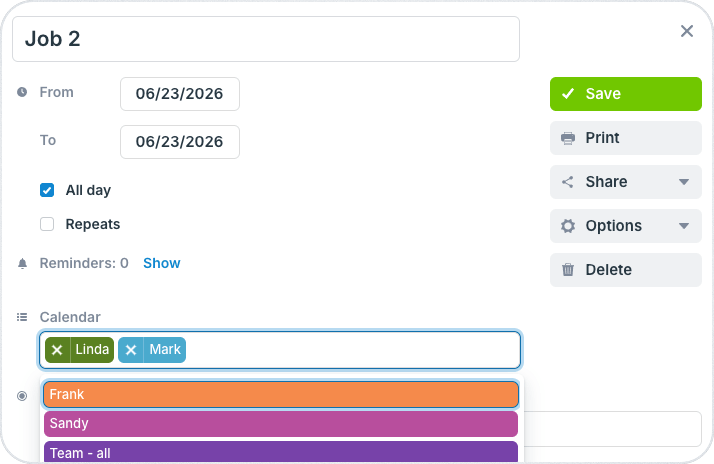
Click to enlarge: Assign the task to one or more sub-calendars to delegate it to the corresponding team members.
To delegate a task to someone, simply add the task to their sub-calendar. Add notes, upload images, and attach relevant files so all the information is available to the person assigned.
Since you can have a task on more than one calendar, you can assign it to multiple people. For example, if both Linda and Mark are working on a client project, you can add a project job to both of their calendars as shown above. You don’t have to copy-and-paste the info or even duplicate the task. Just assign it to both calendars, and they’ll both see it on their schedule with all the details needed to do the work.
Get status updates
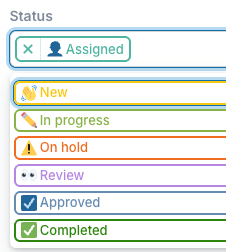
Track status with a custom choice field. Filter to view tasks by status.
Delegating tasks keeps the work going, but it’s also important to ensure jobs and tasks stay on track after they’ve been assigned. Use a customized event field to track progress and get status updates, right on the calendar.
For example, a custom choice field can specify the various stages of a task. The person assigned can update the task status as they move through the workflow. You can easily check in on the task without intruding, no emails or messaging needed. Built-in filters also allow you to sort and view events by one or more of the choice field options.
Improve efficiency with smart delegation
Secure, organized delegation reduces the administrative load while enabling teams to work and collaborate more efficiently. Managers still maintain visibility and can see status updates, but they no longer have to manually chase down information from multiple sources. Workflows and communication are smoother which means things get done faster.
Create your own Teamup calendar and see how much time you can save by delegating tasks while keeping everyone aligned.
Related resources
- Explicitly Available vs. Explicitly Unavailable
- Enable Self-Managed Availability Without Losing Oversight
- Make Availability Visible and Enable Self-Booking with a Shared Calendar
- Manage Unscheduled Tasks with the Parking Lot Method
- 3 Ways to Show Who Is Involved with Events on a Shared Calendar
- Visualize and Plan Team Workload Across the Year with Teamup