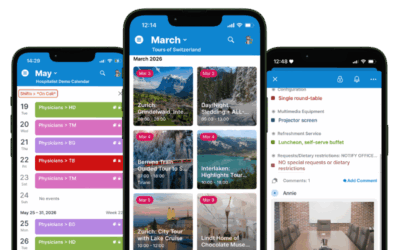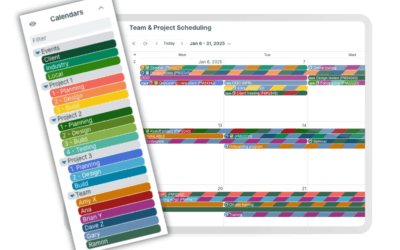
On a shared calendar, one of the first questions that comes up in day-to-day work is simple: Who is involved with this event? The question might be slightly different depending on the context:
- Who am I working with on this assignment?
- Who is the project leader for this task?
- Who is in charge of this event?
- Who else is coming to this meeting?
- Who is assigned to this job?
In all these situations, showing who is involved with each event is important so that work can flow efficiently. Here are three practical ways to show who is involved with events on a shared Teamup calendar.
Method 1: Use sub-calendars
Use sub-calendars to schedule people or resources that should not be double-booked. Each sub-calendar represents an individual or resource. Events are assigned to the appropriate sub-calendars to indicate which individuals or resources are “booked” for that event:
- On a job scheduling calendar, show which tech or crew is assigned for each job.
- On a PTO calendar, show who is absent or using PTO.
- On a team calendar, show each team member’s activities, tasks, and projects as well as their availability and whereabouts.
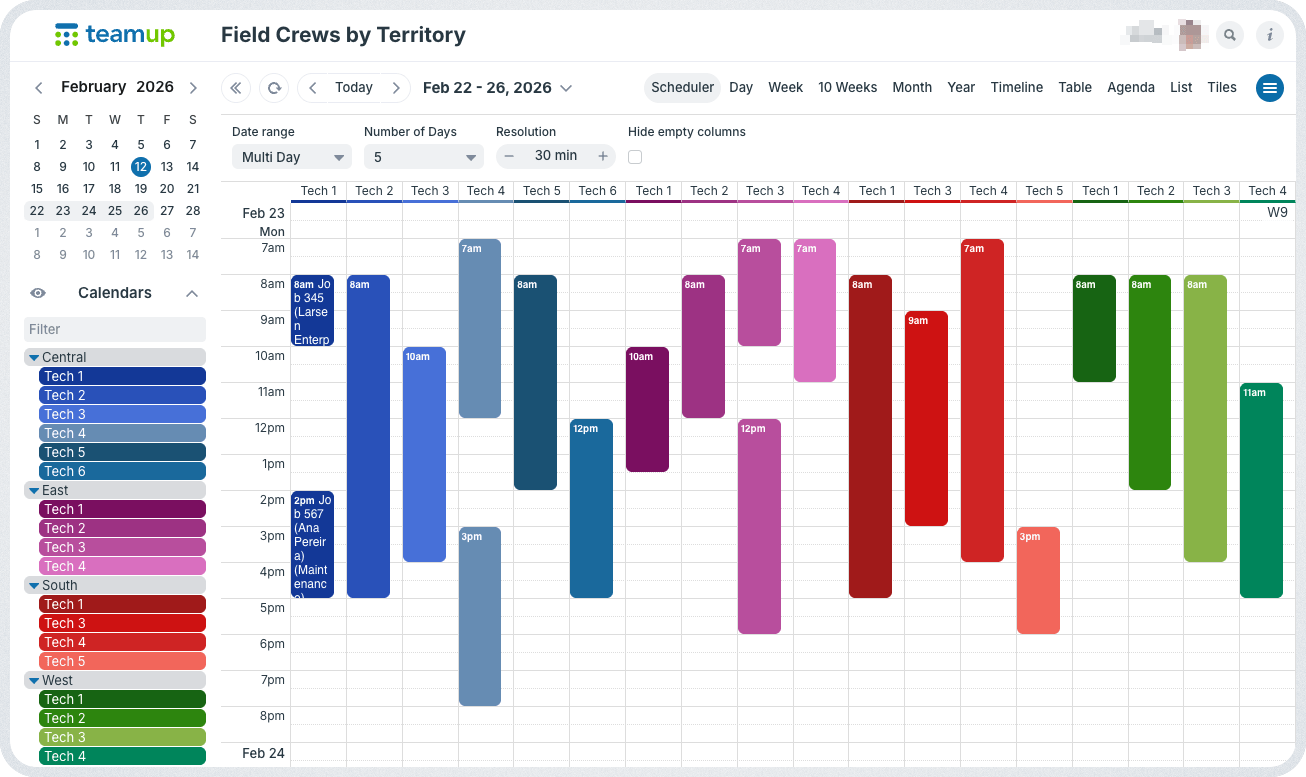
Click to enlarge: Scheduler view shows each sub-calendar in its own column, events stacked side-by-side.
This is the most common and feature-rich method, used in many team calendars. It’s easy to set up and intuitive to use: Create a sub-calendar for each individual, then assign events to the appropriate sub-calendar. To assign multiple people to a single event, select multiple sub-calendars.
Note that this method is the only one that can prevent double-booking or provide access control.
When to use this method:
- To automatically avoid double-booking people or resources.
- To have a visual, color-coded way to show all the individuals or resources connected to any event or job.
- If access control is important (e.g. only allowing users to see their own assigned tasks/jobs).
- To enable individuals to get a notification when a job is assigned.
Example: A dispatcher schedules jobs by assigning each one to a technician’s sub-calendar. If that technician is already booked, the conflict is immediately visible or blocked. Each technician has customized access to view only their assigned jobs, while managers see everything.
Method 2: Use a text field
Use a text field to communicate who is responsible for the event or involved in some way without needing to have a sub-calendar assigned to that person. The text field allows for unique entries, so you don’t have to predefine the people/resources involved with the event. It works well in situations where there are many variables for people involved and/or when the “Who” being shown is a secondary consideration:
- On a community event calendar, a text field can show the individual in charge of organizing each event or the group hosting an event.
- On a conference agenda, the Who field can show the name of the speaker.
- On an office booking calendar, the offices are the primary scheduling factor (sub-calendars). A text field can be used to capture the name of the person reserving the room.
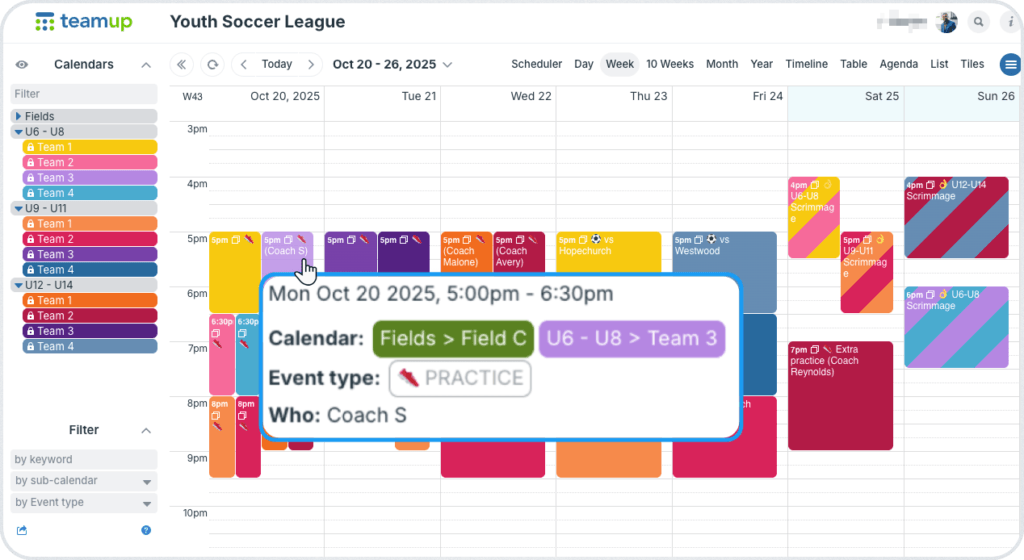
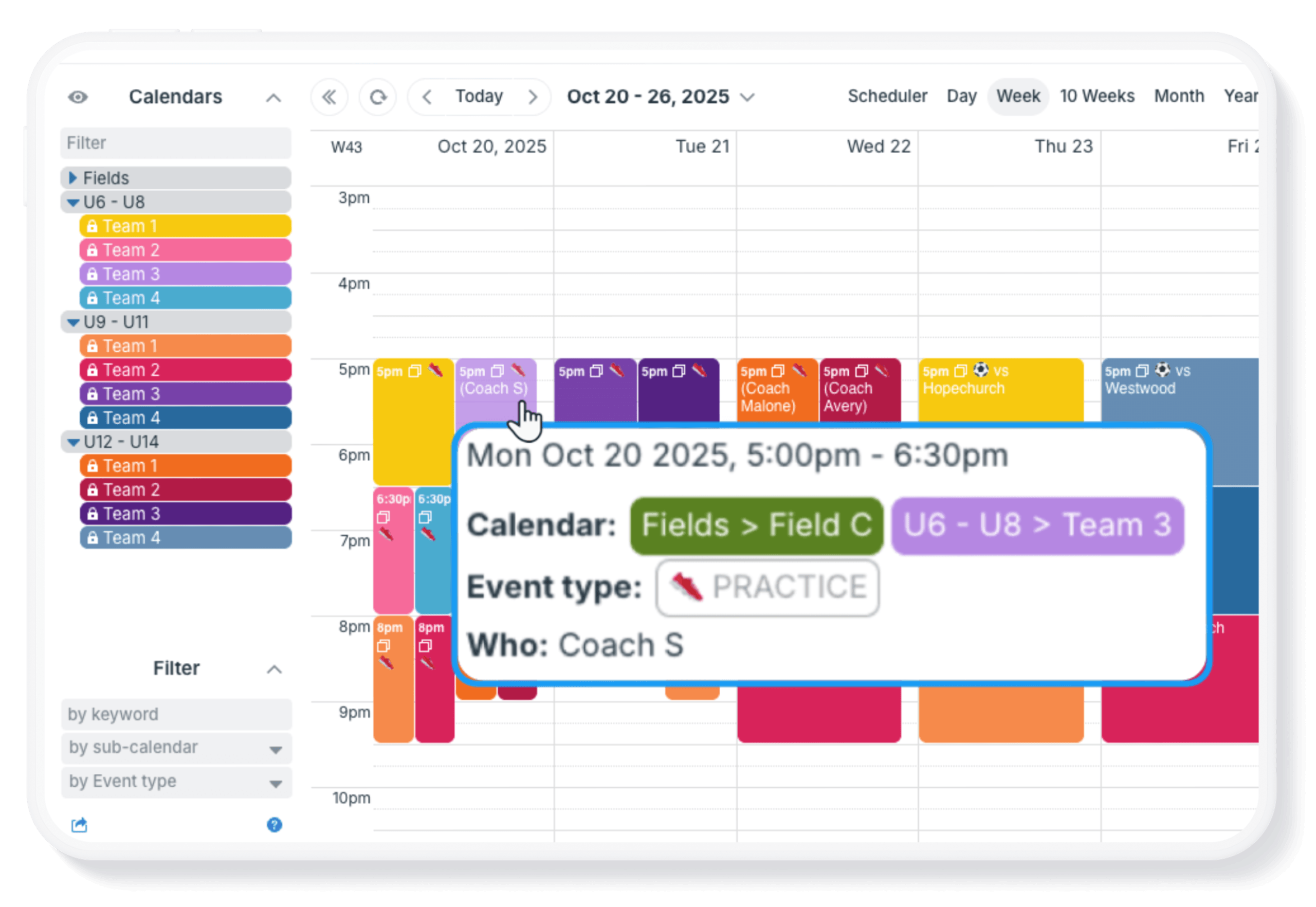
Click to enlarge: In this example, Fields and Teams are the primary scheduling considerations. The assigned Coach is added to the Who field.
Use a dedicated event field such as the Who field. Set the field contents to show in the event title if you want it to be visible at a glance. You can also make an event field required which will prevent any events from being saved unless the field has information in it.
Note that this method cannot prevent double-booking or provide access control.
When to use this method:
- To assign tasks to individuals who aren’t internal team members.
- To show who is the contact person for an event.
- On booking calendars, when the space/resource is the primary scheduling factor and the person reserving usage is a secondary scheduling factor.
- If working with a large group of people, especially if there is high turnover (e.g. volunteers).
Example: A youth soccer league does scheduling by assigning Teams to Fields, but also wants to include the assigned coach’s name on each practice or game. They use the Who field which is set to show in the event title.
Method 3: Use a custom choice field
Use a custom choice field to provide predetermined options that can be quickly selected when creating an event. The choice field can be set to single choice (only one option can be selected in the field) or multiple choice (several options can be selected in the field). This is a good approach for showing involvement while limiting each person’s access to only their own schedule:
- On a contractor calendar, use a choice field to show the project manager or other contractors working on a certain job or task.
- On a catering staff calendar that shows each person their scheduled events, a choice field can show the other staff member(s) they’ll be working with at each event.
- On a lab booking calendar, use a choice field to show the user group reserving equipment usage.
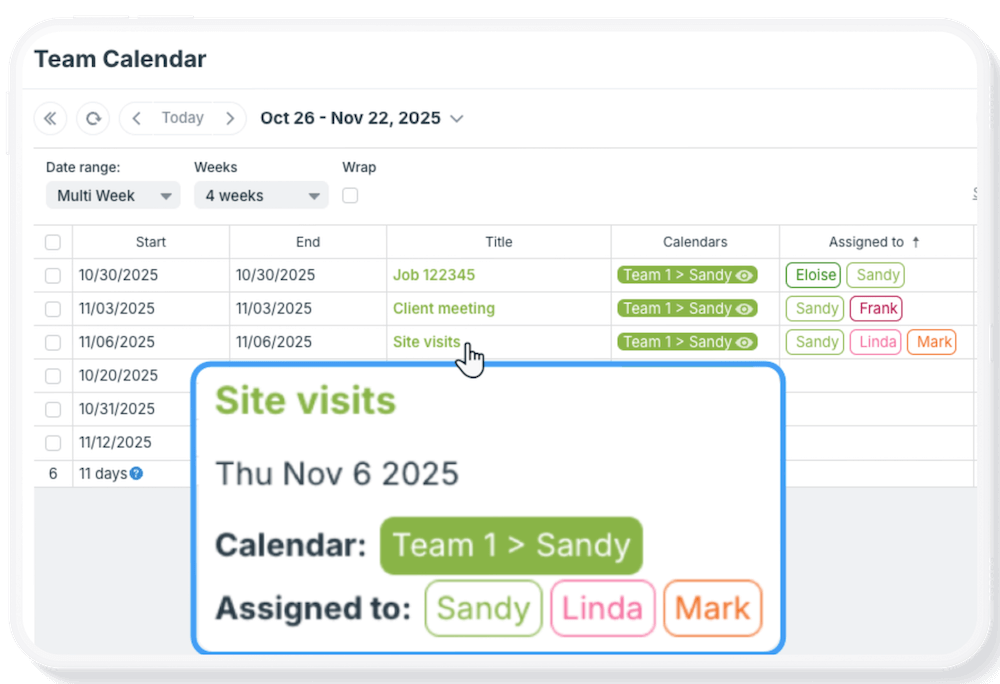
Click to enlarge: A custom choice field has prefilled options for quickly assigning multiple people to the same event so everyone can see who’s on the task.
This method lets other team members see who’s involved on a task, without giving them access to other team members’ sub-calendars. To set it up, create a choice field with predetermined options (names of individuals). Make sure the field is visible to all users. You can also make this field required so it cannot be skipped when creating or modifying an event.
This method alone cannot prevent double-booking. Visibility for each field can be configured to all users or only users with modify permission.
When to use this method:
- To show team members who they’re working with (without having access to other team member calendars).
- To indicate participation from a small group of people (e.g. students, club members).
Example: A field crew dispatcher assigns three team members to do site visits. All team members can only see their own schedules, but need to know who they’re working with on assignments. When the dispatcher adds the “Site visits” task to each team member’s calendar, they also select the assigned team members from a custom choice field so team members can see who they’re working with.
Choosing the right setup
If your priority is avoiding conflicts and controlling access, sub-calendars are the strongest option. To label ownership for a changing group of clients or stakeholders, titles or a text field may be enough. For structured, flexible assignment across a group, custom choice fields provide consistency without adding complexity.
In many real workflows, teams combine these methods: sub-calendars for scheduling and conflict control, with fields to show additional participants or external stakeholders.