Calendly makes it easy for clients to book time with you. Teamup gives your team one shared calendar for people, rooms, equipment, and events. Use them together, and every appointment shows up in the same place as the rest of your schedule.
How Calendly and Teamup work together
Each tool handles a different part of scheduling:
- Calendly handles self-service appointment booking. Clients pick an open slot from your scheduling link, and checks your connected calendar to avoid conflicts.
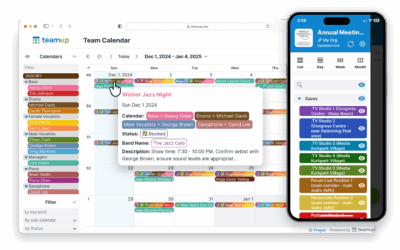
- Teamup handles the shared schedule and provides a complete overview. Each person, room, or resource gets its own color-coded sub-calendar, so your whole team works from one source of truth.
Combine them, and you can see client appointments alongside staff schedules, room bookings, and project deadlines.
Sync Calendly appointments to Teamup
Calendly adds new bookings to a connected calendar, such as Google Calendar or Outlook. To bring those appointments into Teamup:
- Connect Calendly to your Google Calendar or Outlook account.
- Copy the iCalendar feed URL for that calendar.
- In Teamup, go to Settings > Calendars > New > Add iCalendar feed. Paste the feed URL, name the sub-calendar, and choose a refresh interval.
Your Calendly appointments now appear on their own read-only sub-calendar in Teamup.
→ Inbound iCalendar Feeds: View Other Calendars in Teamup
What Teamup adds for team booking
When your team needs to book shared people, rooms, or resources, Teamup’s own features fill in what appointment links don’t cover:
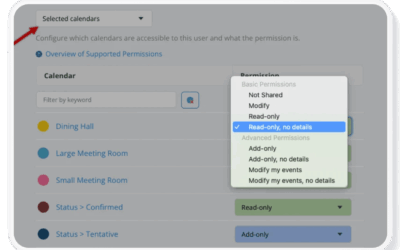
- Let people book directly on a shared or embedded calendar, with permissions that control what each person can add or change.
- Prevent double-booking by turning off overlapping events for a sub-calendar.
- Collect signups for events, with custom fields for the details you need.
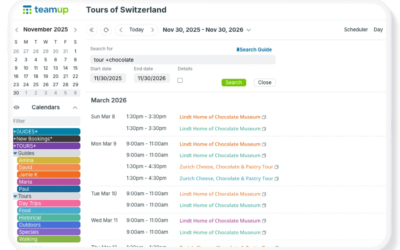
- See availability across people and resources at a glance in Scheduler view or Timeline view.
Bring all your booking info together with iCal feeds
The same method works for any booking platform or tool that provides an iCal feed. Add each feed to Teamup as its own sub-calendar to get one overview of every booking.
- One-way, read-only sync: Bookings flow into Teamup automatically. You can view them, color-code them, and filter them, but changes stay in the source platform.
- One view of everything: Combine feeds from booking sites, Calendly, Google Calendar, Outlook, and other tools to spot gaps and conflicts at a glance.
- Refresh on your schedule: Choose how often Teamup checks each feed for new bookings. Faster refresh intervals are available on paid plans.
- Share it back out: Create a combined outbound feed of selected sub-calendars to send consolidated bookings to another system.
This works well for vacation rentals and other property bookings listed on several platforms, like Airbnb and VRBO. Pull every platform’s feed into one Teamup calendar to see all reservations for each property and avoid double bookings.
Learn more: