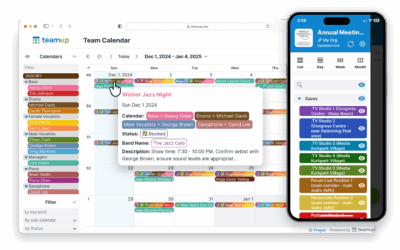
If you use Teamup Calendar and Trello’s Calendar Power-up, you can add all the due dates on any of your Trello boards to a Teamup Calendar, taking advantage of Teamup’s full calendar functionality for even better sharing and collaboration in teams.
Trello is a great project and workflow management tool. Just moving cards to different lists as the status of a task changes is so simple and effective. However, the Trello calendar component is somewhat limited even though it does display all due dates on one board in a calendar view. When you have multiple boards, you also have multiple calendars that do not overlay into one single view, leaving it difficult to see what’s coming up next week across all your boards.
This is where Teamup comes in. With Teamup’s support for inbound iCalendar feeds, the iCalendar feed of a Trello board can be easily added to a Teamup Calendar as a color-coded sub-calendar. Repeat for each board you want to be integrated into your Teamup Calendar. It is easy to zoom out to see the big picture of all due dates across the boards, or zoom in to examine the details of any specific deadline. You can change views, filter by board or keywords as needed.
Setting up the integration requires to get the feed URL from Trello and subscribe to the feed URL within Teamup.
Get the Trello iCalendar feed URL
To begin, enable the iCalendar feed and find the iCalendar URL for your Trello board.
- Open the board menu
- Click “Power-Ups”
- Click “Calendar.” Enable the Power-Up if you haven’t already.
- Select “Edit Power-Up Settings”
- Once there click “Enable Sync” to enable the iCalendar feed. If you don’t have this option, you’ll need to ask a board admin to enable this setting.
- Copy the URL from “iCalendar Feed.”
Subscribe to the feed from Teamup
Set up the feed as a new sub-calendar:
- Go to your Teamup Calendar. If you don’t have one yet, create a free calendar.
- Go to Settings > Calendars.
- Click New (top right) and select Add iCalendar feed.
- Enter a name that you wish the feed to appear in the calendar list, for example:
Trello Boards > Editorial Calendar (see how to use folders). - Paste the feed URL you copied from Trello.
Once you save, the initial fetch will happen immediately. Within a few seconds, all your Trello calendar entries should appear on your Teamup Calendar. The feed now is displayed in the calendar list as a sub-calendar.
Try it out
For a risk-free test drive, log in to your Trello account and access a public board template like this one. Create a board from the template. Add some deadlines to populate your calendar, and follow the steps above to enable iCalendar feed. Copy the feed URL. Launch a live demo calendar and follow the steps above to create an iCalendar feed from the Trello board.