Many calendar tools offer only all-or-nothing editing: a person can view events or change any of them. That leaves administrators with two poor choices. Broad edit access risks accidental changes and deleted events. Tight access means the administrator ends up making every update.
Teamup offers customized access with granular permissions that the calendar administrator controls for each user. One of those permissions, Modify my events, lets each person add events and edit only the ones they created.
Which edit permission fits the need
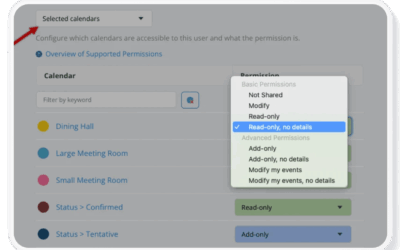
Three permission levels let a user add or change events, each with different limits:
- Modify: view, create, change, and delete any event on the sub-calendar. Best for trusted people who need the ability to manage the whole schedule.
- Modify my events: add events and change only the ones the user created. Events created by others can be viewed, not edited.
- Add-only: add new events and view existing ones, but not change existing events. A user can edit their own new event for about 30 minutes in the same browser session.
When many people post events and each needs to fix their own, Modify my events is usually the best fit.
A real-world need: posters who can fix their own events
A calendar administrator asked:
“I have users adding events. Then some details about the event change. Can they go back into the event and make the changes? I do not want to be the one to have to change items. There will be lots of events posted and I need the one who posts to be able to make changes as needed.”
Teamup has a solution for this need: the Modify my events permission. Assign it to each person who needs to add and change events. They can edit only the events they created, and they can still view all the others.
Add a user with edit access
Only a calendar administrator can add users:
When adding a user, the admin will be able to select which sub-calendars that user can access, and assign a permission for each one.
More details: managing account-based calendar users.
Note: In some cases, a shareable calendar link can work well for a group. See when and how to safely use shareable calendar links.
Using the calendar on mobile
A user’s access stays the same across devices, which keeps things secure. The permissions set for a user apply whether the calendar is opened in a browser or in the Teamup app, so a user with Modify my events can add events and edit only their own in either place.
Related resources: