When people need to reserve shared equipment, rooms, lab stations, or other resources, the way you configure booking access makes a big difference. Some organizations prioritize speed and simplicity. Others need stronger controls and accountability.
In Teamup, there are two practical approaches for self-booking:
- Shared booking access with add-only calendar links.
- Individual user access using modify-my-events permission.
Both setups support efficient scheduling, but they differ in how users authenticate, what they can edit, and how much administrative control you maintain.
Two practical ways to manage bookings
How you set up access depends on how controlled your environment needs to be.
Simplest setup: Shared booking access
- Provide the group of users with an add-only link to the resource calendars.
- Users can create bookings directly on the calendar. They can’t edit bookings already on the calendar.
- After creating a booking, a user has a small window of time for edits before the booking is locked.
- Required User Information fields ensure every booking has complete details.
This works well for labs and teams where users are trusted and the priority is quick, low-friction scheduling.
More controlled setup: Customized user access
- Add each person as an individual user with modify-my-events permission.
- Users can edit only their own bookings.
- The creation and edit history of each booking is tied to the individual user.
- Required event fields can still be used to ensure complete booking details are captured.
This approach provides stronger control and accountability, especially in larger organizations or multi-institution environments.
Here’s a closer look at each setup, how to use it, and when it works best.
Setup 1: Shared booking with add-only links
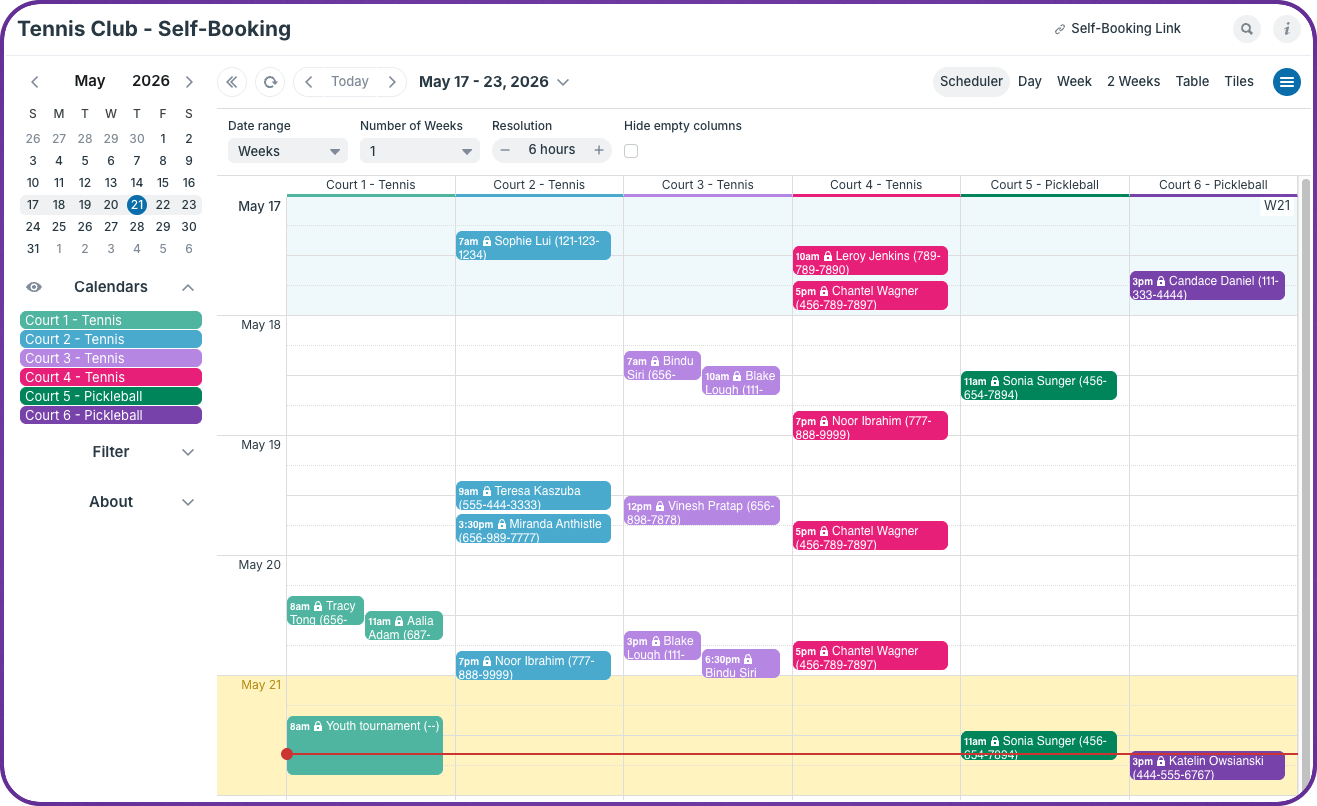
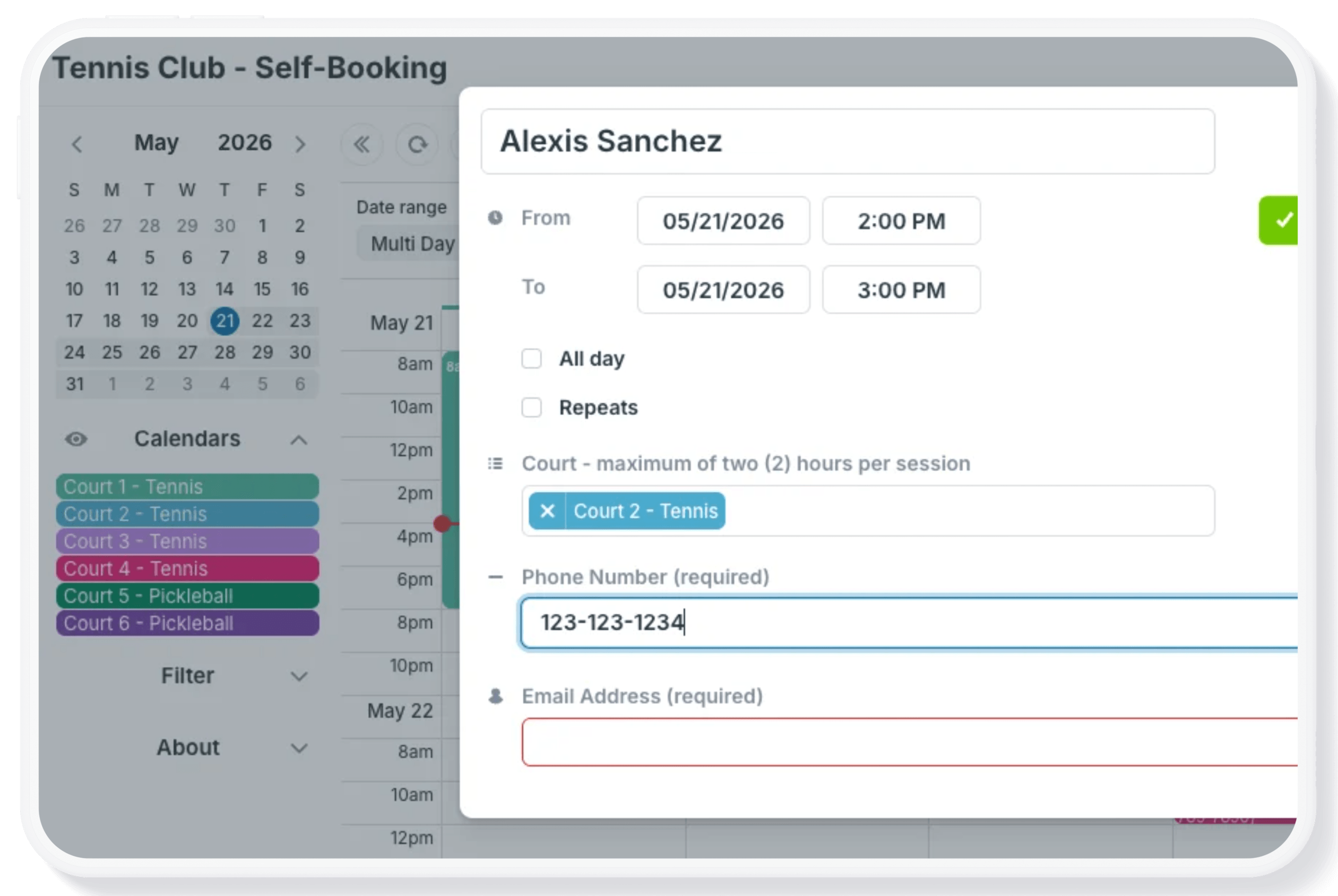
Click to enlarge: A small tennis club uses an add-only link to let members reserve a court for use. Learn more.
Add-only link access is the fastest way to let people reserve resources. Users open a shared Teamup calendar link and create events directly on the calendar. There are no individual logins or accounts required. You can add required custom fields (such as User Group, Contact Name, etc.) to identify who made each reservation.
This approach is well-suited to environments where simplicity matters most: Here’s an example of a small tennis club. Because there are no accounts to create or manage, onboarding is near-instant, and access is easy to extend to outside collaborators or groups that change frequently.
The main trade-off is limited user control. Once a booking is submitted, the person who made it cannot edit or delete it. Any corrections require an administrator or someone with higher-level access. This is sometimes desirable, since it prevents accidental changes to existing bookings, but it does mean more administrative overhead for routine updates.
Security relies on organizational trust rather than authentication. Anyone with the link can create events, and if it’s distributed beyond the intended group, unwanted bookings may occur. To respond to a security concern, administrators must replace the link for the entire group. There’s no way to revoke access for one person without affecting everyone.
At a glance:
- No user accounts required.
- Users can create bookings but cannot edit or delete them afterward.
- Security level: moderate. Access control applies to the whole group, not individuals.
- Administrative overhead is minimal but dealing with unauthorized use means updating the access link for everyone.
- Best for simple shared scheduling in trusted or low-risk environments.
Setup 2: Individual booking with modify-my-events access
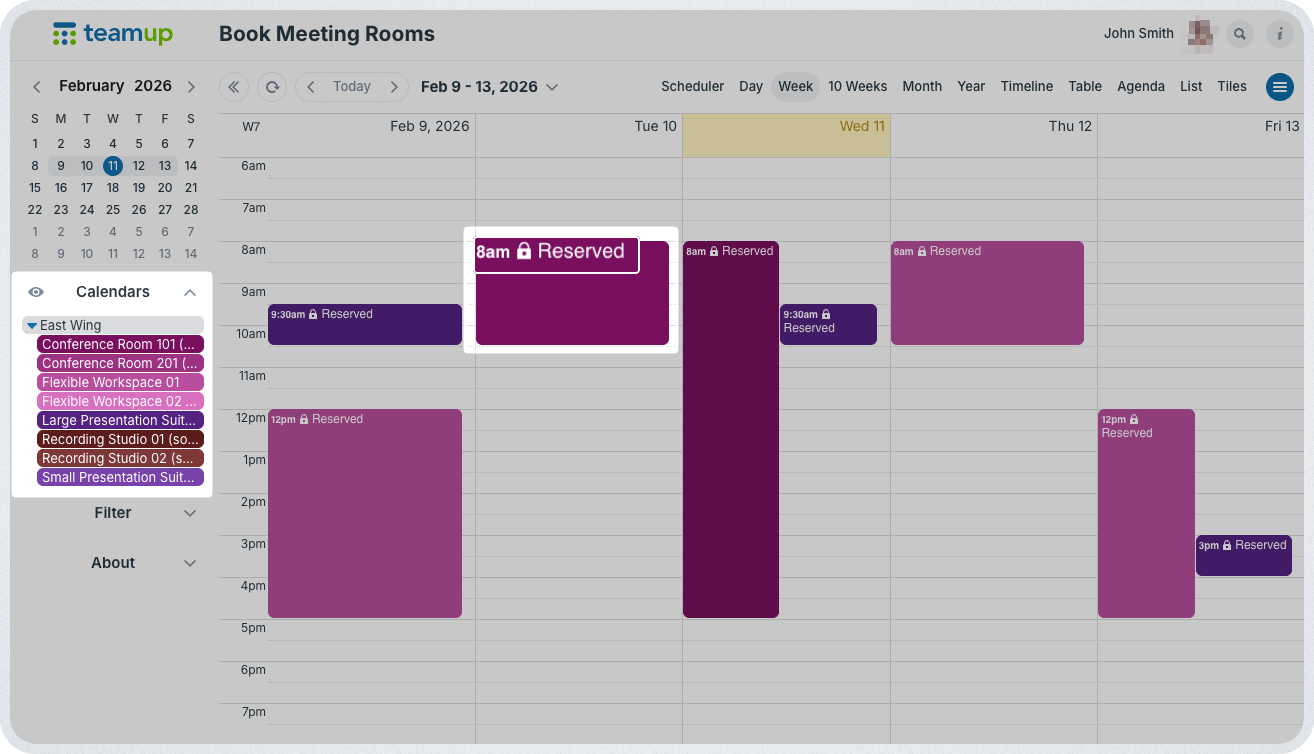
Click to enlarge: The modify-my-events, no details permission will show other bookings only as Reserved. See how it’s used to enable self-booking of office meeting rooms.
Modify-my-events access gives each person a personalized booking experience with greater accountability. Users receive individual access to the calendar, tied to their verified email address. Each user can create, edit, and delete their own reservations independently. But they cannot touch anyone else’s bookings.
Modify-my-events, no details access provides the same permission but with greater confidentiality: Bookings or events added by other users will show only as Reserved, with event details hidden.
Because access is tied to a specific identity, this setup offers significantly better security and audit capabilities. Permissions can be revoked individually, activity is traceable, and unauthorized sharing is easier to detect (and resolve). This makes it the right choice for environments with confidentiality considerations, regulated access, multiple departments, or external collaborators.
The self-service editing capability also reduces administrative workload. Users can update times, cancel reservations, and correct mistakes on their own, without needing to contact a manager. Setting up a new user with individual access takes only a few moments. Changes within the group are easy to handle, since this setup provides granular control: removing a single user’s access has no effect on anyone else.
At a glance:
- User accounts required.
- Users can create, edit, and delete their own bookings.
- Users cannot modify anyone else’s reservations.
- Security level: higher. Access can be revoked per individual as needed.
- Administrative overhead is moderate for setup but allows granular control of access.
- Best for controlled self-service booking with accountability.
Choosing between the two comes down to operational priorities. What makes the most sense for your scenario? Many organizations use both: casual or occasional users get add-only access for simplicity, while staff and regular users get modify-my-events access for the control and flexibility they need day-to-day. Whether you’re managing a shared lab, a busy conference room, or a complex multi-team resource pool, Teamup gives you the flexibility to match your access setup to how your organization actually works.
Ready to get started? Set up your first shared calendar in minutes — no technical expertise required.