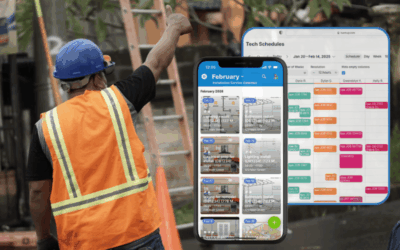
With Teamup, a shared editorial calendar makes creating content and working collaboratively more efficient for businesses, organizations, and publications.
Content is more than a block of text; most of the content we produce, both long and short, involves multiple forms of media. Writers, graphic designers, illustrators, video producers, photographers, editors, and others work together on various aspects of one piece of content.
With Teamup, creating content is easier for everyone; Teamup calendars are flexible, accessible, and can be organized in a customized way. A shared editorial calendar gives a big-picture view to editors and content managers and helps with day-to-day task assignment for all team members. Features like access permissions, event comments, and custom event fields make collaborative planning and workflow tracking easy.
Organize content and contributors
After creating your Teamup master calendar, create a sub-calendar for each type of content you create. If you produce many types of content, you can organize the content sub-calendars into folders.
Create a sub-calendar for each contributor, as well, or for the various teams involved in content production. For example, you could create a sub-calendar for the Design Team, or you could create a separate sub-calendar for each member of the Design Team.
Build a workflow with custom fields
Next, go to Settings > Event Fields to create new custom event fields to track progress through the content workflow. Create a custom event field with choices, and set it to multiple choice.
Now, as each team member completes their part of the content workflow, they can add the relevant option to the event field.
Set the event field contents to show on event titles, so the selected options from the event field show up in the calendar view. You can choose to have the name or the emoji show in the event title. Using emojis can help to create a quick visual reference without cluttering your calendar with long event titles.
You can create other custom event fields, as well. Here are some other ways you could use custom event fields on an editorial calendar:
- Assign work to an individual: if you’ve chosen to create a sub-calendar for a team rather than for each team member, you could use custom event fields to assign work to an individual.
- Set deadlines for various stages of the workflow: you could use a single-line text event field to put in a deadline for each workflow stage, then update the deadline as each step is completed.
- Capture relevant information: input guest contributor information, times and dates for interviews, credit for photographers or other assets, and more.
- Ensure certain tasks are completed: create a custom event field with various steps that must be completed, such as SEO-related steps or social media scheduling.
Enable team discussion and notes
You can set event comments to be enabled, by default, for every new calendar event by going to Settings > Event Fields, then editing the Comments field.
With event comments enabled, your entire content team can have discussions right on the editorial calendar event. There’s no need to take discussion to another messaging service or gather details and comments from an email thread.
- Configure and Manage Event Comments
- How to Use Event Comments
- Let Users Add Notes and Upload Photos Without Editing Events
Collaborate with guest contributors
If needed, you can even share an event, including event comments, with others who don’t have access to your calendar. This can be an easy, secure way to collaborate with guest contributors. Rather than allowing them calendar access, simply set comments to be visible to all users. Then share the event as a page with the guest contributor. The event comments will be visible on the event page, and guest contributors can add their own comments to the discussion.
Get an overview of what matters
You can add an iCalendar feed for any calendars that influence your content planning. For example, a holiday calendar can help you stay on track with seasonal content planning. You can add inbound iCalendar feeds from other relevant calendars, such as industry news, events, conferences, and calendars for other organizational departments.
Set up access for the team
Once you have the editorial calendar set up, you’re ready to share it with your team. For each user, you choose which sub-calendars to include and set the permission level, as well. You can set one permission level for all sub-calendars, or you can set a different permission level for each sub-calendar.
- Add a Calendar User
- Share Your Calendar Securely with Customized Access Permissions
- 5 Practical Tips to Set Up a Shared Team Calendar
Plan and schedule content
You’ll probably start by scheduling your most important types of content. You can easily switch between calendar views to see the big picture or to see more details. You can toggle sub-calendars on and off to focus on one type of content at at time. In the browser, you can drag and drop items from one date to another, if you need to adjust the publication schedule.
The Scheduler view is very helpful for comparing everything you have planned for a particular day.
- Choose the Best Calendar View
- Use Your Teamup Calendar as a Kanban Board
- Toggle Sub-Calendars On and Off From View
Assign tasks and deadlines
Once you have content planned, you’ll assign the work to the team so everything is completed on schedule. You can do this by adding the content to the contributor’s sub-calendar.
When a contributor completes their work, they can remove the event from their sub-calendar and assign it to the next contributor. Or, if you want to oversee those task transitions, you can have them add the event to your sub-calendar so you can check the work that’s been done, then assign it to the next team member.
Each team member involved can see what’s planned for the near future and what is currently in progress, plus what stage it’s in. Knowledge is power; the more contributors know, the more they can work autonomously and collaborate easily. Checking a shared calendar is much more efficient than messaging or emailing with status updates and questions: “Are you done with that graphic yet?” or “Have you finished the first draft for this piece?”
Teamup Calendar gives the power back to you with unique features that make sharing and collaborating easy. Customization is built-in, so you can set up and use an editorial calendar in a way that works best for you and your team. Whether you’re the sole contributing editor on a small content team, or the head of marketing for a major corporation, you can scale a Teamup calendar to work for your content system and make content planning and production more efficient.