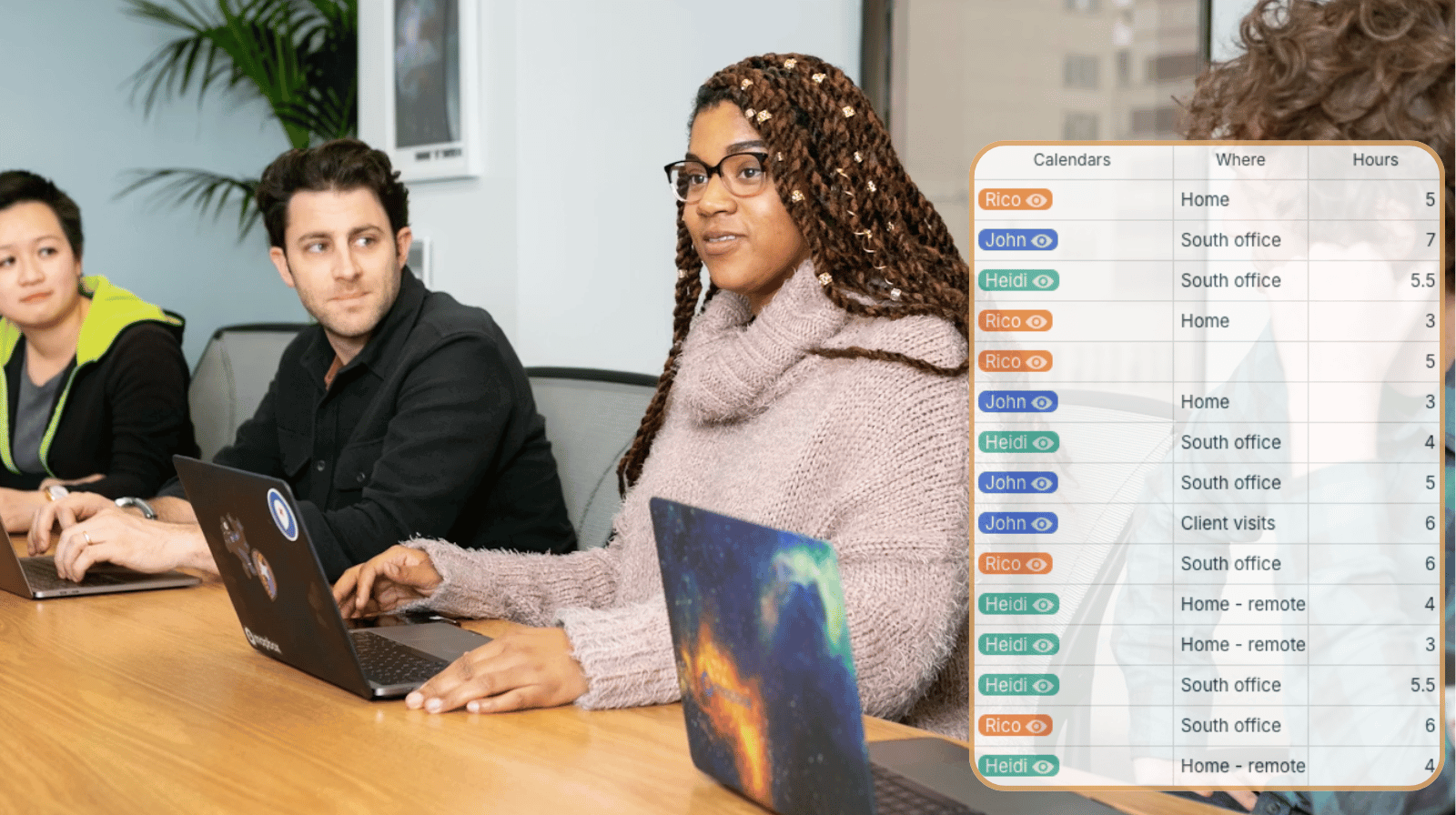
Employee hour tracking is a common need in many industries, especially those in field services. For many small businesses, the requirements for tracking employee hours are simple: They don’t require a dedicated app or software solution that larger organizations may need. Here’s how to use Teamup as an employee timesheet calendar with convenient, secure hour tracking, quick reporting, and built-in flexibility.
Set up simple, efficient employee hour tracking
You can structure a Teamup Calendar so each employee can add their own hours to their own schedule. It’s secure (employees can only access their own schedule) and convenient (easy to update from any browser or on mobile using the Teamup app). Each employee gets customized access so they only see their own schedule, while supervisors can see all employee schedules and tracked hours. A dedicated number field and Table view allows quick data overviews for any date range or employee, and it’s simple to quickly generate a PDF report right from Teamup, without needing to export data first.
Convenient tracking, visible data
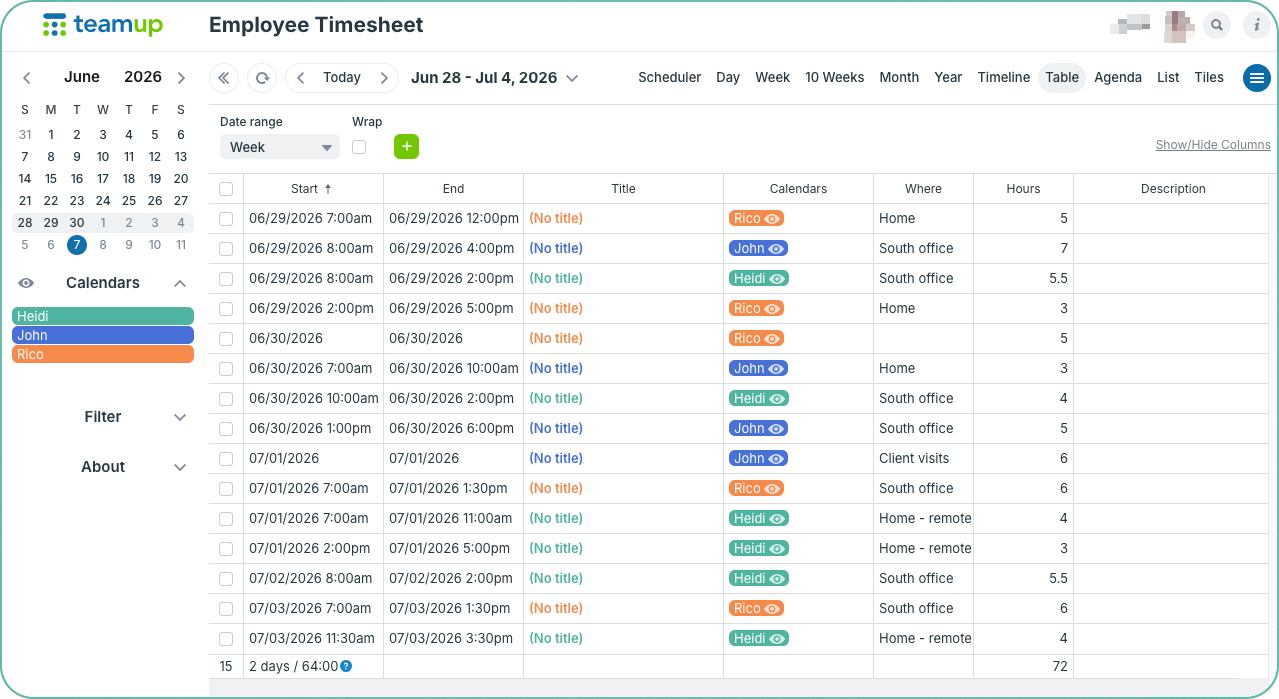
Click to enlarge: Table view shows employee’s schedules over a specified date range, with a number field for hour tracking.
- One-time setup for ongoing tracking: No need to create a new timesheet for each week or month.
- Always accessible: Employees can enter their hours on a browser or through the Teamup app.
- Always up-to-date: No delays between entry and updates. The manager can always see the latest hours that have been entered.
- Secure, smart access control: Each employee only needs to track their own hours, so they only have access to their own schedule.
- Different views: Besides Table view shown above, it’s easy to change to Scheduler view or Timeline view or Week view for view overlaps, upcoming shifts, etc.
- Work with data: Data can printed, downloaded as a PDF file, or exported in CSV format for use in other programs.
How to set up a timesheet calendar
⚙️ Mini setup guide
- Create a calendar for employee hour tracking.
- Add a sub-calendar for each employee.
- Use folders to organize in teams or department.
- Set sub-calendars to disallow overlapping events, if needed.
- Create a custom number field for logging hours and name it appropriately (e.g. Hours).
- Add users with customized access:
- Employees: Assign Modify-my-events permission to their own sub-calendar and Not Shared to all other sub-calendars.
- Managers: Assign Modify access for all the employees in their department.
Employees: Keep track of hours
Teamup calendars are accessible from all devices. For those on the move, it’s best to download the iOS or Android app. More about the Teamup app.
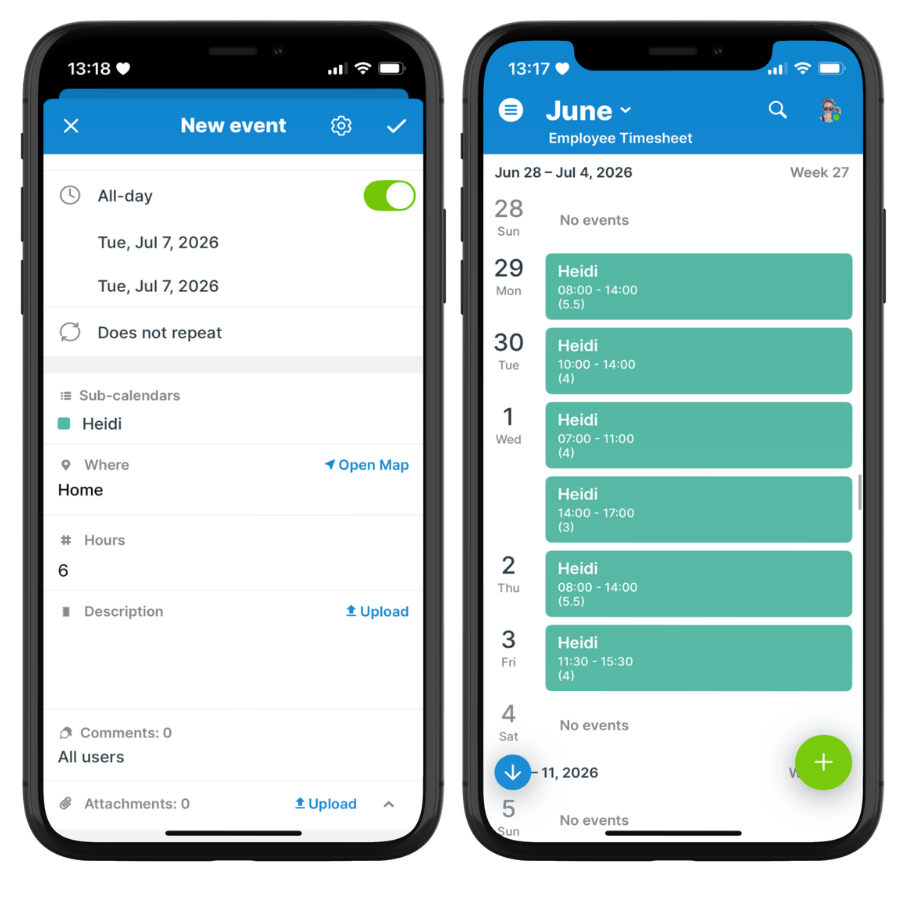
Click to enlarge: Each employee can view only their own timesheet. The Teamup app makes hour tracking convenient anywhere.
- Left: Employee Heidi creates a new event. All she needs to do is select the start time and end time, and enter the number of hours she worked in the Hours field. Or, if the hours worked are not consecutive, she can toggle All-day on and simply enter her total hours in the Hours field. Note that the title can be left empty in this case as her name is already on the sub-calendar.
- Right: Heidi’s calendar shows her entries on her sub-calendar only. She can easily see all her tracked hours. To add another entry, she can simply tap the green circle with the + sign to start adding a new record.
Supervisors: Review and export data
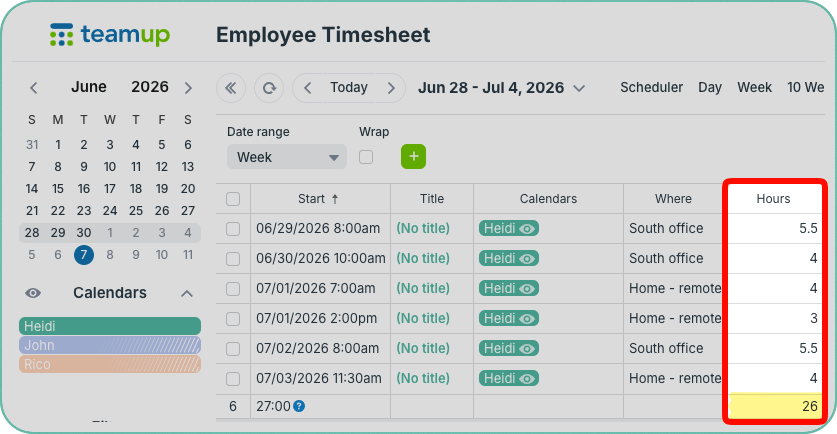
Click to enlarge: Table view with only Heidi’s sub-calendar toggled on shows just her hours for the week. The Hours column automatically sums the total.
The manager or administrator can quickly check logged hours in the Teamup app, or view all employee timesheets in spreadsheet-style Table view (browser only).
Calendar fields are shown in columns, which can be configured to show what’s relevant and hide the rest. Select a date range (Week, Month, etc.) or set custom dates to view hours for certain pay period or report range.
It’s easy to toggle the sub-calendars on and off to see one employee’s timesheet, as shown above. Note the sum of the Hours column is shown in the bottom row. This number field will provide an automatic sum. Adjust the date range to see how many hours an employee logged for a day, week, or month.
How to export timesheet data
⚙️ Two options for data export
Generate a PDF report in Table view or use the export tool to download data as a CSV file.
Generate a PDF report
- Display the calendar in Table view.
- Customize which columns are shown to display the details you wish to include.
- Toggle sub-calendars as needed to control which employees’ timesheets are shown.
- Select the date range.
- Click the blue menu icon in the top right of your calendar. Select PDF Print & Export PDF.
- Download or print the PDF.
Download a CSV file
- Go to Settings > Export Events.
- From the Export Format menu, choose Comma Separated Values (.csv).
- Customize the export options.
- Click the Export button to download the CSV file.
- You can then import the data into Excel or another program; make sure to check “My data has headers.”
For simple time tracking needs, Teamup provides a flexible alternative to traditional timesheets and spreadsheets. Employees can log their own hours from any device, supervisors can review totals in real time, and reports are easy to generate whenever they’re needed.
Ready to set up your own employee timesheet calendar? Get started, or explore the resources below to learn more.