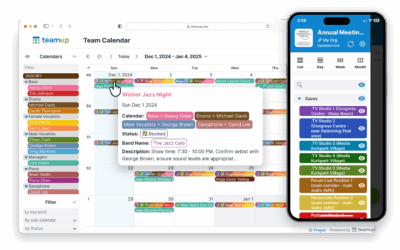
Allow people or groups to add events directly to a calendar for less administrative work.
Many people love using Teamup to allow others to contribute to a shared calendar. It’s less work for the calendar administrator (always a bonus).
Without Teamup, allowing others to add events to a calendar can be complex and risky. Granting full access to a calendar — so others can add events to it — risks data loss. What if someone accidentally deletes an event?
The alternative is to use a hodgepodge system of emails, messaging, and collecting information via a form or spreadsheet. The calendar administrator still ends up having to manually input all the event information; the workload is increased, rather than decreased.
By sharing calendars securely — with controlled, customized permissions — you avoid the back-and-forth, tedious process of collecting information and transferring that information to a calendar. All the calendar administrator has to do is review the events that people create, and make them visible to others as desired.
Here are a few scenarios where enabling multiple people or groups to add events to a calendar would be helpful:
- When managing content, you could allow members of the editorial team add content ideas, scheduled interviews, and industry events to the calendar.
- For community calendars, different community groups and organizations can add their events to the shared calendar.
- In a team environment, members could request meetings, or note when they are “out of the office” on the calendar.
- Nonprofit organizations can allow volunteers to add various tasks or needs related to an outreach or event.
- A small business, or a department in a large corporation, could allow staff to request time off via the calendar.
These scenarios are easy to manage with a Teamup Calendar. You’ll still want to maintain some sort of control over the process. With the ‘Add-only’ and ‘Add-only no details’ permissions, you can essentially use a Teamup Calendar as a pending event system.
Set up a sub-calendar
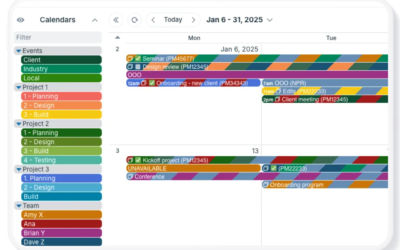
First, add a sub-calendar for event submissions, meeting requests, appointments, and other items you want people to create on your calendar. It could be called ‘Event Submissions’ or ‘Pending Appointments’ — whatever makes sense for your use.
Set up customized access
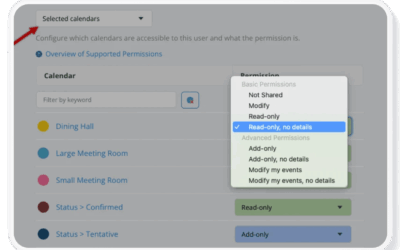
Next, add individual users with add-only permission to the sub-calendar. Alternately, create a shareable link with add-only permission to the sub-calendar. You can create one link to share with a group of people, but it’s not as secure as adding individual users.
The add-only permission enables users to open the shared sub-calendar, click on the calendar to add an event, enter the event details, and save the event. They can also see other events that have been added to the calendar, including details (such as description and location) but can not edit them. They will only be able to add events to the shared sub-calendar, and edit the event they create within about 30 minutes from the same browser or device.
The Add-only no details permission is another option, if you want to keep event details hidden for events that are already on the calendar. The no-details permission does not allow a user to see the titles or details of other events. The events will simply show as Reserved.
Make it work for you
There are many ways you can adjust this concept to make it work for your particular use.
Add more calendars
What if someone needs to see what else has been scheduled, as a reference point when they add their own event? That’s easy, too. You can adjust the access to allow read-only permission to any related sub-calendars.
Users will be able to view the sub-calendars with read-only permission, but can only add events to the event submission sub-calendar. Since it’s the only calendar with add-only permission, it’s the only one that can be selected in the event editor.
Let users modify events
If you want to allow someone to edit the event they submitted at any time, add that person as a user with modify-my-events permission.
You could also use this permission with a shareable calendar link. If you’re working with a specific community group, for example, that often creates recurring events and needs to update details and locations, you could create a specific link for them with modify-from-same-link permission. They can access the calendar, create their events, and modify events as needed from that link. Note that you won’t be able to tell which person created or modified an event, however, if multiple people are using the same access link.
Try it out with a live demo calendar or set up your own Teamup calendar today.
Related resources: