Advanced access permissions give you more control over how users and groups can see and use your shared calendar.
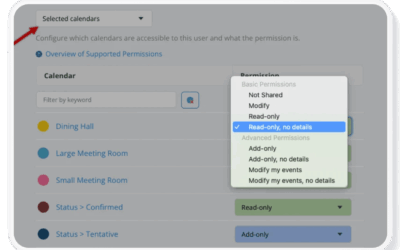
When you give someone access to a calendar, you set the permission level for each sub-calendar you allow that user to access — from Read-only and Add-only to Modify rights with variations of each that hide details of other people’s events. It is also possible to set permissions globally by user or group, applying one access level to all sub-calendars.
There are nine different access permission levels, which include these basic permission levels:
- Not Shared: The sub-calendar is not visible to the user.
- Read-only: The user can view the events on a sub-calendar, but not to add or modify them.
- Modify: The user can modify, create, and delete calendar events.
- Add-only: The user can add events, but not modify or delete existing events.
Advanced access permissions
There are four advanced access permissions available:
- Add-Only: Allows adding new events. Existing events stay as read-only and cannot be changed. Newly added events can be modified only during a single browser session (approx. 30 minutes).
- Add-Only, No Details: Same as add-only, but event details are hidden. The newly added event remains editable until the current session expires, then it becomes read-only.
- Modify-my-events: Users can add new events and edit existing events that they already created. Events created by other users are read-only.
- Modify-my events, no Details: Same as Modify-my-events, but details for existing events are shown only if they were created using the same link; otherwise, the event details are hidden.
Choosing an advanced access permission is as easy as setting a basic permission. The difference is in the specific limits that are set by each advanced access permission.
The add-only permission
The add-only permission is fairly straightforward. With this permission, users can access and read all events on the calendar. However, they cannot modify any of the existing events on the calendar. They are able to add new events to the calendar; for a certain time period (approximately 30 minutes), they can modify these newly added events, but only during a single browser session.
Once they close the calendar (or browser), and/or once the time period has elapsed, users with add-only permission can no longer modify or delete the events they added to the calendar.
This permission is very useful if you want users to be able to add events to a calendar but not remove or modify anything that’s already scheduled.
- A theatre shared by several acting groups can provide add-only access for all members to add their own events to the calendar without modifying another group’s events. With the add-only permission, they can see what else is happening in the theatre before they add the event, and know if there are schedule conflicts.
- A community calendar could be embedded in a website for public access, with an add-only link for a designated sub-calendar, such as “Community Interest and Events.” Members of the community can add their own events–such as yard sales, live music, and block parties–that might be of interest to others.
The add-only, no details permission
This advanced access permission works the same way as the add-only permission, with one important difference: privacy is ensured for all previously scheduled calendar events.
Rather than seeing the details of events already on the calendar, users with the add-only, no details permission will simply see the times marked as “Reserved” on the calendar. With this permission, users can add events and edit them (within the same browser session and within a time period of about 30 minutes). But they cannot modify or delete other events on the calendar, nor can they see the details for these events.
This permission can be helpful in scenarios when you need to keep information confidential, but still need the reserved times to be viewable to others.
- A fitness coach could share a calendar with clients who want to book sessions. Previously booked sessions would show up only as Reserved, protecting the client information but still showing the schedule. For example, the coach could set read-only permission for a sub-calendar showing available coaching hours, and add-only, no details for a sub-calendar where clients reserve their coaching time.
- A computer lab can set up a calendar showing the open hours when computer terminals or computer tutoring can be reserved. They can also create a sub-calendar for reserving the terminals or tutoring. Then they create a calendar link to share with members. They include the open hours calendar with read-only permission, and the reservation calendar with add-only, no details permission. With this calendar link, users can see the computer lab’s schedule and reservations made by others. They can also make their own reservations, but they won’t be able to see the details input by other users on the reservation calendar. Everyone’s privacy is protected, and everyone can see exactly the information they need to see.
The modify-my-events permission
With this permission, users can access and view all events on the calendar; they can add new events, as well; and they can modify events, but only those created from their calendar link. This way, if needed, a user could change the details on an event they created the day before. But they cannot modify events on the calendar which were created by other users.
Learn more: When to Use Modify-My-Events Access Permission
The modify-my-events, no details permission
This permission is similar to the one above, with the additional security of protecting information on calendar events. Existing events only show up as “Reserved” on the calendar, and users are not able to see the event details unless they were created from the same calendar link.
Related resources: