How to Use Teamup for Booking Shared Resources or Spaces

There are many cases where teams need to share a resource or space, like meeting rooms, equipment, vehicles, studios, or training areas. Booking shared resources shouldn’t be complicated — but it often is. The challenge is to make scheduling easy for everyone while keeping the process visible, efficient, and conflict-free.

Why booking shared resources gets complicated

When there’s no shared, up-to-date view of resource availability, scheduling becomes slow and often frustrating for everyone involved.

For example, a small team trying to book shared meeting rooms needs to know which rooms are available at any given time. Without a shared view of availability, they have to check in, wait for confirmation, and put their plans on hold until they hear back. Simple scheduling tasks end up taking longer than they should.

For the office administrator, the process isn’t any easier. They have to manually check which rooms are free, approve or adjust bookings, and update others when plans change. With multiple requests coming in by email or chat, it’s easy to overlook overlaps or double-bookings. When schedules shift at the last minute, it becomes difficult to reflect changes in real time: Rooms may sit unused while others scramble for space.

The solution: One calendar, many options

Teamup brings every shared resource into one clear, shared calendar with real-time visibility, self-booking options, and built-in safeguards that keep scheduling simple and conflict-free.

Organize and view shared resources

This is how you can organize and view shared assets in Teamup:

Self booking with control

You can also allow users to book the resources they need safely and independently, while keeping oversight in place:

  • Granular access permissions let you decide who can view, add, or modify events.

  • For each team member, you can choose to display only their own booking details and show other bookings as reserved slots, without details.

  • Change notifications keep both users and administrators informed of new or updated bookings in real time.

Use Case: Room Booking and Team Availability

A small team shares two rooms and needs to coordinate both staff availability and room reservations. With Teamup, they can organize everything in one shared calendar. Here’s how to set this up.


With everything connected in one shared view, any update on the calendar syncs instantly: Everyone sees the same schedule in real time.
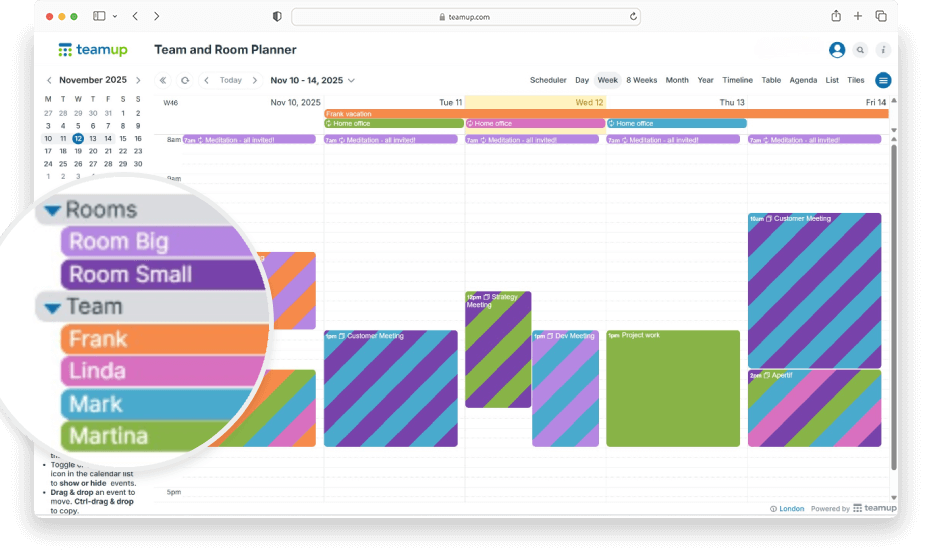
Teamup as shared resource booking calendar, Week view

Click to enlarge: Each team member and room has its own sub-calendar, grouped under folders for easy overview.


Flexible access permissions ensure everyone can book what they need without making accidental changes. They can be updated anytime as needs evolve. In this example, Linda can add events and modify only the ones she created in the Rooms calendars. She can make changes on her own sub-calendar, but can only view her colleagues’ events — she can’t add or modify anything on their calendars.
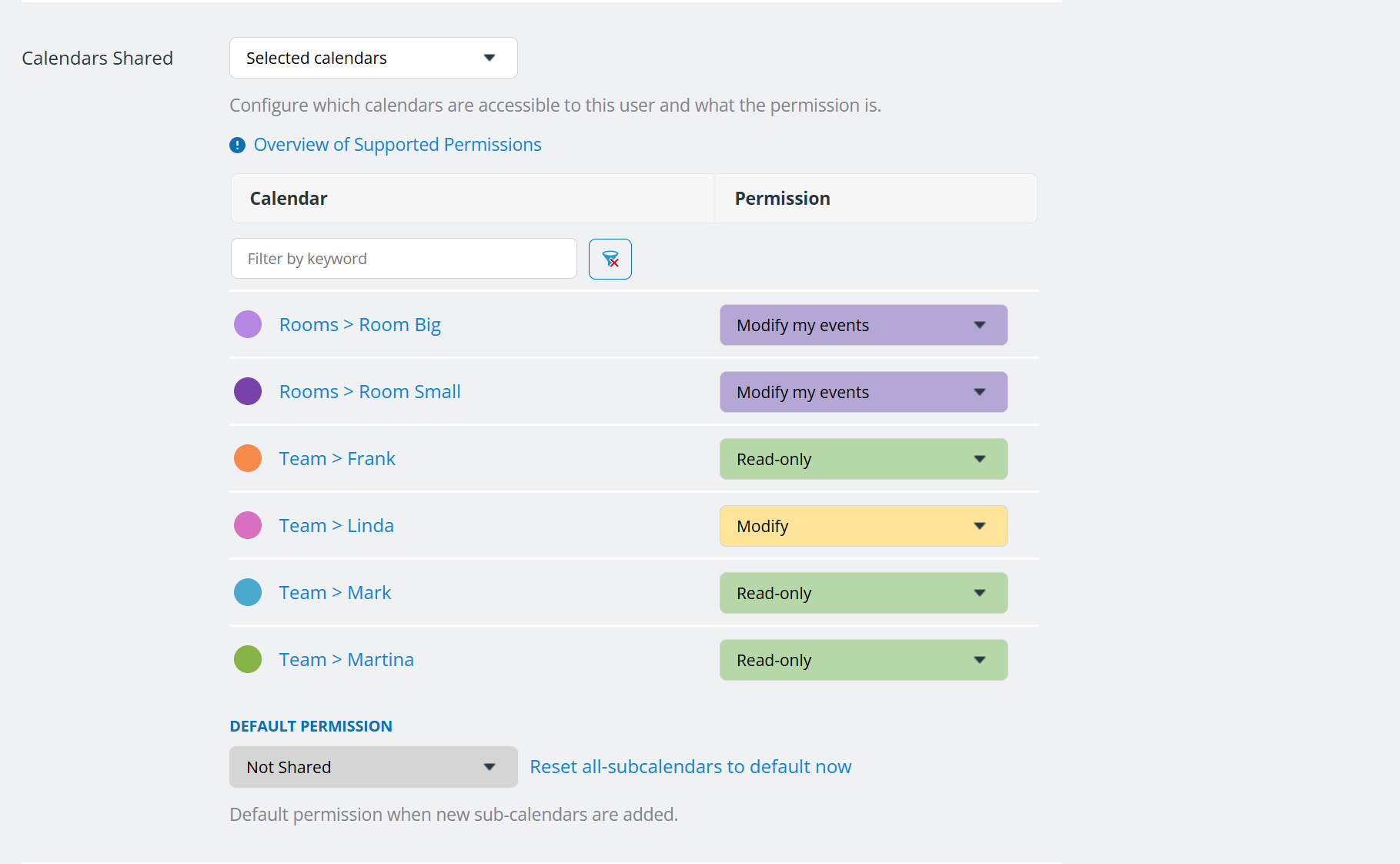
Custum access permissions in Teamup as shared resource booking calendar

Click to enlarge: Each team member has custom access permissions.


You can adjust calendar settings such as default calendar resolution and default calendar view. Among the different calendar views, the Timeline view displays each room and team member’s schedule in parallel. This makes it easy to see who’s available and which room is free.
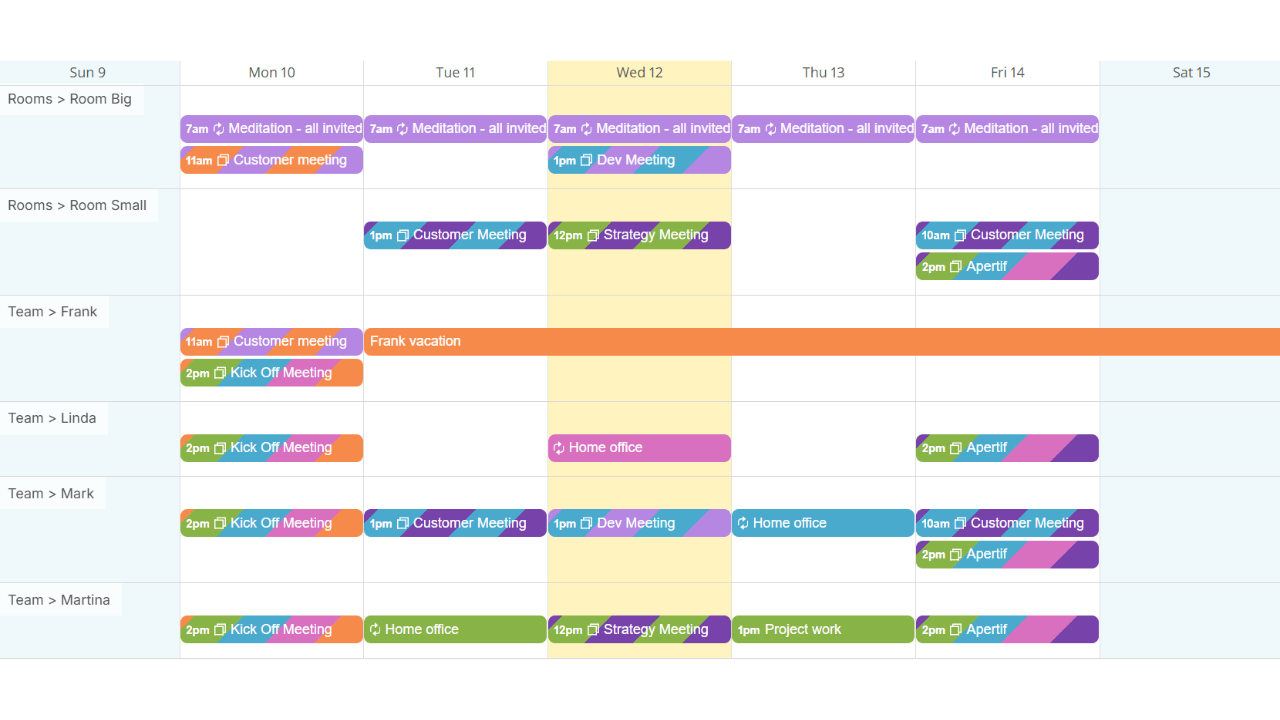
Teamup as shared resource booking calendar, Table view

Click to enlarge: See rooms and team schedules together at a glance with the Timeline view.


Make shared resources easy to book

When everyone can see what’s available and book securely in real time, managing shared resources becomes simple and efficient.

👉 Try it out: Explore the Team and Room Planner demo calendar or create your own shared resource calendar.


Color-Coding for Smarter Scheduling: A Cleaning Service’s Story

Color-Coding for Smarter Scheduling: A Cleaning Service’s Story

Client projects rarely stay within one team. A single delivery often spans multiple departments, each using its own tools and processes. Design creates concepts and assets in their design tools, development tracks build work in a sprint board, QA manages testing in their own environment, and customer success coordinates onboarding on a separate timeline.

Each team is doing solid work. But no one sees the whole project as it moves forward. As a result, project managers spend time chasing updates from every department and trying to piece together what’s happening. With Teamup, project managers can create a unified calendar structure to coordinate complex, multi-department client projects with full transparency, fewer surprises, and smoother delivery.

Why cross-team visibility matters

When every department tracks its work in its own system, the overall project timeline becomes fragmented. This leads to issues such as:

Work stalling because a dependent task hasn’t started yet
Shared people or resources getting double-booked
Milestones drifting without early warning

Project managers constantly need to update status between teams just to keep everyone aligned. But with a shared timeline, everyone can easily see: Who is doing what, when their part starts, which tasks depend on others, when handoffs occur, which deadlines are at risk. With one shared calendar, the full delivery timeline is visible at a glance, improving coordination and efficiency across all teams.

A combined project calendar with departmental sub-calendars

In Teamup, you can build a unified project calendar that keeps everything visible while giving each department the appropriate access permissions. Each department works in its own sub-calendar and manages its own updates, while the full project rolls up into one timeline for the project manager.

Click to enlarge: A Teamup project calendar showing color-coded sub-calendars per department

For a closer look at how access levels and information visibility across internal teams, see how to Get Cross-Team Visibility with the Right Amount of Information Sharing.

The benefits of a unified project calendar
For project managers
Gain the oversight they need without chasing updates.
Easily spot delays, conflicts, or bottlenecks.
Share filtered, read-only views with clients and stakeholders.
For departments
See how their own schedule fits into the bigger project timeline.
Improve collaboration across teams with clearer, shared context.
Facilitate handoffs by having visibility into upstream and downstream work.
For leadership
Gain a high-level view of how the project is progressing across departments.
Spot broader risks and capacity constraints earlier.
Enable clearer, more reliable long-range planning.
Example: A cross-department project timeline in a shared calendar

Many client projects follow a sequence such as Design, Development, QA, Customer handoff, and Launch. In a unified shared calendar, the entire sequence becomes visible in one place.

For example: Design can schedule concepts, wireframes, and approval cycles. Development can block time for implementation and internal reviews. QA can add testing windows and verification steps. At the end, Customer Success can schedule onboarding or handoff activities.

With all of these phases shown together in a single timeline, it becomes much easier to understand dependencies, spot risks early, and ensure each team is ready for the next handoff —  keeping the entire project moving forward smoothly.

Click to enlarge: Design team Scheduler view. The lock icon next to the other department sub-calendars shows that events in other departments’ calendars are visible, but Read-Only

Ready to try a unified project calendar for your own team? Explore our live demos or create your own Teamup calendar.

WordPress Cookie Notice by Real Cookie Banner