As a team leader, you know how much time it takes to keep everyone organized and on the same page. When schedules, tasks, and updates are scattered across different tools, you end up doing more manual coordination than actual work. A shared team calendar can solve this — but only when it’s properly structured, accessible, and visually clear. With the right setup, everyone can see what’s relevant to them and what’s due, who’s responsible, and stay aligned without constant follow-up.
Give structure to your calendar
A Teamup master calendar can include many sub-calendars, to reflect teams, roles, projects, or resources. If you start with our Simple Team Calendar Template, your new team calendar comes with a few built-in sub-calendars. To customize them, open Settings > Calendars from the blue menu in the top-right corner. Here you can add, delete, rename, recolor, and organize all sub-calendars.
To set up your structure:
- Add any additional sub-calendars you need
- Rename existing ones to match your team
- Organize them into folders if useful
Simple structures work well for small teams. For larger groups, folders and color-coding keep things organized and easy to navigate. You can group sub-calendars into folders, and nest them if needed.
You can change how sub-calendars are organized at any time without affecting the data they contain. Rename, remove, or reorganize folders and sub-calendars as needed. You can also deactivate sub-calendars and reactivate them later, or permanently delete those no longer needed. As the calendar administrator, your team calendar and all sub-calendars remain fully under your control.
With this structure, your calendar stays clear and manageable for your team too. Users can expand or collapse folders, toggle sub-calendars on or off, and switch views to see more or less detail. And importantly, everyone sees only the information they have access to, which keeps the experience secure, focused and uncluttered.
Share your team calendar
Teamup’s access system gives you granular control over who can view, add, edit, or manage different sub-calendars. In Settings > Sharing, you can add calendar users to invite your team members to the calendar while assigning them custom access.
They will receive an invitation to the shared calendar, and once they accept it, their user account becomes their personal hub. They can manage custom notification settings, receive event reminders and daily agendas, access Teamup from any web browser or the mobile apps, and keep their calendars synced across all their devices.
For administrators, user accounts make access management easy and controlled: You can adjust or revoke permissions at any time, organize users into groups, and maintain a clear overview of who has access as your team grows or changes.
In Teamup, you choose exactly which sub-calendars each person or group can access and at what level. Teamup provides 9 access permission levels — including Read-only, Add-only, and Modify my events — along with options to show or hide event details from other team members. This keeps information confidential where needed while giving your team the autonomy to update and manage the parts of the calendar they own.
While user accounts are the primary and recommended way to manage team access, there are times when you need a quick, temporary solution. In these cases, you can create a shareable link to provide short-term access to the calendar, for example for external partners, clients, subcontractors or collaborators.
Another common scenario is when you want to give a group read-only access. In that case, the best approach is to embed your Teamup calendar on your website or intranet. This makes it easy to share updates, schedules, or availability while keeping full control over what’s visible.
Teamup features that support your team’s workflow
With your team calendar set up and shared, Teamup’s built-in capabilities turn it into more than a schedule — they make it a central workspace for sharing information, organizing work and keeping everyone aligned. These features reduce back-and-forth messaging, centralize details, and support the workflows your team depends on:
- Custom event fields to track workflow, priority, or status, keep customer information, include project details, and systematize processes.
- Event signups to assign tasks or projects, track participants, book appointments, and plan team events and meetings.
- Event comments to keep internal notes, discuss projects and events, log decisions and details, gather feedback, and have time-stamped records.
- Event pages to promote and share events, keep track of project information, collaborate with sub-contractors, and communicate with clients.
Shared team calendar use cases
Teams of all kinds use Teamup to coordinate schedules, tasks, and updates in a way that fits their work. Here are a few real examples that show how flexible a shared team calendar can be — and how visual clarity makes team coordination easier every day.
Color-coded team organization
You can assign a color-coded sub-calendar to each team member or to entire teams, making it easy to see who is working on what and when. You can also create a dedicated sub-calendar for availability, so you can quickly spot when people are free in order to schedule cross-team meetings.
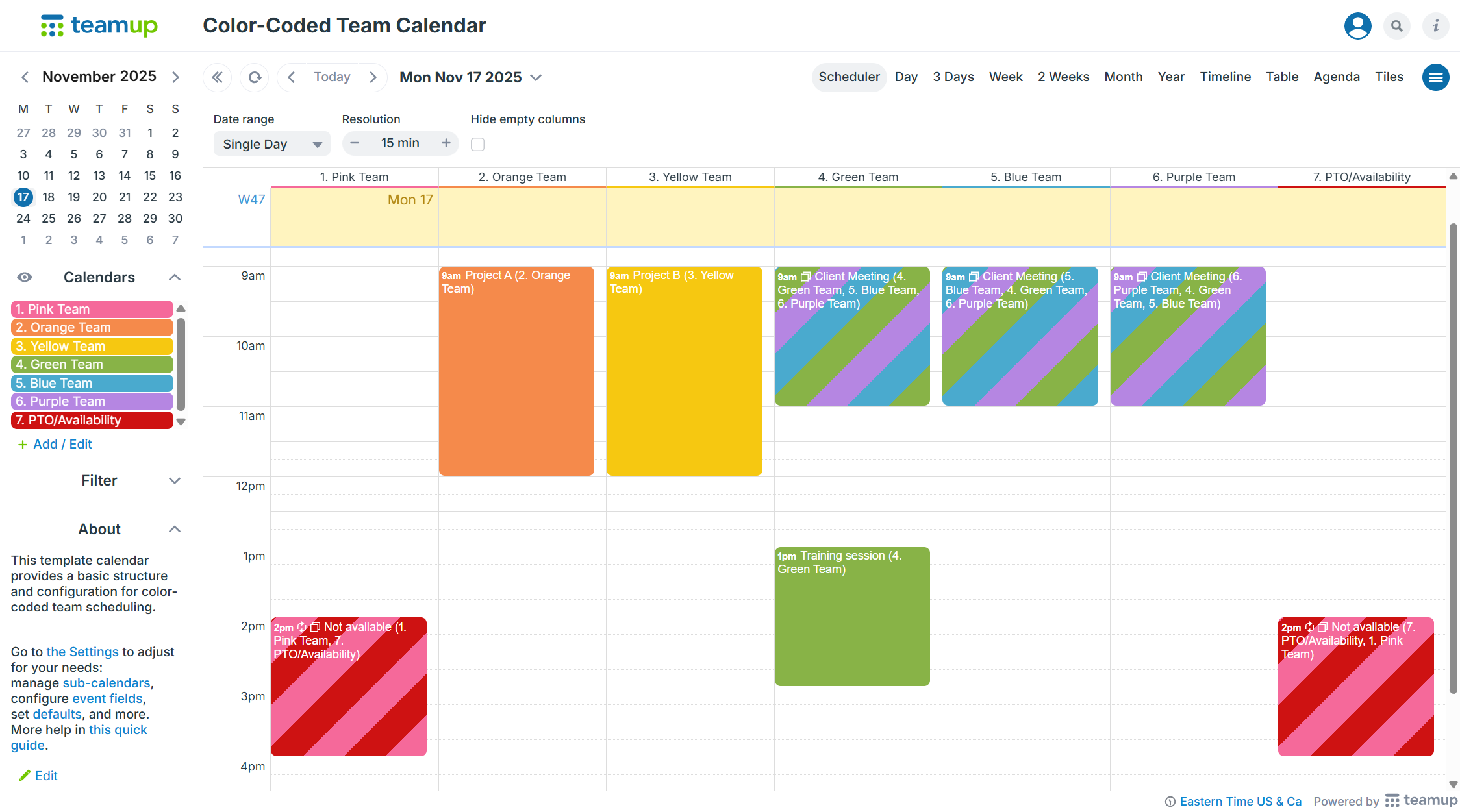
Click to enlarge: Color-coded team calendar in “scheduler view”, with team schedules displayed side by side
Shift scheduling
Create a shift scheduler by adding shift sub-calendars (e.g., morning, afternoon, evening) and a sub-calendar for each employee and organize them in folders. The shift scheduler makes it easy to visualize open slots and plan staffing coverage across the week or month.
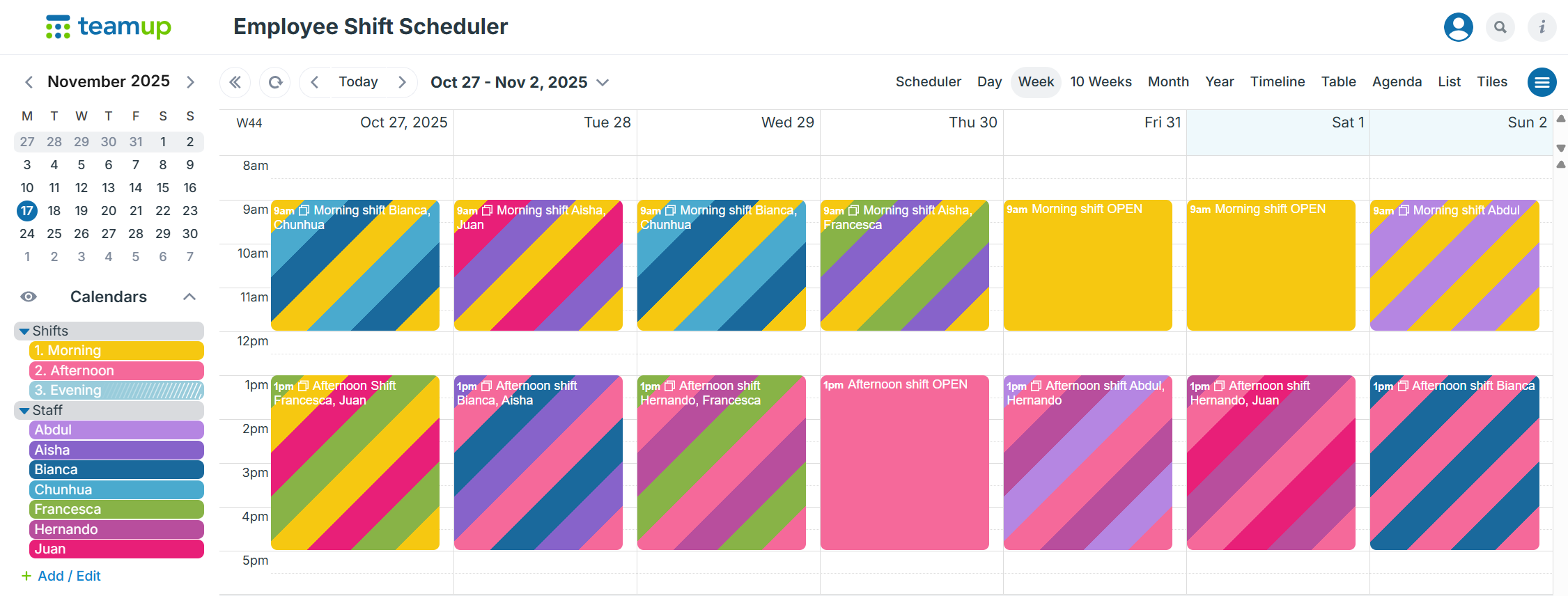
Click to enlarge: Employee shift scheduler, showing morning and afternoon shifts assigned to staff members and open slots
Trade show and conference planning
For industry events like trade shows and conferences, a shared team calendar brings everything together. Import the official agenda through iCalendar feeds and manage your internal planning with sub-calendars for booths, locations, keynotes, and team members — organized in folders for easy navigation.
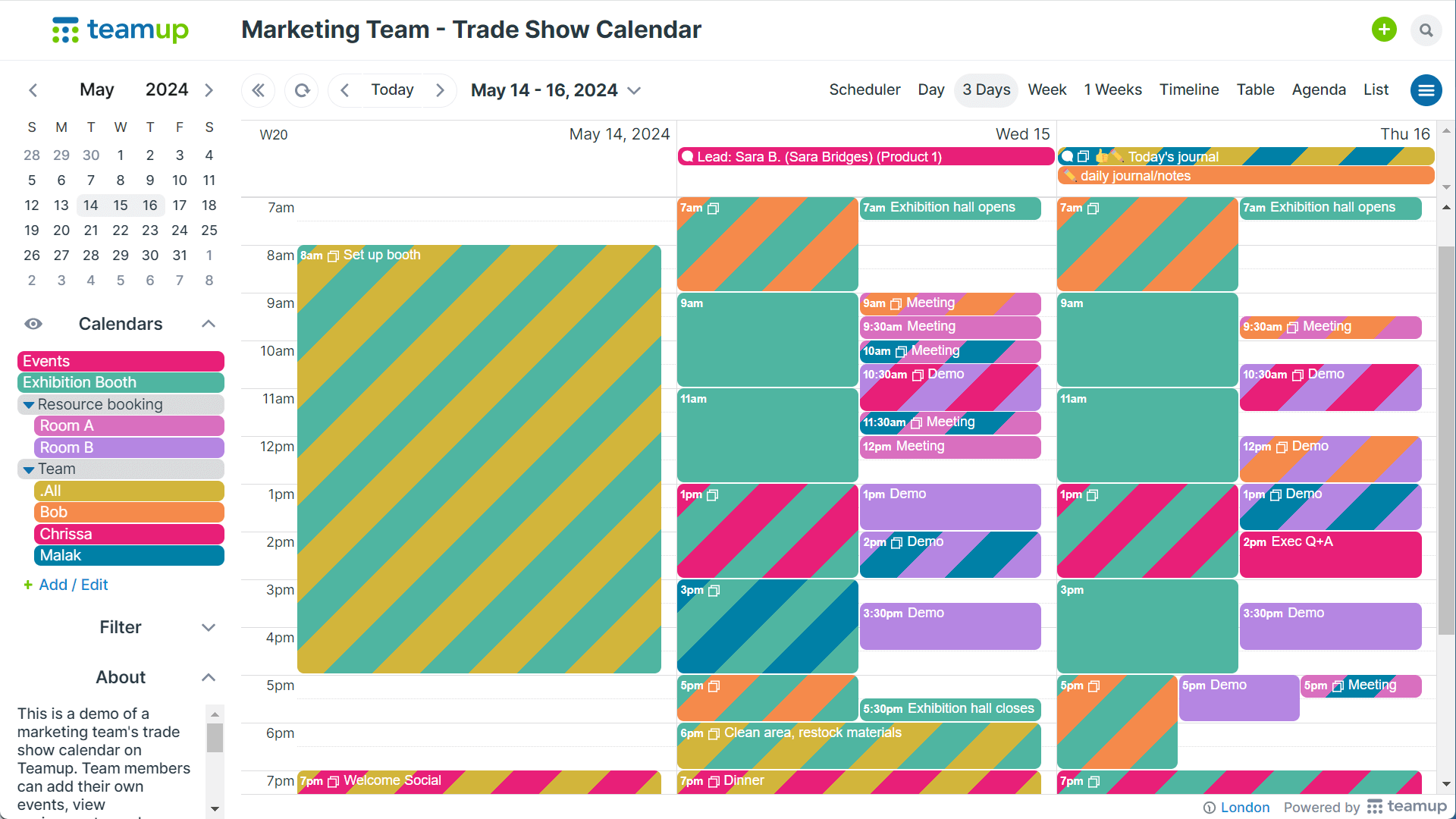
Click to enlarge: Shared team calendar for industry events, combining official event schedules with your team’s internal planning
Regional team management
Use a shared team calendar to coordinate work across multiple regions or locations. Group sub-calendars by region and role to see workloads, assignments, availability, and job schedules at a glance.
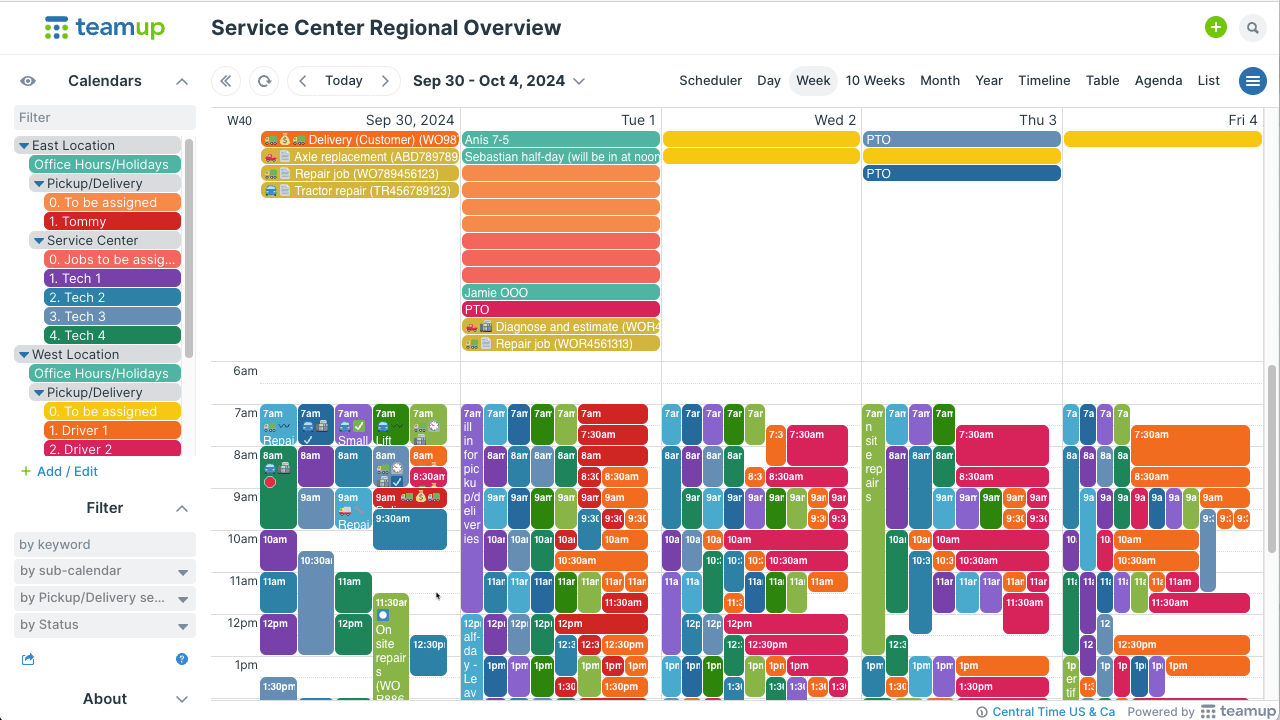
Click to enlarge: Shared team calendar for coordinating regional service teams
Whether you manage a small team or multiple locations, a Teamup calendar helps you stay organized, communicate clearly, and keep everyone aligned. Start your team calendar now or explore the Team calendar demo.
Frequently Asked Questions
Click a question to see the answer.
How to manage multiple teams with different permissions in a Teamup calendar?
Can multiple people edit the same team calendar at the same time?
Teamup updates changes in real time for all viewers. If two people edit the same event simultaneously, the last save wins. You can always check an event’s edit history to see who made recent changes.
Can certain calendars or information be hidden from some team members?
Is there a Teamup mobile app for teams on the go?