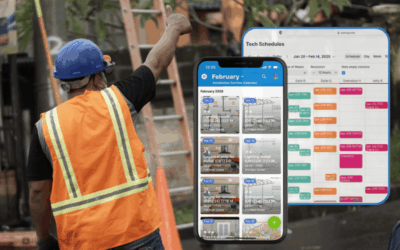
Operations managers need to see what’s coming to plan well. It’s not enough to look at next week’s schedule; projects, staffing, and budgets all have to fit together over the next few months. When things like seasonal demand, staff changes, or supply delays aren’t visible early, small problems can spread quickly. A clear long-term view helps prevent those issues and keeps plans balanced throughout the year.
Problem: Limited, unhelpful annual views
While some calendars, like Google Cal, provide a year view, you can’t see actual events on the calendar in that view. Without that information, the year view is essentially useless for serious planning. You end up tabbing into each month to see what’s planned, but then you aren’t getting the long-range overview of different timelines, big events, and project phases.
Solution: A calendar that actually shows the year
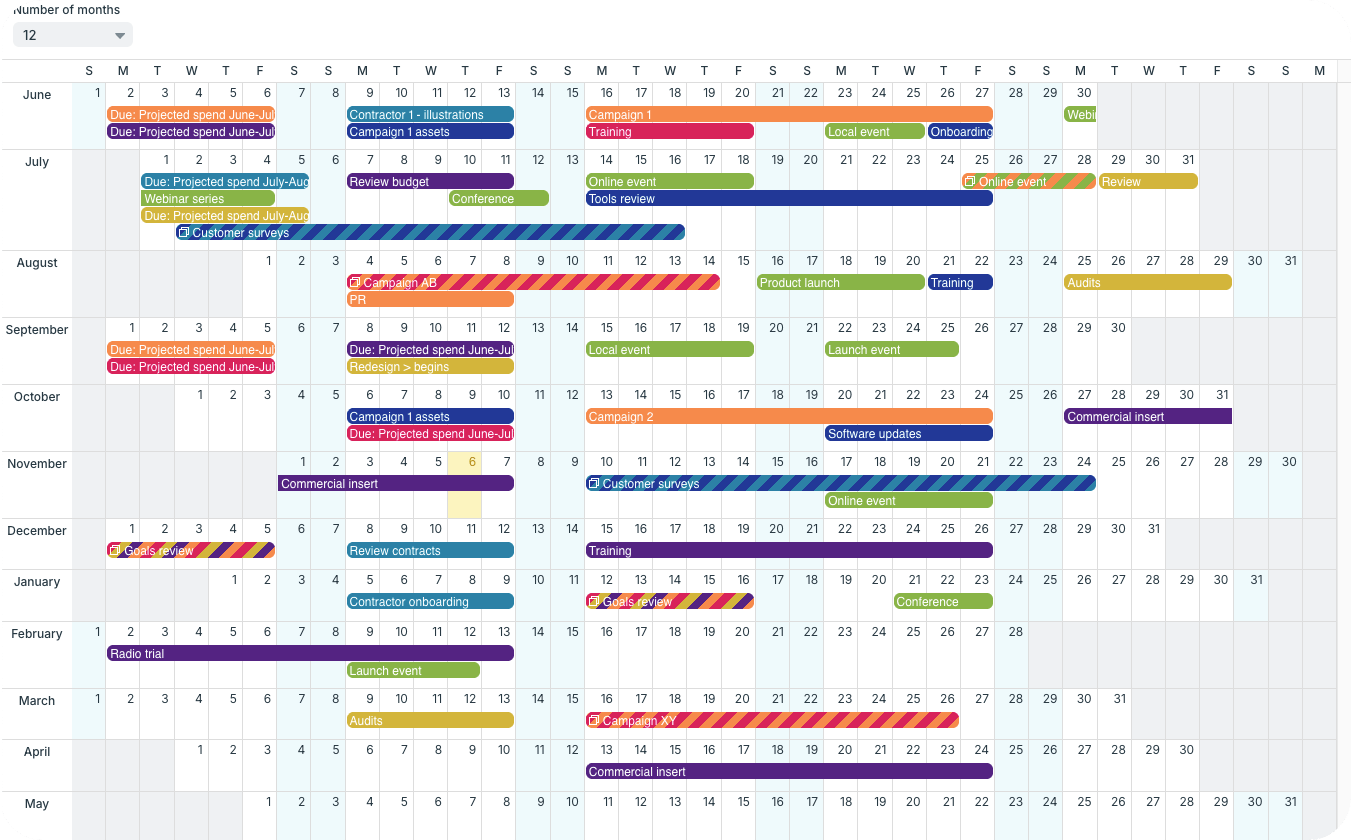
Click image to enlarge. See also a quick video showing more ways to view a whole-year calendar on one page.
For strategic long-range planning across a quarter, fiscal year, project timeline, you need a calendar view that shows you the relevant information: The events scheduled across those months, not just dates with colorful dots.
With Teamup, you can get that big-picture planning view. Choose how many months you want to see, adjust the date range, and see what’s ahead. Toggle calendars and filters to view different areas, teams, and projects independently or together.
▶️ Watch a video: Three ways to view a whole-year calendar on one page.
Which calendar gives a better long-term view?
Smart, strategic long-term planning depends on being able to see schedules, workloads, and timelines in one place. See how Google Calendar and Teamup handle the features that matter most for strategic coordination and year-round visibility.
| 🙁 Google Calendar | ✅ Teamup Calendar | |
|---|---|---|
| See long-term schedules clearly | Events are not visible in the year view. You have to click each date to see details, which limits planning visibility. | Events are shown directly in the year view, so you can scan workload and commitments across months at a glance. |
| Forecast busy or quiet periods | No visual indication of when projects or site activity peaks. | Color-coded events make it easy to see where workloads increase or decrease during the year. |
| Adjust view for planning cycles | Fixed year view; can’t zoom in on specific months or quarters. | Choose how many months to display (1–12) to match quarterly planning and project timelines. |
| Coordinate and focus across teams, projects, locations | Turning calendars on or off doesn’t change the year view. All events look the same. | Toggle sub-calendars to view only certain sites, teams, or project types for clear comparison. |
| Plan strategically with one overview | The year view doesn’t provide enough information to evaluate plans and make decisions. | All calendars and visible events are in one organized, filterable, adjustable long-range view. |
How it works
A year view with actual event details transforms how you plan. Here’s how it works.
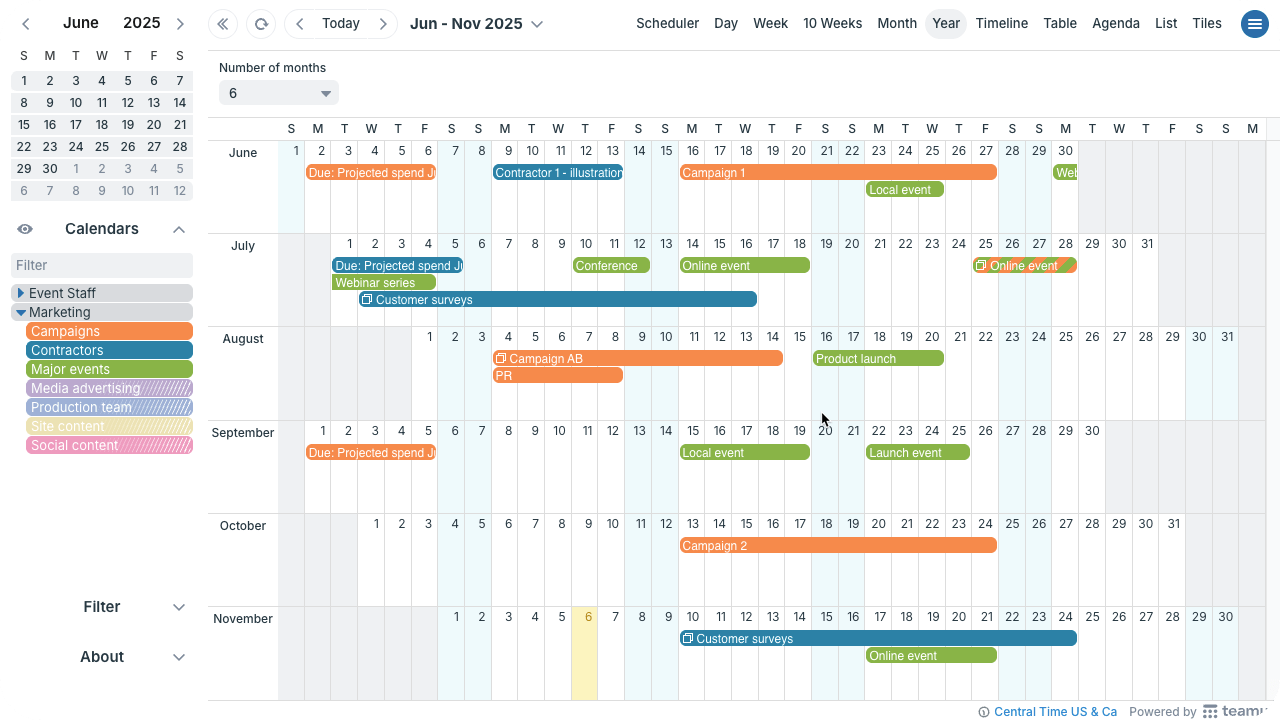
Adjust the number of months and toggle calendars on and off from view to focus as needed. Use keyword and custom field filters to sort events further.
Better planning, faster decisions
When your year view shows actual events and lets you filter and customize what’s visible, long-range planning gets easier and smarter.
- Clarity: See every department’s major dates at once—no more hidden conflicts or missed deadlines.
- Efficiency: Filters and toggles replace manual spreadsheet checks, saving hours each week.
- Conflict prevention: Identify overlapping projects or staffing crunches before they happen.
- Budget alignment: Spot high-spend periods early and balance workloads around them.
- Agility: Instead of reacting month by month, you plan proactively for the full year.
For example, the operations manager planning next year’s staffing now opens one view to see all training blocks, product launches, and seasonal peaks. What once took hours of cross-checking now takes minutes.
When you’re mapping staffing schedules, project timelines, and budgets months in advance, a year-view calendar that displays actual event information gives you the needed clarity. Give it a try now with a live demo calendar or your own new Teamup calendar.