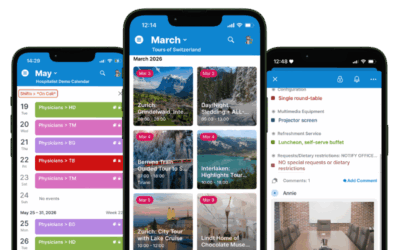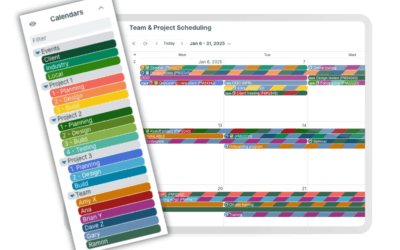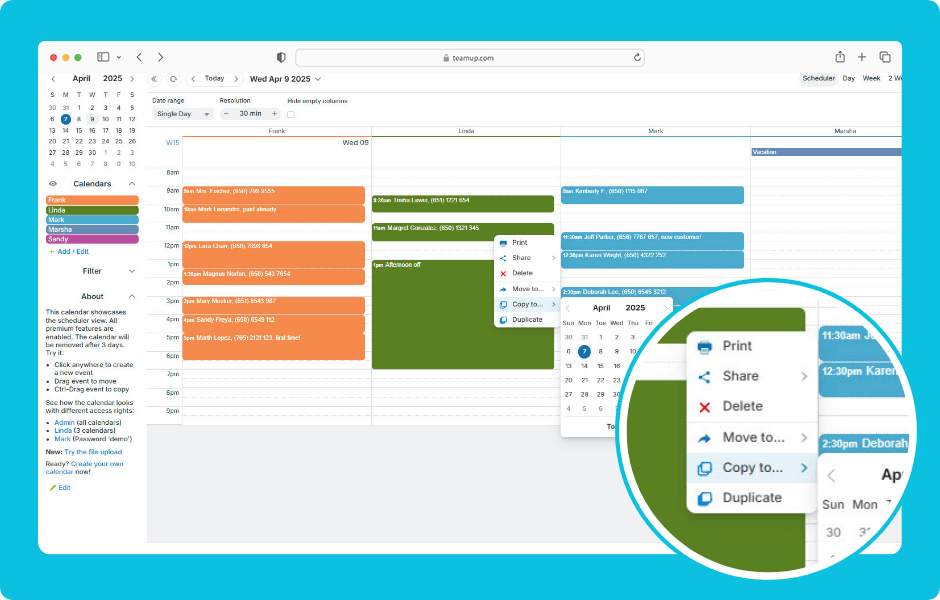
You can copy an event to a different date/time or duplicate an event to a different sub-calendar. You can also duplicate events on the Teamup app.
When using Teamup in a browser:
- Right-click an event to open the context menu.
- To copy an event:
- Click Copy to…
- Click to choose the date where you want to copy the event.
- A copy of the event will be created on the date you selected.
- To duplicate an event:
- Click Duplicate
- In the Calendar field, choose the sub-calendar(s) for the duplicated event.
- Click Save.
- A duplicate of that event will be created on the sub-calendar you selected.
ℹ️ Learn more