One of the first steps in setting up a calendar is to define its structure. Thoughtful structure, with clear organization and visual cues, makes the calendar easier to use so teams work more efficiently from the start.
Calendar structure is the underlying framework that defines how a calendar is organized and used: What categories exist, how events are displayed, what information can be captured and filtered, and how elements such as phases, event types, or team members relate to one another.
Teamup provides flexible, multi-dimensional calendar structure that’s based on sub-calendars, organized in folders, expanded with custom fields, and visualized with color-coding.
Building a calendar structure
Sub-calendars
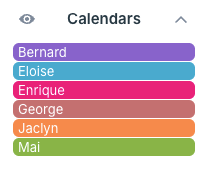
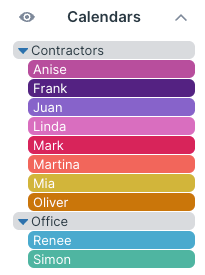
Sub-calendars are an essential part of Teamup: They are the individual calendars contained within each Teamup master calendar. They can represent whatever you need to organize or schedule. A very common calendar setup is to create sub-calendars which represent, or are assigned to, individuals:
But you don’t have to stop there. Sub-calendars can represent other things, too:
- Resources: Fleet vehicles, equipment, studios, meeting rooms, labs, equipment, tennis courts, sports fields.
- Locations: Geographic locations such as regions and countries; physical sites such as buildings, gyms, job sites, offices, service centers.
- Categories: Projects, conference tracks, processes, jobs, classes, age groups, event types.
- More individuals: Employees, students, crew members, board members, departments or teams, contractors.
A master calendar can have multiple “sets” of sub-calendars, with each set representing a different group.
Learn more
Folder organization
When there are only a few sub-calendars that all represent the same kind of thing (e.g. team members), folders aren’t needed. But as the structure gets more complex, folders keep everything organized and make the calendar easier to navigate.
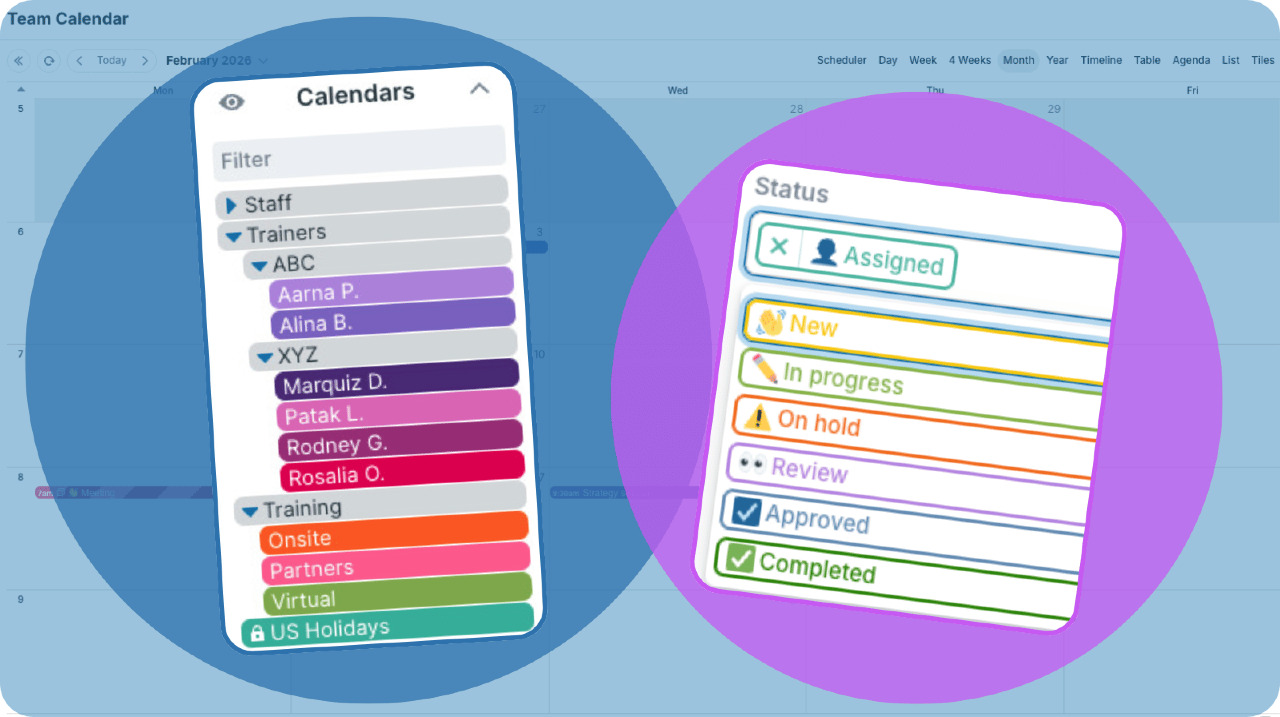
Each set of sub-calendars can be organized in its own folder. Folders can be nested to create hierarchies, too:
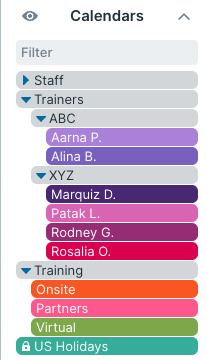
All the calendars in a folder can be toggled on or off from view with a click. This makes it easier to focus when using a busy calendar. Everything is still available, but it’s easy to limit the view to relevant items for different tasks.
Learn more
Custom fields
All Teamup calendars include certain built-in event fields. It’s also possible to create custom event fields, which can be text, number, or choice fields. These fields can be used to add more layers to calendar structure in different ways:
- Track task status across all team members.
- Capture special requests for reservations.
- Note the estimated hours for a job.
- Choose from specific workflow steps.
- Enter the project ID or job number.
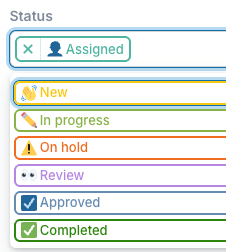
When scheduling includes multiple dimensions (more details below), custom fields help bring them into the structure. If the field isn’t relevant for a particular event, it can be ignored. If it’s important that a field always be used for every task, make it required.
Learn more
Color-coding
One of the most visible characteristics of Teamup is color-coded events. Sub-calendars create the primary color-coding system. Choose from a palette of 48 colors and assign the right one to each calendar. Individual events take their color from the sub-calendar they’re assigned to. If an event is assigned to multiple calendars, it will show striped colors to represent each one.
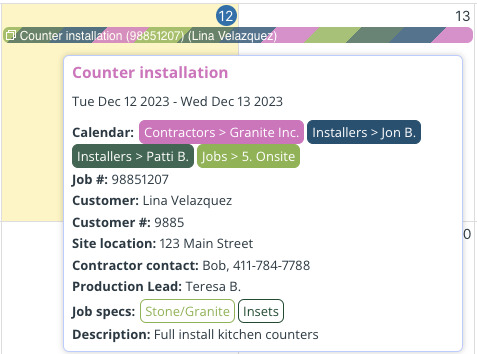
Color-coded sub-calendars work great for identifying and visualizing categories. However, you may need to color-code for more factors, or dimensions, than the sub-calendars represent. To create another layer of color-coding, create a custom choice field with color blocks as the option labels that show in the event title. Here’s how to set it up.
Learn more
Handling multiple dimensions
Real-world scheduling often has multiple dimensions:
- Team members are working on multiple projects.
- A service business assigns a crew member as well as a fleet vehicle for each job.
- A coach needs to book a room for a client meeting.
- A conference includes a workshop on a specific topic hosted by a sponsor company and led by a speaker.
Fortunately, with Teamup’s combination of sub-calendars and custom fields, you can get all the dimensions into the calendar structure. No need to pick and choose what you’ll track and ignore the rest. Choose a few primary dimensions to build the base of your calendar with sub-calendars. Then layer on custom fields as structural elements that extend across the base as needed.
For example, a workforce training company might have a structure with two sets of sub-calendars: One set represents individuals (Trainers), another set represents categories (Training type). But they also need to consider requirements for each training session. To add this dimension, they use a custom field with options:
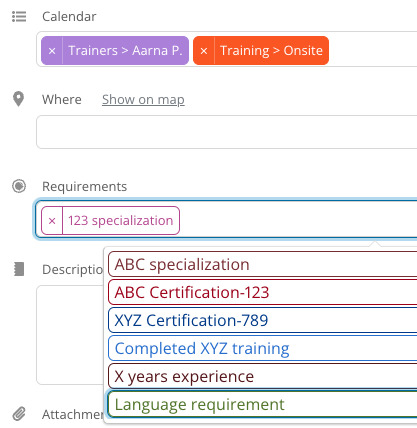
Using custom fields this way keeps the calendar structure organized and comprehensive. For factors that could span across other dimensions (like individuals and categories), custom fields provide a way to “stack” these other dimensions onto the foundational structure without cluttering the calendar.
Learn more
Using sub-calendars vs custom fields
Teamup works really well for our team. It allows us to create multiple different calendars for our various education events and workshops, each with a different colour. We can then personalise each event with multiple different event fields, many of which are fully customisable with different colours and even icons/emojis. This makes our very busy calendar really easy to see at a glance what is going on and where.
Having both sub-calendars and custom fields to work with means there are options in how you set up the calendar. Here are the key considerations.
Access control
You can control access to events on a specific sub-calendar by choosing which users get access to that sub-calendar and assigning specific permission levels:
- Allow all employees to create events on their own sub-calendar (e.g. scheduling time-off/PTO requests) but prevent them from making changes to events on other employees’ calendars. Using a combination of permissions (modify-my-events, add-only, read-only) makes it work. See how to set this up.
- Sharing a public events calendar, either by embedding it in a website or sharing a calendar link. The calendar link is set up with read-only access, which lets viewers SEE the events but not make any changes.
Access control is a feature of sub-calendars, but not of custom fields.
Overlapping events
Overlapping events are fine in some categories. For example, there could be multiple tasks, all with the same status, all belonging to the same project; it’s normal that there would be several concurrent tasks happening.
For other categories of events, overlapping events are a disaster. For example, if there’s a bookable meeting room, it should never be reserved for use at the same time by multiple people. For shared spaces and resources, double-bookings are a big problem that should be prevented.
Sub-calendars have a built-in setting which can be turned on that automatically prevents overlapping events. So, if it’s important to prevent double-bookings for a certain category of events, they should be represented by sub-calendars. Custom fields do not have this ability.
Independent, optional traits
Any event on a Teamup calendar must be assigned to one or more sub-calendars. However, custom fields are optional for any event. You can create custom fields but you don’t have to use them on each event. That’s why custom fields work well for capturing traits and attributes that are specific to individual events, but independent of the broader event categories:
- Status changes such as requested, in progress, completed, invoiced, or delivered. The status for each task would change while the large job or project category, designated by sub-calendar, stays the same.
- Details specific to an individual event, such as a contact phone number for a service job or numerical field to capture the estimated price. The contact number or price would be specifically tied to that specific job only, so should be captured in fields. The sub-calendars would hold “groups” of jobs according to broader categories like service type, crew, or job location.
Use sub-calendars for event groups which can be color-coded and should have access that is controlled or customized. Use custom fields to track unique attributes for each individual events.
Learn more
Adapting and scaling the structure
Calendar needs often evolve, and that’s okay. Your initial setup doesn’t have to last forever.
Teamup’s flexibility lets you refine and expand the structure over time. Add or remove sub-calendars, or change what they represent. Add custom fields when new factors come into play. Adjust folder hierarchies and update color-coding as needed. When a better approach appears or new use cases arise, simple updates can keep the calendar structure optimized. Even scaling up — to add more staff members, teams, locations, or even new departments — can be done without disrupting the current workflow. Want to try new things out before implementing? Set up a live demo calendar to test ideas for improving your calendar’s structure.