In many industries, work only moves forward when the right people and the right equipment come together. That equipment could include specialized lab machines, fleet vehicles, construction equipment, or shared supplies that teams use in rotation. When staff scheduling happens in one system and equipment is tracked in another, the disconnect creates blind spots.
Problem 1: Resource conflicts add inefficiency
Below are a few common situations where separate calendars cause trouble.
The crew arrives, but the equipment doesn’t.
A field team is scheduled for a 7 a.m. job. They show up to a panicking project manager. The equipment was double-booked but no one caught the conflict on the spreadsheet. Now the team is standing on site without the machines they need.
A vehicle gets assigned twice.
A driver’s route is added to the staff calendar. Another manager books the same truck for a second job because the fleet sheet hasn’t been updated. The conflict becomes obvious only when both drivers try to take the same vehicle.
Maintenance downtime isn’t communicated.
A lift is scheduled for servicing on Thursday. Staff planners, unaware of the maintenance, assign operators to a task that requires it. Everyone’s time is wasted and the job falls behind schedule.
Problem 2: Separate schedules lead to unseen conflicts
Teams can be organized and productive, but separate scheduling will still cause problems and mess up timelines. The issue isn’t due to lack of effort. What exists are pieces and parts of different systems, but nothing unified. Spreadsheets, shared folders, whiteboards, and email threads all hold different parts of the schedule. Working harder can help compensate for the lack of unified visibility, but it won’t solve it. The gap will keep existing and creating friction: uncertainty about what’s booked, unclear availability, and lots of unnecessary work to stay coordinated.
To solve it, staff schedules and equipment bookings need to live in one place. A unified calendar can reduce the uncertainty that causes daily friction.
The solution: Unified scheduling for staff and equipment

Click to enlarge: See all details of staff schedules, job assignments, and equipment use in one place.
When teams need the right equipment to work, separating schedules doesn’t make sense. But bringing it all together doesn’t have to be messy or confusing. A structured calendar provides complete visibility in an organized way.
How to set it up
- Create dedicated sub-calendars for each team member, organized in team folders.
- Add sub-calendars for equipment, vehicles, and other shared resources, grouped in folders as needed.
- Set each resource sub-calendar to disallow overlapping events to automatically prevent double-bookings.
- Add custom fields for important details: equipment status, job numbers, client, project, or location.
- Set up customized calendar access with the right permission levels: For example, read-only for techs who only need to view job details, and modify access for team leads who schedule work.
Unified scheduling in action
With everything scheduled in one place, handling day-to-day tasks is clear and efficient.
Schedule a job with equipment
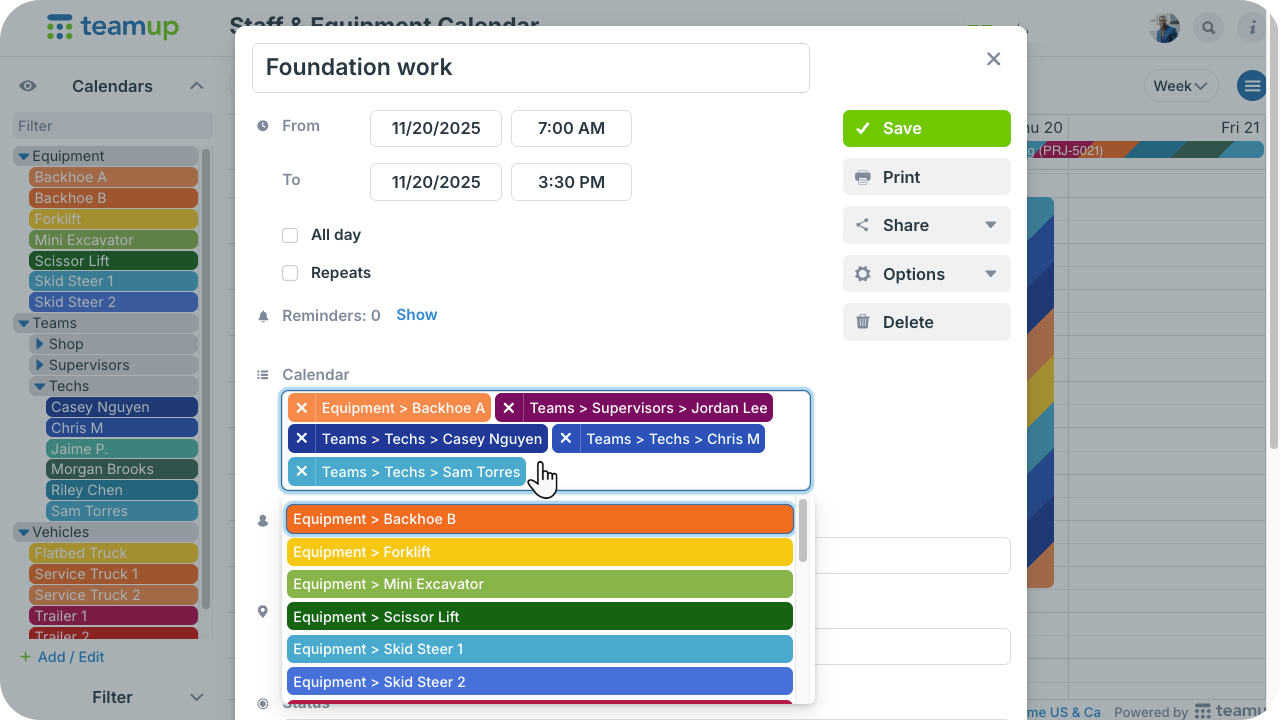
Click to enlarge: Assign each job to all the relevant crew, equipment, and vehicle calendars.
- Create the job event with all the needed details.
- Assign it to the relevant staff calendars and the required equipment and vehicle calendars.
- Everyone can see who is going where and which resources are committed.
Schedule maintenance for a fleet vehicle
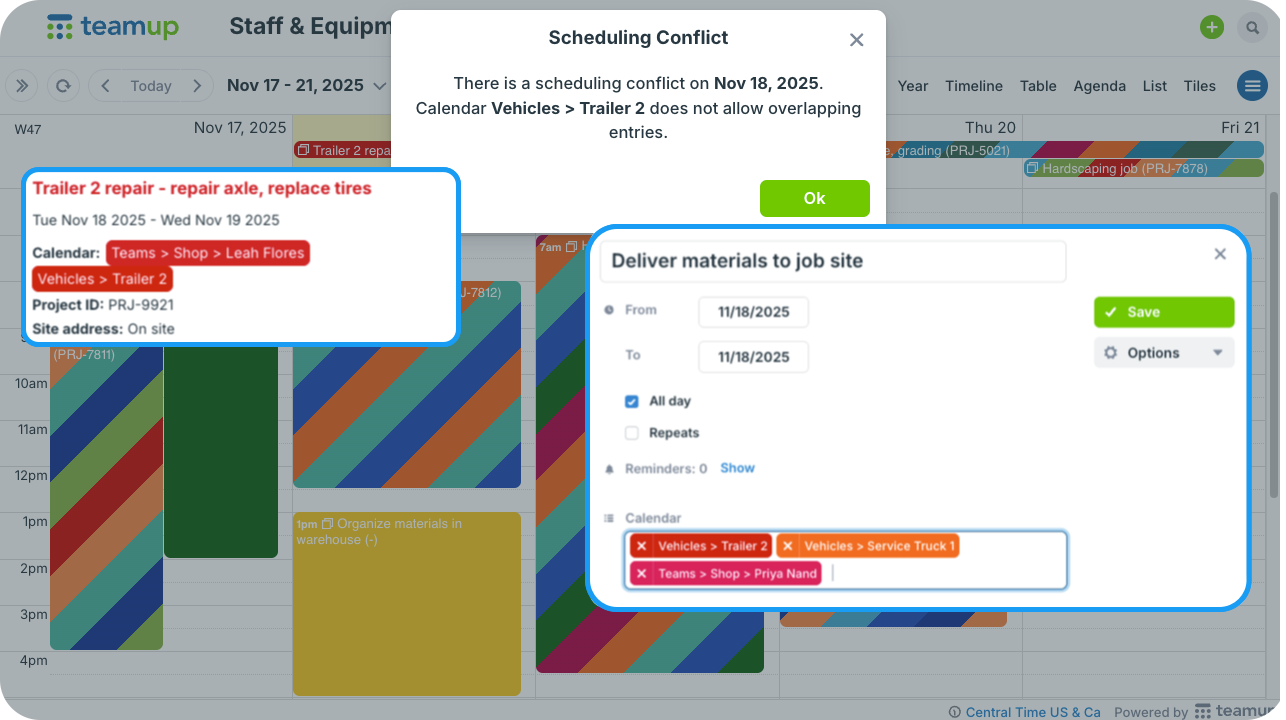
Click to enlarge: Scheduling conflicts are automatically prevented.
- Create a maintenance event and assign it to the vehicle calendar for the full maintenance window (for example, 4 hours, 1 day, or 1 week).
- During that time, the vehicle cannot be booked for other jobs.
Adjust a scheduled job when equipment fails
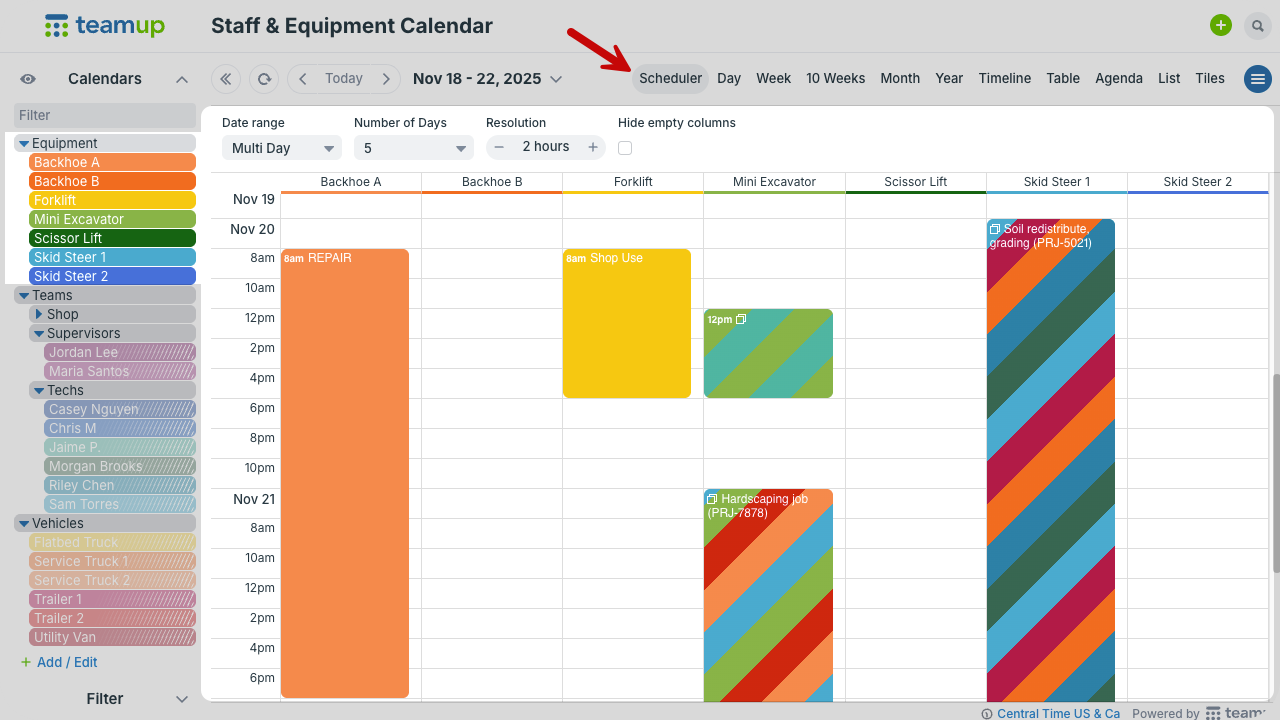
Click to enlarge: Scheduler view shows each calendar in its own column.
A job is scheduled with a specific backhoe assigned. The day before, the machine stops functioning and is sent for repair.
- Remove the failed equipment from the job.
- Create a maintenance event for the failed equipment.
- Check the equipment schedule to see when the other backhoe is available.
- Update the job and keep the work on track.
Clear scheduling, efficient teams
A unified staff-and-equipment calendar delivers immediate improvements:
- Prevent double-bookings. Conflicts appear instantly, not when work is supposed to start.
- Reduce delays. Staff only get scheduled when the required resources are truly available.
- Improve coordination. Managers work from the same information instead of reconciling scattered updates.
- Track equipment usage. The calendar becomes a record of where, when, and how gear is deployed.
- Save time. Less manual checking, fewer messages, and fewer last-minute surprises.
To streamline operations and reduce day-to-day friction, set up your own unified calendar with Teamup.