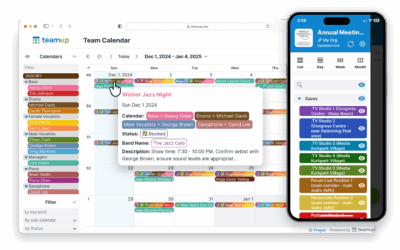
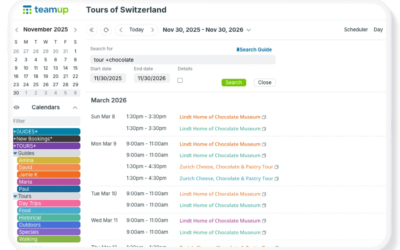
When you create an event, you assign it to a sub-calendar or to multiple sub-calendars; if you later want to move the event to a different sub-calendar, it’s easy to do so.
Drag events in Scheduler view
Using Scheduler view to reassign events is very easy and intuitive: all you have to do is drag the event from one column to another. Doing so will automatically update the sub-calendar assignment.
A few tips to make Scheduler view even more efficient for you:
- Hide all sub-calendars but the ones you want to work with for the moment. This cleans up Scheduler view and makes it easier to quickly drag events to the appropriate sub-calendar.
- Events that are assigned to more than one sub-calendar cannot be dragged in Scheduler view.
- Hover the mouse over an event to see more event details, such as time and event fields.
- Collapse the control panel to have a broader view of the Scheduler columns.
- Use the arrows and date picker in the top bar to navigate quickly between days.
Reassign events in any other calendar view
For all other calendar views, here’s how to move an event to a different sub-calendar:
- Click or tap to view the event details.
- Click or tap into the Calendar field.
- To add a sub-calendar, select it from the drop-down list.
- To remove a sub-calendar, click the X on the sub-calendar name. Or use your delete/backspace key to remove it from the Calendar field.
Related resources: