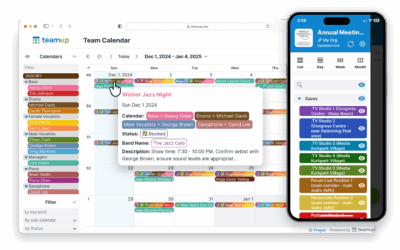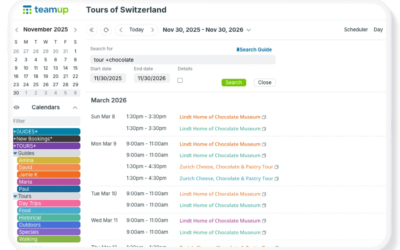
With event comments, you can use your Teamup calendar even more efficiently for team discussions, collaboration, feedback, and record-keeping and more.
Teamup makes scheduling easier by helping you to keep everything in one place. Having a central dashboard makes it easy to discuss, plan, share ideas, gather feedback, and keep records. With event comments, you can use your Teamup calendar even more efficiently.
How to use event comments
For calendar admins, make sure that Comments are enabled in Settings > Event Fields. By default, the Comments are disabled as a global setting but users with modify permissions can enable Comments in the event editor for any individual event as needed. If the global setting is enabled, Comments will be enabled for all new events automatically. You can enable or disable Comments for any existing events individually.
▶️ Configure and Manage Event Comments
To use comments on the Teamup app: Open an event, tap the Edit icon, then tap the Gear icon (top right). Tap Comments, then configure the settings as needed. Click the check mark in the top right to save your changes. Now users will be able to add and view comments in the event.
Ways to use event comments
Get real-time input
Enable the event comments on a group event or meeting. Then, before the event begins, encourage participants to input their notes, ideas, questions, or suggestions using event comments. It’s a streamlined way for people to leave their thoughts as the event unfolds, while the ideas are still fresh.
Collect feedback
As you wrap up a meeting, workshop, or other group event, encourage participants to leave their feedback using event comments. Collecting feedback right away helps you to gather more and better feedback; you won’t have to follow up with participants later, or miss out on real-time impressions.
Keep time-stamped records
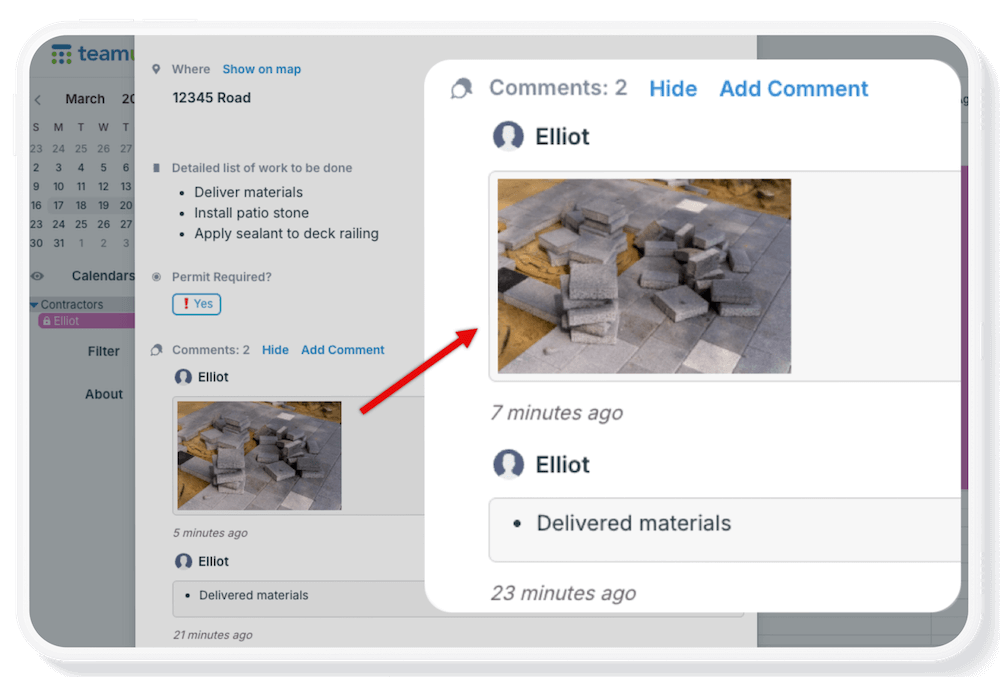
The description area provides ample space for event details, but with event comments you can leave a record of notes with a time-stamp on each note. For example, for documenting work on the field, simply add a comment with a status update or photo periodically and the comment is automatically time-stamped.
A delivery business could have their drivers input a comment when the delivery has been successfully completed. The driver can describe what was delivered, the condition it was in, who received the delivery, and other pertinent details. The comment is automatically time-stamped; if a customer complains that a delivery wasn’t made, you can check the scheduled delivery event and see an accurate record in the event comments.
Share resources
You can use event comments to enable all users, even those with read-only access, to share resources with other calendar users. This way, the event itself is not modified or in danger of being accidentally deleted or changed. But users can still share information and helpful resources on the event itself. For example, a workshop participant could upload a copy of her notes from an event.
Collaborate on details
Sometimes you know the basics of an event but aren’t quite sure about the details yet. You can use event comments to discuss options with your team or with invitees. That way, you can put everything that’s been decided about the event in the Description, and open up comments to the details yet to be determined. As decisions are made, you can add the new information to the event description.
Capture memories
Use the event comments as a way to save thoughts and images of an event. Every calendar user can be part of memory saving, when you enable comments for all users. You can have family members share their images of a vacation, or use a calendar event as a way to keep a gratitude log, snap a daily photo, or keep a record of your team’s progress on a project.
Make notes on recurring events
If you use a recurring event for a task or habit, you can use the event comments to make notes on each individual occurrence of the event. Simply enable comments on the day’s event and save. If you exercise daily, for example, you can use the event comments to log how far you jogged or what weight-lifting routine you followed. Comments on a single event in a series only stay with that particular event and are not carried over to the repeating events in the series.
Make hand-offs easier
If one team member is handing a task off to another, event comments are a great place to share all the notes and information accumulated. Encourage the team member who’s handing the task off to use the comments as a way to track the steps they’ve taken, as well as pertinent information such as contact information, resources, client preferences, etc. When the task is transferred to the next team member’s calendar, it will take all that information with it.
Share goals and agendas
If you use a Teamup calendar to manage appointment booking with your clients, you can use event comments to gather more details. For example, a personal trainer could ask her clients to share what they want to accomplish for each session. They can have a conversation in the event comments, and it’s all saved on the calendar event. The trainer can look back at past booked sessions and see a record of the client’s requests and their discussions.