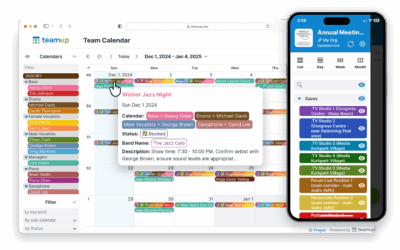
Folders make it easier to organize multiple calendars.
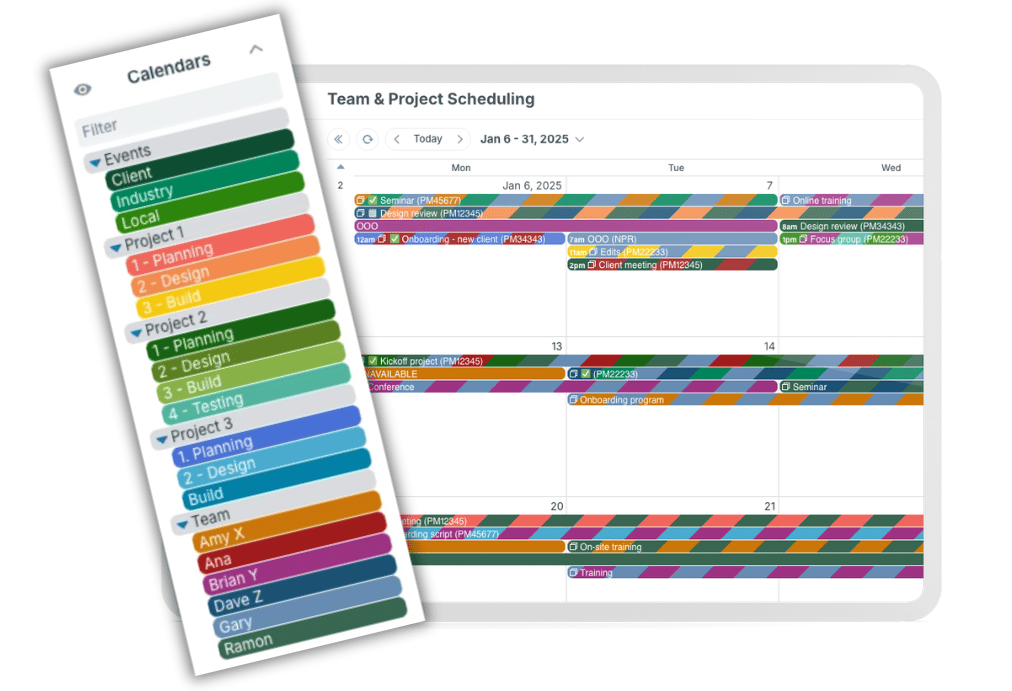
You can use folders to organize your sub-calendars (also called calendars). This is especially helpful when you have lots of calendars to organize – Simply group the calendars that are in the same category into folders.
Show or hide calendars
1. All calendars in a folder can be opened or closed with one click on the folder.
2. Click the middle bar or name area of an open folder will show or hide all calendars within this folder without closing the folder.
3. Click an eye icon to the right of a folder to show this folder only and hide events on all other calendars. The same works for the eye icon to the right of a calendar. To show all events on all calendars in all folders again, click “All” in the upper left corner. To show only selected calendars in different folders, use the smart filter as described below.
Using the smart filter
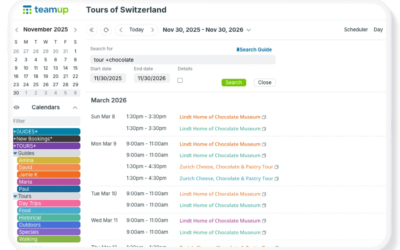
A smart filter appears when there are more than 12 sub-calendars. This makes it easy to quickly locate any specific calendar you want to see, especially if you have dozens or hundreds of calendars in multiple folders.
How to create folders
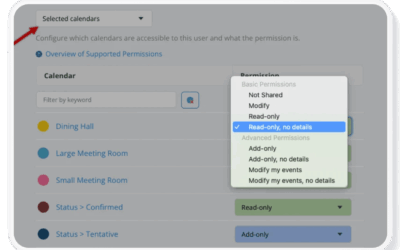
You can use the folders for your existing calendars without changing any event display. The folders are defined by the calendar administrator in Settings -> Calendars using the pointy bracket character (>) to define the folder path.
It is also possible to nest sub-folders within folders, too. Here’s an interactive demo showing how to set this up.