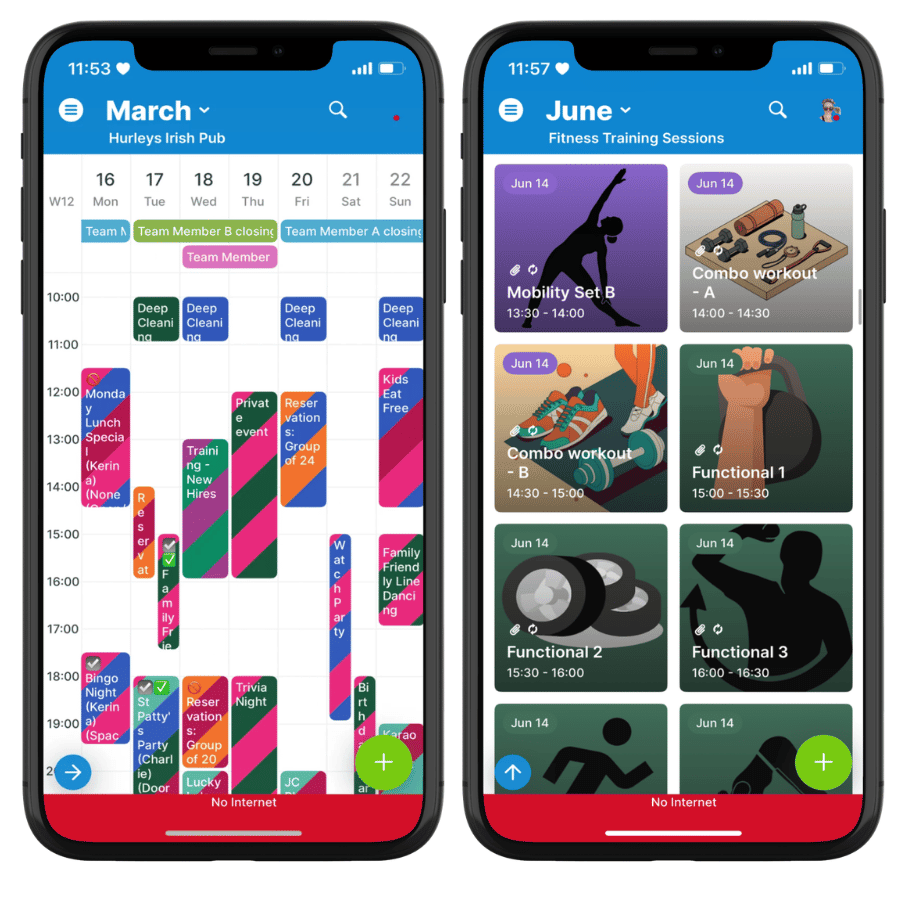
With Teamup mobile apps, you can access your calendar even if you can’t connect to the Internet. Even if you have connectivity issues with your device, are away from wifi, or are on a plane, you can still work with your calendar.
Offline access to your calendar
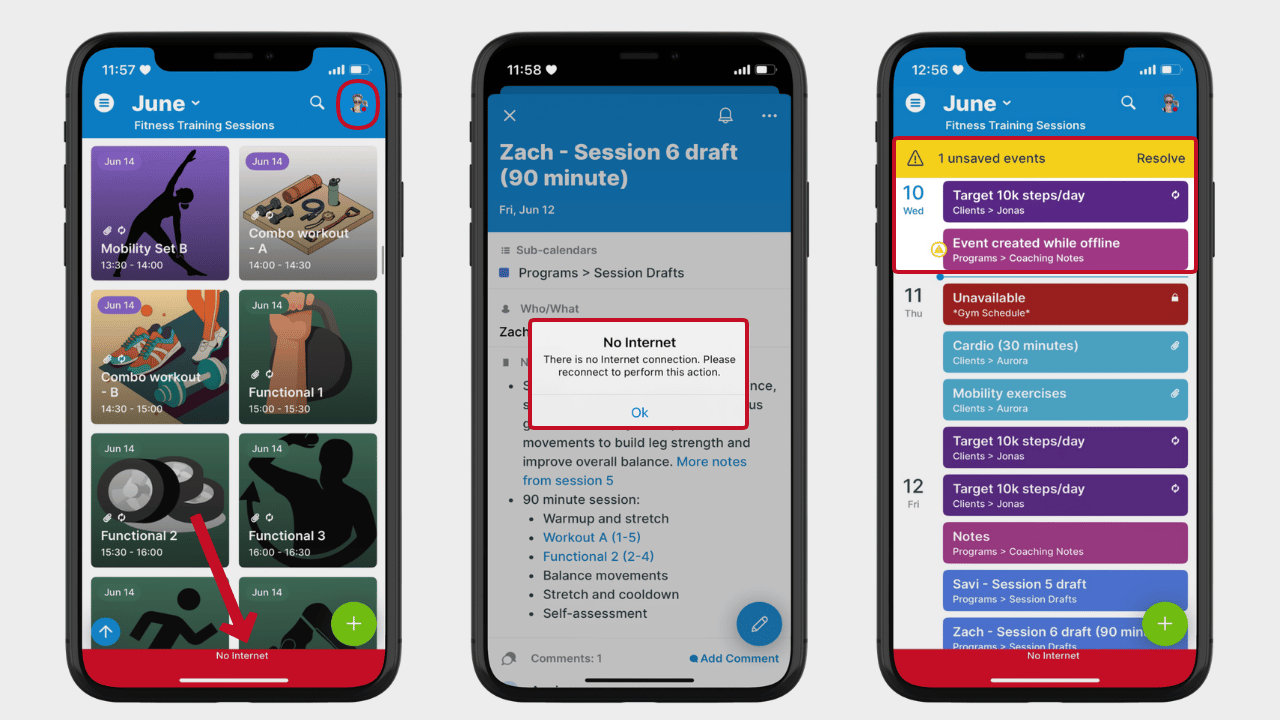
Click to enlarge: The Teamup app provides offline access to your calendars.
On the Teamup mobile apps (available for iOS and Android) you can view your calendar(s) even when offline. Open the Teamup app as usual, and you can see all scheduled events and appointments on your calendar.
Here’s how it works:
- You can still tap any event to open it and see the event details that were synced before connectivity was lost. Updates made while you are offline will be synced once connection is restored.
- Offline status is indicated by a red dot in the top right (next to your user avatar) and a red No Internet banner at the bottom of the screen, as shown above (left screen). When connectivity is restored, a green banner will indicate that you’re back online.
- To prevent version conflict, you cannot edit events to your calendar when offline. If you attempt to edit an event, you’ll receive an error message as shown above (middle screen).
Creating events while offline
You can create new events when accessing your calendar offline. A small yellow triangle will appear on the event, as shown above (right screen), indicating that it is not yet synced to the server.
- Note that once you save the event, you will not be able to edit it (until you are back online.)
- A yellow banner will indicate that there are unsynced events.
- Once you’re back online, these events will be synced to the server immediately.
Automatic syncing when online
Once your connection is restored, your calendar will refresh and sync automatically. Any updates made by others while you were offline will be synced. And any events you created while offline will be synced as well.
Related resources