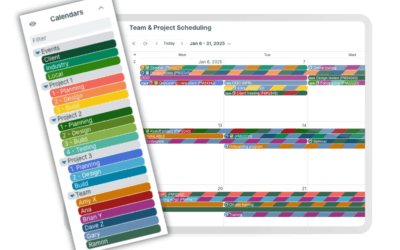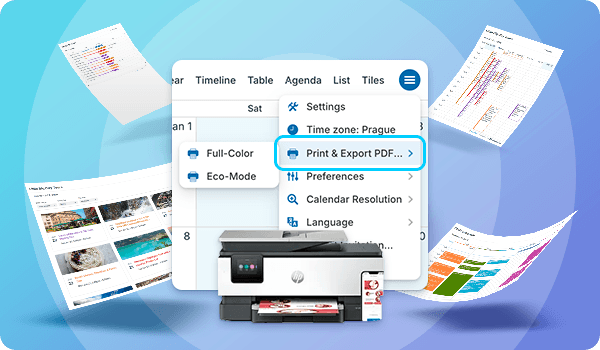
Teamup keeps your schedule synced across all platforms and devices for every user. Real-time updates, shared visibility, and instant changes make digital calendar collaboration easy. However, sometimes a printed calendar is still the best tool. The good news is that Teamup makes printing simple, and a recent update makes it easier than ever. Print a filtered view of your own calendar, create a custom blank printable, or use our pre-made blank calendars.
The improved PDF Print & Export tool
The latest Teamup update brings a cleaner, faster printing experience. The Print & PDF Export option now opens your browser’s native print dialog directly, rather than launching a separate print or export tool:
- Print previews load significantly faster.
- Work with the familiar browser print settings you already know. No new interface to learn.
- Saving as a PDF is just as straightforward: Simply choose “Save as PDF” in the browser’s print dialog.
How to use the PDF Print & Export tool
- Open your calendar in a browser.
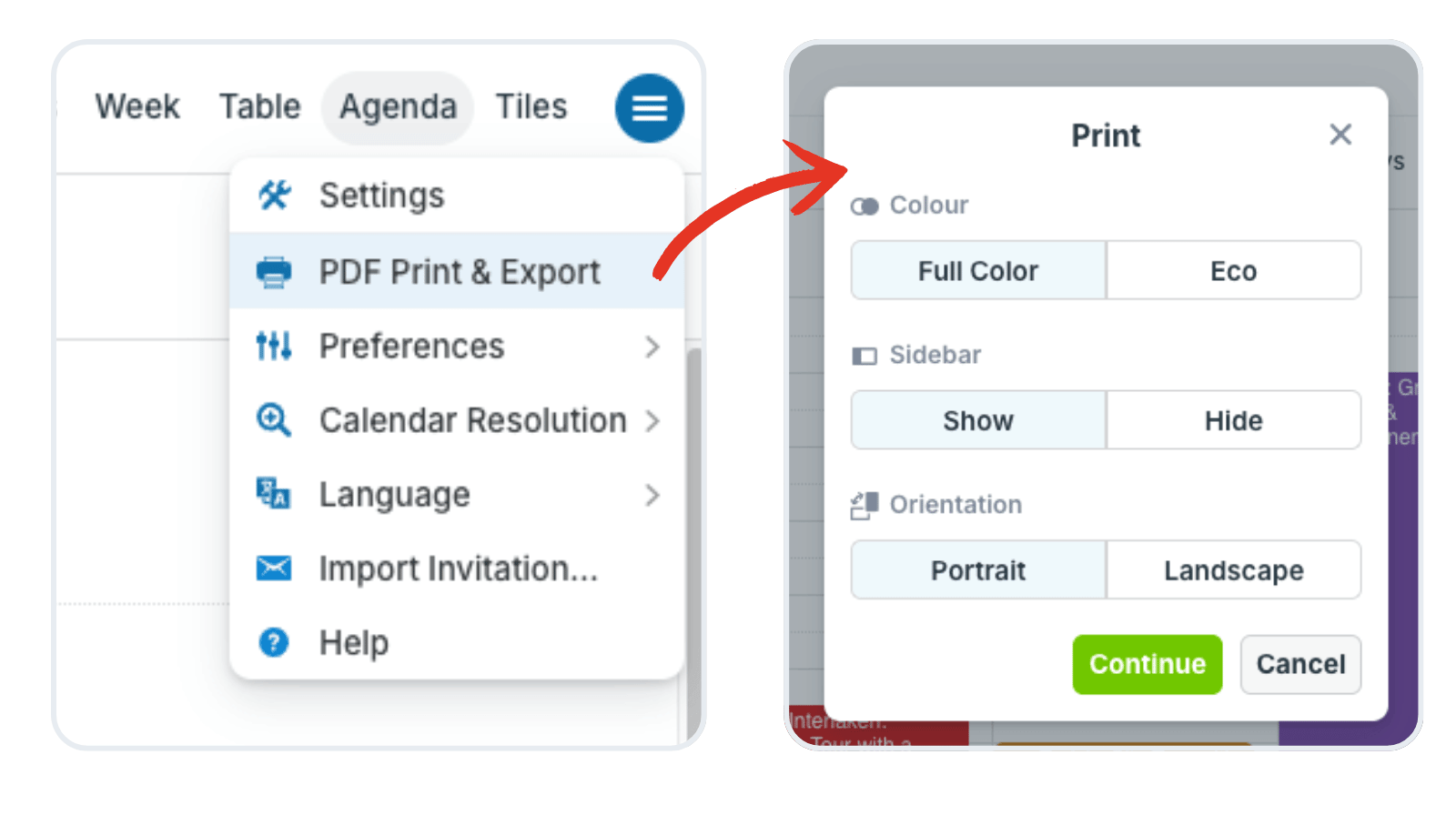
- Click the blue hamburger menu in the top right.
- Select PDF Print & Export.
- A dialog with printing options will open:
- Color: Full Color or Eco.
- Sidebar: Visible or hidden.
- Orientation: Portrait or Landscape.
- Select the options you want, then click the green Continue button.
- Adjust other settings in your browser’s print dialog, if needed, then print or download the PDF.
About Eco Mode printing: Eco Mode replaces the colored calendar title and event blocks with a colored border only.This improves readability on paper, reduces ink consumption, and makes black-and-white printing much more legible. To use Eco Mode, click Print & PDF, then select Eco-Mode from the pop-up menu. See an example of printing in Eco-Mode here.
When a printed calendar adds real value
Digital is powerful, but paper has its place. Here are some situations where a printed Teamup calendar genuinely comes in handy:
Unreliable network access
Field work, outdoor events, travel, and remote job sites often have weak WiFi or cell service. In these cases, a printed schedule is a helpful reference sheet that helps everyone stay on track.
Note that Teamup mobile apps provide offline access to your calendar. Once you are online again, all unsynced events will be synced to the server immediately.
Collaborative discussions
Some discussions work better with a physical calendar on the table. A printed calendar is great for discussing project timelines, planning shifts, or reviewing event schedules. It allows everyone to write notes, circle dates, and annotate freely, all without looking at a screen.
Planning sessions
Sometimes you need a blank grid to think things through. Starting on paper lets you draft, erase, and rethink your plans. Whether you’re organizing a conference, planning a school semester, or outlining a project, this approach gives you the freedom to explore ideas before moving to a digital calendar.
Bulletin board schedules
A printed schedule, whether monthly or weekly, can be posted in a shared space like a break room, classroom, or office. This way, everyone can see it at a glance. They won’t need to log in anywhere. Great for shift schedules, class timetables, or team availability overviews.
Distributing schedules at events
At conferences, sports tournaments, or community events, printed schedules serve as convenient handouts. Attendees can carry the agenda with them all day without draining their phone batteries or needing to remember a URL.
Offline backup
Printing or saving a PDF periodically gives you a local backup of your schedule. Helpful for record-keeping, compliance requirements, or simply having a hard copy on file.
Tips for printing a Teamup calendar
A little preparation goes a long way toward getting a clean, useful printout. Here are the most effective tips:
Toggle and filter first
Teamup calendars can contain many sub-calendars and events. Often, it’s more than you may need on a single printout. Before printing, toggle sub-calendars and use filters to show only what you need. This keeps the printout focused and easy to read.
Choose the right view
The calendar view you pick before printing shapes how your printout looks. Multi-month view is great for an overview or long-range planning. Week or Scheduler view is better for detailed daily schedules. Table view gives you a familiar Excel sheet layout, with the option to control which event fields are visible.
Close the sidebar
The sidebar holds the control panel: Date picker, calendar list, filters, and about information. It’s usually not relevant for a printout. Before printing, collapse the sidebar or choose Hide from the Print options.
Adjust the time range
In daily or weekly views, the time grid can take up a lot of vertical space. If your events are only scheduled during business hours, reduce the visible time range before printing. This helps everything fit onto fewer pages.
Adjust the scale and orientation
If the printout cuts off events or splits them oddly, adjust the scale in your browser’s print settings. For example, try 93% instead of 100%. A small adjustment can make a big difference. Also, check how the printout looks on portrait versus landscape orientation.
Adjust resolution for long event titles
If event titles are being cut off in grid views, adjust the calendar resolution so that each event block has more height. This gives longer titles room to display fully before printing.
Use Eco Mode for readability
As mentioned above, Eco Mode replaces the solid color blocks with a colored border, showing text on a white background instead. This is especially useful for black and white printing. Dark text on a white background is much easier to read than text with a colored background turned grey.
Print Teamup’s pre-made blank calendars
Don’t need to print a live calendar filled with events? Teamup provides a set of printable blank calendars that you can use right away.
The Teamup Printable Calendars collection includes a variety of formats, styles, and date ranges. Monthly, weekly, yearly, and multi-week layouts are all available. Just pick the one that fits your needs, download the PDF, and print. No login or account required.
Create a custom blank calendar
If none of the pre-made templates are quite right, you can build your own. Teamup’s printable calendar widget lets you configure exactly what you need:
- Custom date range: Any span of days, weeks, or months you need.
- Layout and style: Choose the calendar format that works for your use case.
- Language: Localize the calendar for your audience.
You can also use your Teamup calendar or a live demo calendar to print a blank calendar anytime. Just open the calendar, hide all sub-calendars with the eye icon, choose your preferred view, and then print. The result is a perfectly formatted blank calendar grid in exactly the layout you chose.
The best of both calendar worlds
Teamup on your computer and phone is a real-time collaborative calendar: Stay synced, connected, and informed. And when you need a physical calendar version for planning, collaboration, or sharing, you can get the exact calendar printout you need. Visit our Printables page anytime for the calendar printout or PDF you need. If you don’t have your own Teamup calendar, create one today.