
Managing court reservations at a small club shouldn’t require a full-time administrator. But without a clear system, it usually does. It takes a steady stream of texts, emails, and phone calls to the club secretary just to book an hour on Court 2. There’s a simpler way. With the right setup, members can book their own courts directly, double-bookings are prevented automatically, and the secretary stays in control without being in the middle of every reservation.
The need: A simple, self-serve court reservation system for a small tennis club — easy for members to use, low-maintenance for the secretary, and reliable enough to prevent double-bookings and unauthorized changes.
The Teamup solution: A shared Teamup calendar with a sub-calendar for each court, an add-only link for members, and a no-overlap rule that prevents double-bookings. Members get direct self-booking access while keeping reservations secure.
Why small clubs need a simpler way to handle bookings
Small clubs run on volunteer time. The last thing a club secretary needs is to manually field every court reservation request. But opening up a shared calendar to everyone creates its own problems: Members editing each other’s bookings, accidental deletions, or reservations piling up with no structure.
What’s needed is a middle ground, so members can book for themselves, but the system stays tidy and controlled.
A self-serve booking system built on a shared calendar
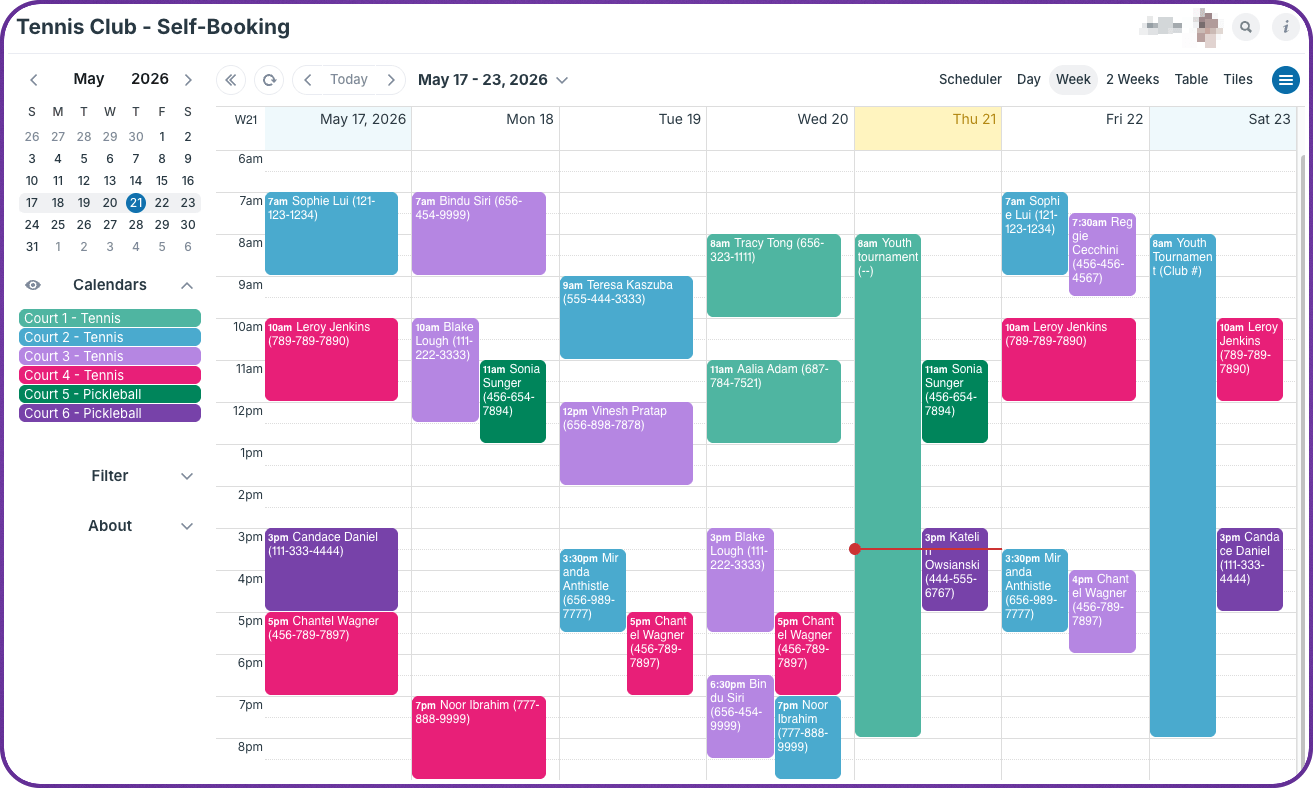
Click to enlarge: The club secretary can see all bookings with all the information, and can add, change, or remove any events on the calendar.
Teamup can be configured as a lightweight booking system without any specialized software. Each tennis court gets its own sub-calendar. Members get a single calendar link with a special permission that lets them add reservations, but nothing else. The secretary holds full control behind the scenes.
Each sub-calendar can be configured with a no-overlapping events rule that prevents double-bookings automatically. If a court is already booked, or marked unavailable for a club function or tournament, no one can book over it. The system simply won’t allow it.
Required fields on the calendar ensure that the key details are in place for every booking. Members won’t be able to save their booking without inputting text into each required field. These field can capture the member’s name, phone number, and email, so there’s a clear record of who made each reservation, and the secretary can follow up if needed.
How to set it up
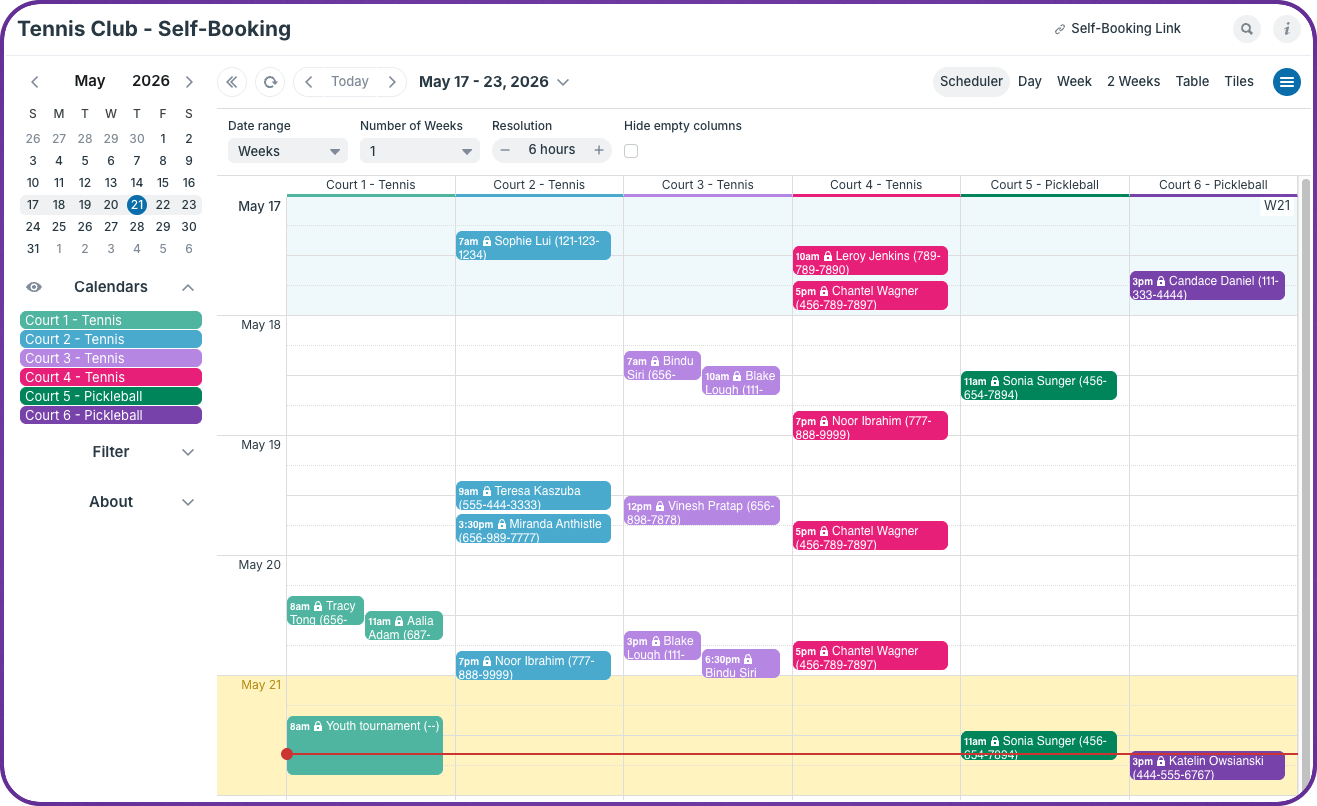
Click to enlarge: Scheduler view shows each court’s booking side-by-side, so it’s easy to find an open court for the needed time. Bookings already made are “locked” and can’t be changed.
🎾 A simple tennis court self-booking system
- Create a sub-calendar for each court (e.g. Court 1, Court 2, Court 3) within your club’s Teamup calendar.
- Enable the no-overlapping events rule on each court sub-calendar to prevent double-bookings.
- Add required custom fields to capture member name, phone number, and email on every reservation.
- Generate a shareable calendar link with add-only permission and send it to club members via email.
- With add-only access, members can add a reservation but cannot view, edit, or delete existing bookings.
- After adding a reservation, they have a short window of time to make changes. After that, the event is “locked.”
- Give the club secretary (and any other club administrators who will help manage the calendar) account-based access with modify permission across all court sub-calendars.
- When courts are unavailable (for maintenance, club functions, or tournaments) the secretary adds a blocking event to the relevant sub-calendar. The no-overlap rule prevents any member reservations from being added during that time.
What it looks like in practice
A member wants to book Court 1 on Saturday morning. She opens the calendar with the club’s booking link, picks the date and time, fills in her name and contact details, and saves. If the slot is free, the reservation goes in immediately. If the court is already taken, or blocked off for a club event, the system won’t allow the booking and she can choose a different time.
Once a reservation is submitted, members have a short window to make edits before it locks. After that, any changes go through the secretary, who can modify or cancel bookings directly. This keeps the calendar clean, makes self-booking convenient, and prevents members from inadvertently changing each other’s reservations. It’s a simple but workable setup for small sports clubs and shared neighborhood facilities that allows everyone full usage without creating a huge admin burden for volunteers.
Want to set up a simple booking system for your club? Get started with Teamup.