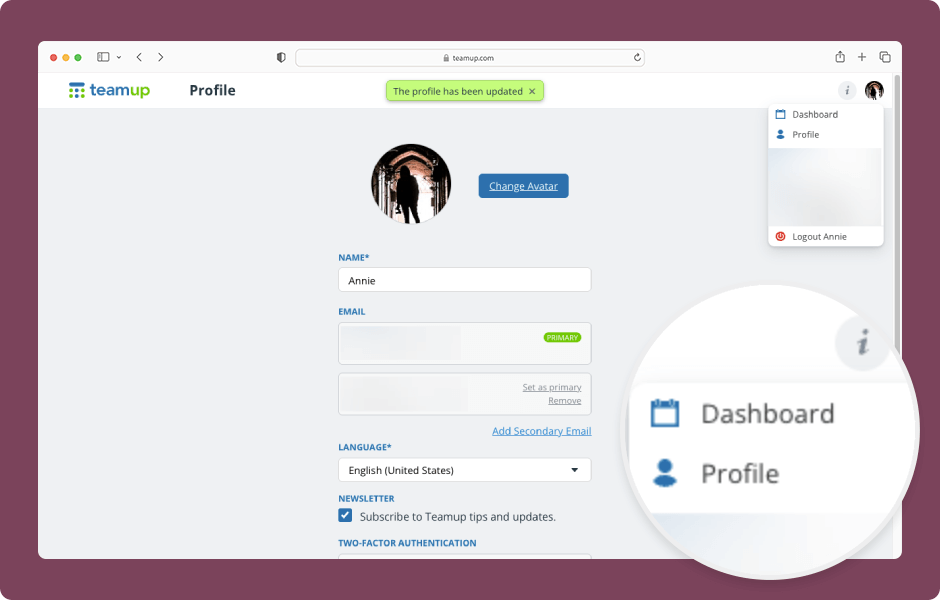
You can change the user name, profile picture, and other settings for your Teamup user account. You’ll need to do this in a browser (not the Teamup app).
- Open Teamup in a browser. Make sure you are logged into your user account.
- Click your avatar (top right).
- Select Profile.
- Click Change Avatar to change your profile picture.
- Click into the Name field and type to change your user name.
- Use the options in the Email section to add or remove an email address.
- Scroll to the bottom of your profile to adjust the language, configure two-factor authentication, or change your password.
- Click Save.
- Click your avatar and select Dashboard; from your dashboard, you can return to your calendar.
ℹ️ Learn more