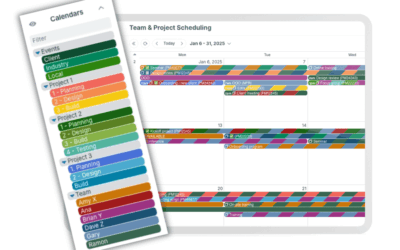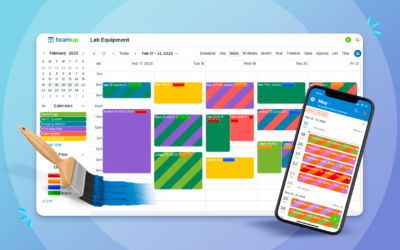
Year view shows your whole calendar year, or any number of months, on one screen.
Year view allows you to get a bird’s-eye view of your long term planning, quickly spot when there are activities planned or availability of resources. And if necessary, drag and drop events to change plans
A few tips for getting around in Year view:
- Choose to display the number of months between 1 to 12.
- If you need to start at a different month, click the arrow left or right in the small date picker calendar in the top left corner, click any date in that month.
- Click the month name on the left to go to the month or switch to another view in the top right corner..
- Append a link parameter to see a specific view.
- Dlick on a date or drag over a date range to open the event editor.
- Drag-and-drop to move or ctrl-drag-and-drop to copy an event.
Related resources: