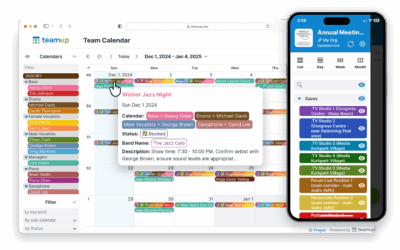
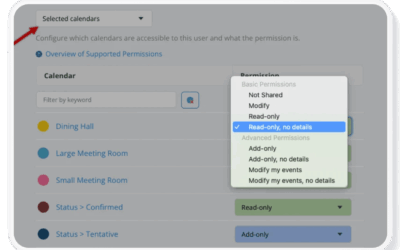
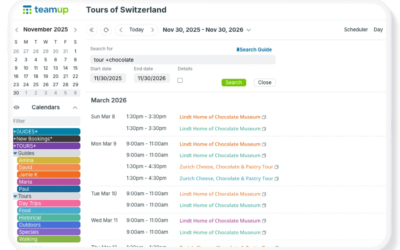
For calendar administrators, the Settings menu is the best way to configure a Teamup calendar. In Settings, admins can set the customizations for the default calendar view. The Settings that admins choose apply to all users of the Teamup calendar; they’re global default settings. What if the global settings are not quite right for all users? What if you want to display the calendar on a specific date or month?
You can use link parameters to make changes to the default calendar view and customize how an embedded calendar looks.
About link parameters
With calendar link parameters, all users can selectively overwrite some global settings, only for their own view in their current browser session. Link parameters can also be used to customize how an embedded calendar looks. This can be done with the Embed Wizard, or by manually adding link parameters to a secure link.
The link parameters can control various aspects of the calendar, such as the default date that loads when the calendar is opened, the default calendar view, the language and more.
Here are some of the supported parameter types:
- date parameter: Configures the date that is initially set when the calendar is loaded.
- view parameter: Configures the view that is initially shown when the calendar is loaded.
- lang parameter: Configures the user interface language of the calendar.
- title parameter: Configures the title used for the calendar.
- tz parameter: Forces the timezone of the calendar to a specific value.
Here’s the full list of supported parameters.
How to use link parameters
To use a calendar link parameter, simply add it to the end of the calendar URL in the browser bar. First, add a question mark (?) to the end of the calendar link; then copy and paste in the link parameter. To add more than one link parameter, put an ampersand (&) between the link parameters.
- Appending ?view=y to your calendar URL would load it in Year view. The number of months shown is taken from the calendar settings, or you can set it directly in the parameter, e.g. view=y6m to show 6 months only.
- When embedding a calendar into a web page, hiding the entire calendar header with showHeader=0 is often useful to declutter or avoid showing the logo twice when the web page already has the logo.
Related resources:
- Create a Secure Calendar Link for Embedding
- Use the Embed Wizard
- Embedded Calendars to Share Public and Community Events
- Calendar Link Parameters
- Customize an Embedded Calendar with Link Parameters