It’s easy to get in a rut of doing things the same way, over and over, even when there are better methods available. Your Teamup Calendar has features and customization options that can make your work much more efficient… but only if you take advantage of them! Here are five ways you can get more out of your calendar, starting now.
Keep notes you can always find
Use the built-in event comments feature to capture your own notes, images, reminders, and more. Go to Settings > Event Fields > Comments to set Comments Enabled by default on all newly-created events. Choose who can view comments by default, too; you can always change this setting on individual events.
▶️ Configure and Manage Event Comments
By keeping your notes in the event comments, you automatically create a chronological record of your notes, attached to the relevant event. You can easily find your notes again (go to the date or search via keyword for the event), and see the information, with the date and time it was captured, on the relevant event in your calendar.
You can also use event comments as an internal log for your business or organization. They work on mobile devices in the Teamup mobile apps for iOS or Android, so workers on the go can easily save information. Event comments are automatically date and time stamped.
- Use event comments as a delivery log: have the drivers upload a photo of the delivered item in the event comments. The time stamp provides proof of when the delivery occurred, and the photo provides proof of its condition when delivered.
- Use event comments as a service log; technicians can add photos and notes of the equipment, location, and other details as a way of keeping clear, time-stamped notes that provide a clear record of when and how service was provided.
Customize your recurring events
Recurring events in Teamup offer many ways to customize the repetition cycle for the event series. You’re not limited to daily, weekly, monthly. You can customize recurring events to a granular level, choosing the precise settings that fit your schedule and priorities.
Here are a few examples of how you can set up a repeating event:
- every 3 days, for 10 occurrences.
- every 2nd Tuesday of the month, until a specified date.
- every 2 weeks on a Tuesday, continuing forever.
- every other month on the 4th Friday.
- Monday through Friday, every other week.
- Sunday, Tuesday, and Thursday of every third week.
- Quarterly (every 3rd month) on the 10th day of the month.
- every year on the 2nd Tuesday in March.
- every three years on the 1st day of June.
With these options, you can set up a recurrence rule for any event or task you need to repeat. This saves you the trouble of adding it to your calendar at a later date or moving the task from a to-do list to your calendar. The more you can input and automate on your calendar, the less you have to remember later.
Organize everything
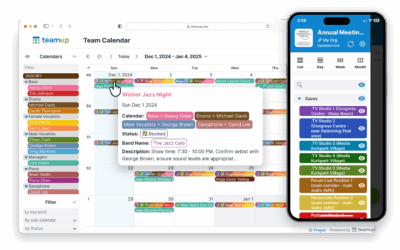
Use folders to sort and arrange your sub-calendars, rather than skimming through a long list of sub-calendars. You can use nested folders, too.
By default, folders and sub-calendars are ordered alphanumerically. You can control the ordering, however, by smart use of symbols and numbers in the titles.
For example, you could use numbers in front of folder titles to force the folders to sort in your preferred order. You can do the same with sub-calendars. You can also use symbols as a way to set some folders or sub-calendars at the top of the list. Then it’s easy to expand or collapse folders, or toggle sub-calendars on or off, to see just the sub-calendars you need to see as you work.
You can also upload images, documents, and other files to any event, so all the details and information you need are kept right on the calendar. No need to search for a missing registration or permission form or checklist. Save the docs right to the relevant event, and you’ll be able to access what you need quickly and easily.