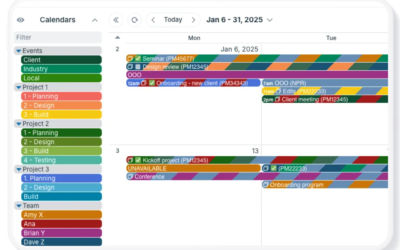
Managing multiple calendars can quickly become complicated. A meeting that fits perfectly on a work calendar may conflict with a client appointment, a project schedule, a shared team calendar, or a family commitment maintained elsewhere. Switching back and forth between calendars to check availability wastes time and increases the risk of scheduling conflicts.
A consolidated schedule view makes it much easier to stay organized and avoid double bookings. Teamup provides that overview by supporting iCal calendar feeds, allowing events from multiple calendars to be displayed together in a single calendar. With one place to review commitments across work, personal, and shared schedules, planning becomes faster and more reliable.
Pull information from many calendar feeds
Getting all the information you need in one place is key to doing efficient work. In many organizations it is often a challenge to get an overview of all calendars and schedules that live on many platforms and systems, including Outlook, Google calendar, Apple iCal, Excel schedules, calendars or scheduling components of project management tools, and so on.
As long as they are accessible in the iCalendar (or .ics) format, you can use Teamup to consolidate the feeds from multiple calendars into a single view, without compromising security and access control.
Here’s how to do it.
Using iCalendar feeds
Many online calendars support the iCalendar (iCal) standard, allowing their events to be subscribed to from another calendar application. Rather than duplicating events manually, an iCal subscription automatically displays events from the original calendar and keeps them synchronized whenever changes are made.
Using Teamup’s inbound iCalendar feed functionality, you can subscribe to various calendars / iCalendar feeds whithout changing what needs to be done on those platforms. This includes the most popular calendar applications:
- Google Calendar
- Apple Calendar
- Outlook
- Other Teamup calendars you manage or have access to.
Adding an inbound iCalendar feed
To add an inbound iCalendar feed, get the feed URL of the calendar you want to subscribe to. A calendar owner or administrator can provide this to you. Or see this help article on how to find feed URLS in some calendar products. You can also add inbound feeds from other Teamup calendars.
When you add an iCalendar feed, it will show up as a sub-calendar and will have active one-way synchronization. Teamup periodically fetches and updates the information from the inbound feed, automatically. It is a read-only feed, meaning you aren’t able to change events and send changes back to the feed source.
You can set a customized calendar name and color. Then enter the feed URL and choose a refresh interval. Once you’ve saved an inbound feed, it will appear in your list of calendars. Once you have all your inbound feeds, you can view everything in one place.
Try for yourself!
- Open a Teamup live demo calendar.
- Go to Settings > Calendars. Click New and select Add iCalendar feed.
- Copy a holiday calendar feed URL here and paste it to the feed URL field opened in the step above.
- Click Save.
Since each inbound feed is set up to work as a sub-calendar, you can toggle them on and off from view. It can be a little overwhelming to see everything in one place. With Teamup, you can hide what doesn’t matter and focus on what does. =Plus you can switch to different calendar views and use built-in filters to see what matters.
You can also organize your inbound feeds using folders. Use > in the name of the calendar feed to set up an organizational hierarchy. Folder organization allows you to quickly toggle an entire set of inbound calendar feeds, rather than handle them individually. It’s also helpful if you deal with multiple feeds and want to keep them visually grouped together in separate categories. You can organize as deeply as you want, using nested folders, to keep things trim and organized.
And if needed, you can share your calendar view of multiple feeds with others. With that feature, you can create an overview of multiple department schedules, individual calendars, event categories, or more, and share that information with others who need it, securely and easily.
Using Teamup as a central calendar for multiple schedules and calendar feeds provides a single place to view commitments from all your calendars. After subscribing to your external calendars with iCal feeds, you can view them alongside your owb Teamup calendars, on any browser or using the Teamup mobile app. Wherever you are, you’ll have a complete overview of your schedule.