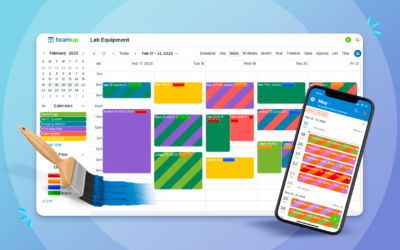
The standard Week view in Teamup includes a time grid so you can see your calendar events in the correct time slot. All-day events, if any, appear in the box above the time grid.
If you need a Week view without the time grid, it’s easy to get one. You can use Multi-week view and set it to show 1 week.
Using the link parameter
To take a quick look at your week schedule without time grid, append ?view=mw1 to your calendar URL in the browser’s address bar.
This method comes handy for any users who normally work with the calendar in another view but need a simplified view to see the relative number of events on each day, to print a weekly schedule, or print blank calendars.
Making it the default view
If you are the calendar administrator, you can enable Multi-week view and configure it to show 1 week for all users.
You can also make this view as the default view for all your users. To do this, go to Settings > Calendar Views. Scroll to the Multi-week section. From the drop-down menu, choose 1 for the number of weeks to show.