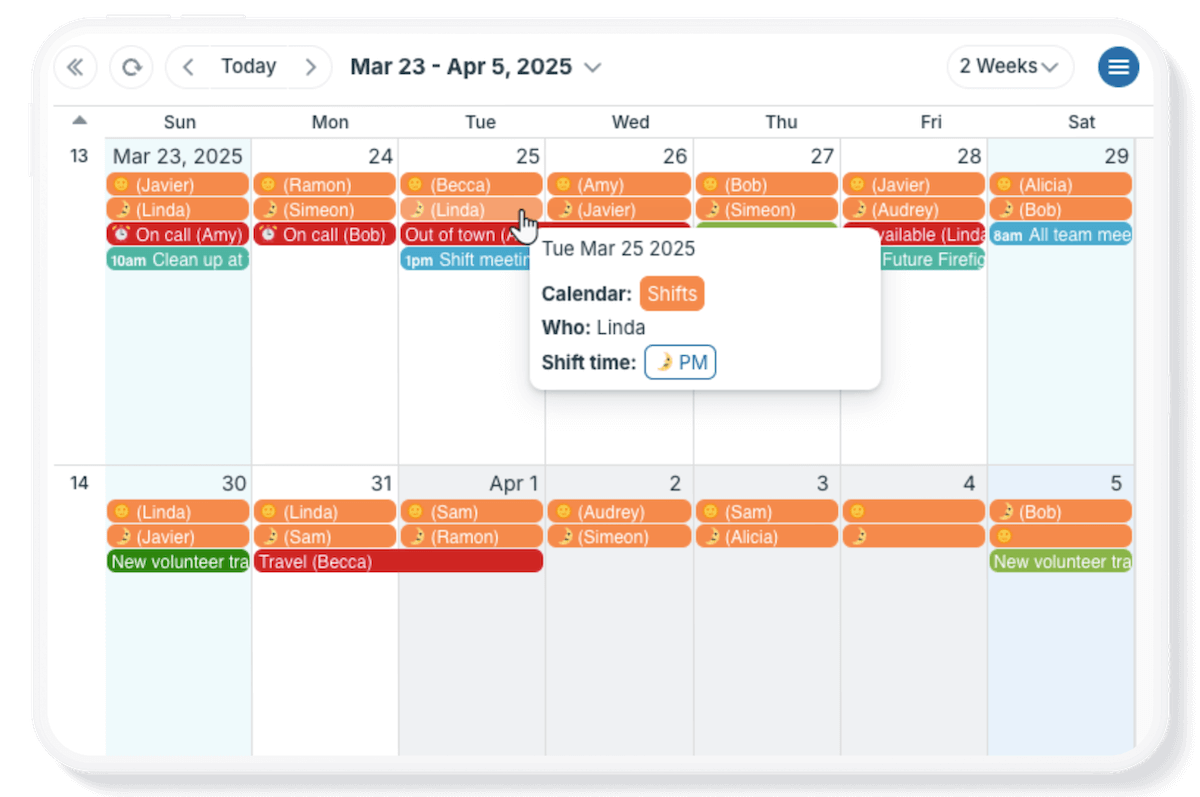
Many dedicated people volunteer their time and skills to provide essential services in their communities. In some cases, these volunteer groups work side-by-side with local emergency services and organizations. In other situations, like rural areas, the volunteer groups might be the only source of essential services.
Scheduling for volunteer services
The volunteers who work in these groups are trained and dedicated; they know what they’re doing and they take their commitment seriously. They need scheduling tools to coordinate events, share availability, and ensure all shifts are covered. However, they’re not paid, and they don’t have funding for expensive software. Any funds they do raise are typically used for the most essential needs, like equipment, tools, and safety gear.
Teamup can be used as a free service, providing all the functionality needed for these community service groups to stay coordinated.
Create a free volunteer calendar
Here’s an example calendar of a volunteer firefighter/EMT group:
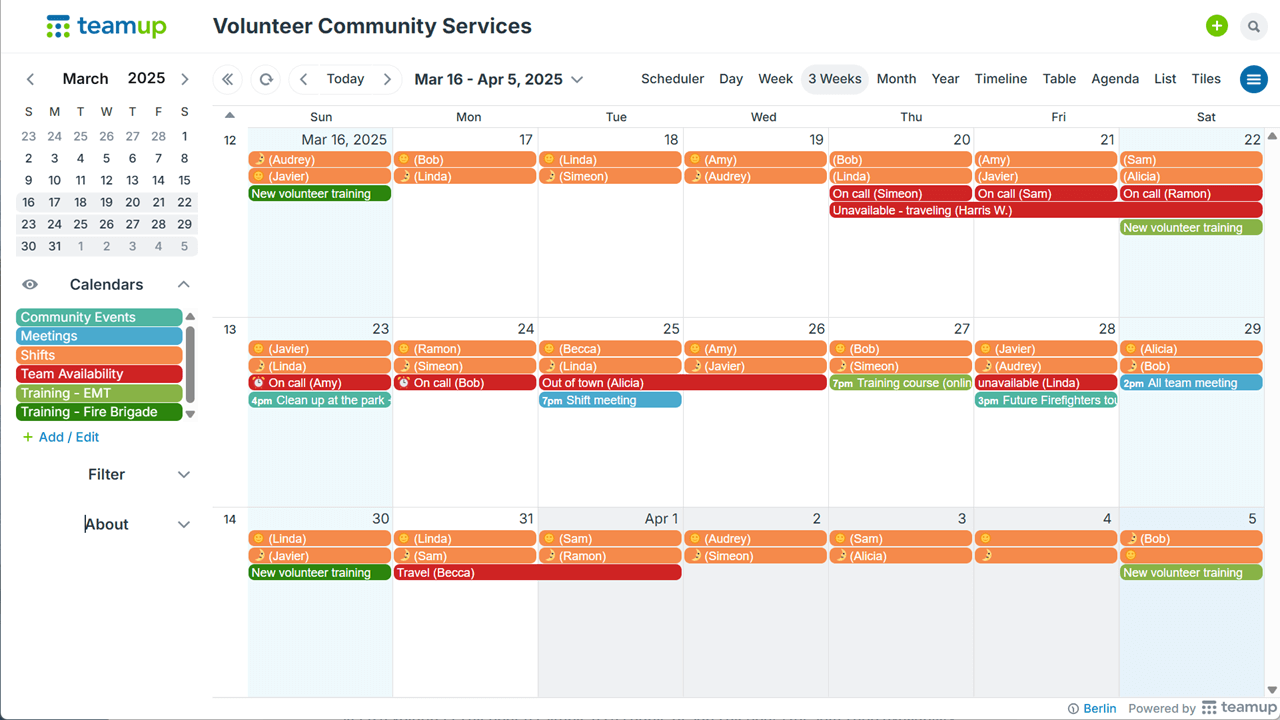
Sub-calendars are set up for training, meetings, events, shifts, and availability.
Sub-calendars for shifts and availability
Shift coverage is the core of most community services. Volunteers have jobs, families, and other responsibilities; their availability for covering shifts may vary from week to week. But providing coverage for these services is important for community safety. When there’s a calendar showing which shifts are covered and which volunteers are available, scheduling gets a lot easier. Instead of back-and-forth texting, emails, or phone calls, everyone can check the calendar to see who’s scheduled, who’s away, and to update their own availability.
Our example calendar above includes sub-calendars for training and meetings. You can keep a volunteer calendar as simple as a couple of sub-calendars for shifts and availability, or expand to include other event types. See more about setting up a calendar structure.
Event info from any calendar view
In most calendars, you have to open an individual event to see details beyond the date, time, and title. With Teamup, you can customize the information that gets shown in the event title. Then, from any calendar view, you scan the events and see pertinent information with a quick glance. For example, the calendar shown above is configured to display the volunteer names (in the Who field) and the shift info emoji (a custom choice field) in the event titles. If you want to know who’s on duty for tomorrow’s night shift, you can get that information quickly without having to open the event itself. See more about making event information visible.
Secure access without accounts
Provide customized user access for volunteers who are most involved with scheduling. For example, individuals who coordinate training and onboard volunteers are a good choice. One person should be the designated calendar administrator who can access the calendar settings.
To allow a large group of volunteers to view the schedule, use a secure link to embed it on the volunteer group website. You can also provide that secure link directly to volunteers, so they use it in the Teamup app. This allows you to share a read-only version of the calendar with a large group, without having to pay for a large number of users.
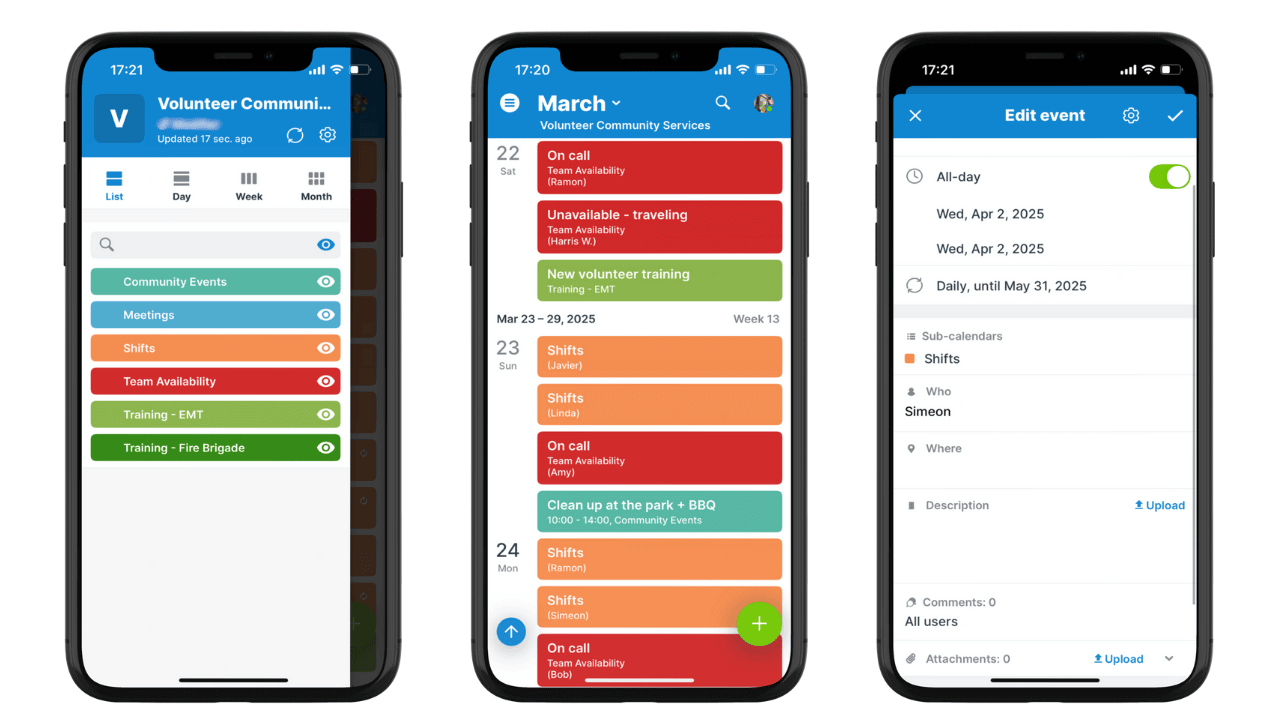
The Teamup app is completely free and allows your volunteer team to view the schedule anywhere.
Adjustable defaults for the best view
The calendar administrator can choose several default settings to configure Teamup in the best way for the group. Choose the default calendar view that fits the scheduling time frame used most often. For example, Multi-week view is a good default view if planning is done weeks in advance; set the default number of weeks as needed. If planning is done months in advance, set Multi-week to a higher number of weeks or use the Year view. Week or Multi-day view works well if a more limited date range is useful. See more about choosing the best default calendar view.
Powerful features for volunteers
Teamup can be used as a free service by anyone, as long as needed. It’s not a trial subscription; it’s a free tier that includes all you need for many use cases:
- Push notifications: Enable volunteers to stay updated if a change is made to the calendar.
- iCalendar feeds: Anyone can set up an iCalendar feed from Teamup to their own calendar to stay synced.
- Secure embedding: With a read-only link, you can share a secure view of the volunteer schedule right on the website.
- File uploads: Upload images from community events and share training materials right on the calendar.
With Teamup, it’s easy (and free!) for everyone to stay coordinated, efficient, and ready to help. Try a live demo or get started now with your own free Teamup calendar.