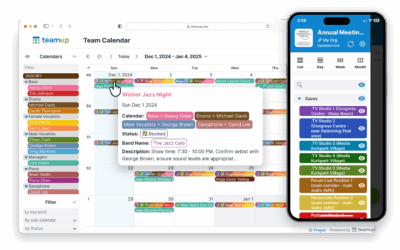
Are you collaborating remotely with clients, contractors, a remote team, or others in your network? Teamup Calendar allows you to create and manage unique, customized calendar access for every individual or group. Grant limited access to clients and contractors. Set up role based access control for your team members. Even securely share some or all of your calendar with large groups or the public. With Teamup, when you share a calendar, you choose which parts of your calendar are visible to others, and how they can interact (or not).
Securely share a calendar
Teamup calendars can be shared in two different ways: via account-based user access or via customized, shareable calendar links.
- Account-based user access is perfect for setting up role-based access control. Add your team members to your calendar, then configure the calendar access and permissions for each team member based on their role in the organization. Update permissions and manage users easily as needed.
- Customized, shareable calendar links are great for providing limited access when you share a calendar with others. You can customize a shareable calendar link for a client, allowing the calendar view and permissions needed for that individual. When the client no longer needs calendar access, delete the link.
Role-based access control with Teamup
Role-based access control (RBAC) is a method of achieving both security and efficiency at the same time. By assigning permissions to individual users based on their role within an organization, each individual is free to access the information needed to do their job. It can take a bit of initial work to get role-based access control in place for your team or organization. However, once set up, everyone can function more freely within their role without jeopardizing security or confidentiality.
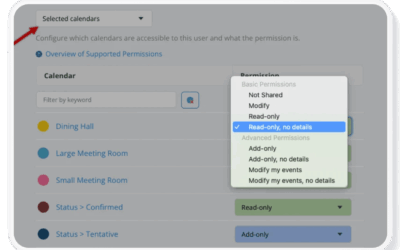
Account-based user access makes it easy to implement role-based access control with your Teamup calendar. With nine levels of access permission, you can give each person exactly the calendar access they need.
You will add each team member as a user of each calendar. Once you add them as a user, they’ll receive an email invitation to join your calendar. To access your calendar, they simply follow the link in the email to register a free Teamup user account and open the calendar.
More: The Benefits of a Teamup User Account
Configuring permissions for each team member
When you add a team member as a calendar user, you will control which sub-calendars they can see, and what permissions they have. You can set these permissions depending on each person’s role in the organization.
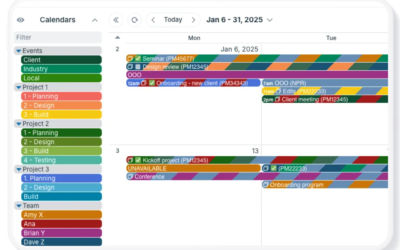
For example, your master calendar may have individual sub-calendars for both Department A and Department B. The sub-calendars can be organized in separate folders.
Here’s how role-based access control might work:
- For the head of Department A: include all sub-calendars in the Department A folder. Give them modify permission for all the included sub-calendars.
- For an employee of Department A: include all sub-calendars in the Department A folder. Give the employee Modify my events permission for their own sub-calendar, and read-only permission for the other included sub-calendars. Modify my events permission means that the employee can only add, delete, or modify events that they have added to the calendar.
- For a multi-department supervisor: include all sub-calendars in both Department A and Department B folders. Give them modify permission for all the included sub-calendars.
The result will be three unique calendar views, with three different levels of permission, for the three individuals.
More: How to Set Up Role-Based Calendar Access for Construction Companies