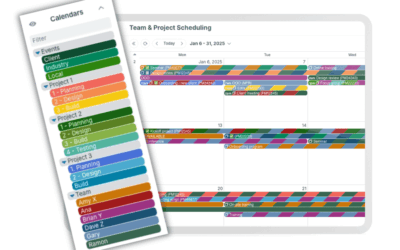
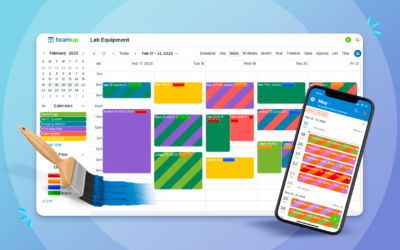
When you create a Teamup Calendar, what you create is a master calendar. Sub-calendars are individual calendars that are contained within your master calendar. You can create multiple sub-calendars, and organize them in folders. In many cases, one master calendar is sufficient for managing multiple teams, properties, projects, or events. However, in some cases, using multiple master calendars works better.
More: Understanding Master Calendars vs Sub-Calendars
Sometimes a single master calendar, even with many sub-calendars, is not the right fit. Multiple master calendars work better, for example, when an organization has separate locations, and each location needs a separate, independently managed calendar. If you’re not sure whether your use case will benefit from more sub-calendars or an additional master calendar, see more: When to Use One Big Master Calendar.
If you need to coordinate, oversee, or manage multiple master calendars, you can get a big-picture view from all the master calendars without switching between browser tabs.
Set up an Overview Calendar
- Create a new Teamup calendar to be your overview calendar.
- For each master calendar you want to add, follow these steps:
- Get the iCalendar feed URL for the master calendar. Click the blue menu button in the top right corner of your calendar. Select Preferences > iCalendar Feeds. A list of sub-calendars will open, with an iCalendar feed URL for each one. At the bottom of the list is an iCalendar feed URL for all sub-calendars. Copy the iCalendar feed URL you wish you use.
- Set up a new iCalendar feed in your Overview Calendar. Go to Settings > Calendars. Click the blue New button in the top right and select Add iCalendar feed. Name the feed, choose the color, and paste in the iCalendar feed URL.
Once you set up an iCalendar feed for each master calendar, you’ll have a central Overview Calendar showing the feeds from each separate master calendar.
Note that iCalendar feeds are read-only; you’ll see a lock icon indicating the read-only status. To make changes to the events, you’ll need to open the event in the master calendar.
More: Create a Unified Overview of Multiple Calendars
Who can benefit from a unified calendar view?
Medium to large enterprises
- Multi-national corporations: When regional marketing units run their own campaigns and programs, how can the team at corporate HQ keep an overview of what’s happening in each region?
- Media and professional service companies: When many tasks and milestones need to be tracked for each client, and multiple teams are involved, how can managers obtain the big picture and streamline information sharing, without resorting to numerous Excel sheets and emails?
- Real estate and environmental service organizations: When each property is managed independently or crews are scheduled to perform specific services at multiple properties, how can property managers track resource availability and ensure that services are delivered?
Small business and individuals
- Small business management and personal productivity: Do you find yourself juggling multiple calendars and schedules whether in a personal, social or professional context? How can you consolidate these sources into one view while using familiar tools, such as iCal or Outlook?
- Managing client and editorial calendars: Freelance service providers, consultants, and coaches can benefit from a way to bring all their client, editorial, or coaching calendars into one view.